OPERATION
17
Operating the PowerView
®
App and Gen 3 Remote
Syncing and Programming Your Remote
■
Activate the remote by pulling both plastic tabs from the back battery compartment.
■
Download the PowerView
®
App for your smartphone or tablet at hdpvapp.com.
■
Open the PowerView App and follow the steps to set up your new shades and remote.
■
Use the PowerView App to program and manage your PowerView Gen 3 remote(s)
as accessories.
■
For more details, refer to the digital PowerView Gen 3 Automation Remote Control Guide.
Basic Operation
■
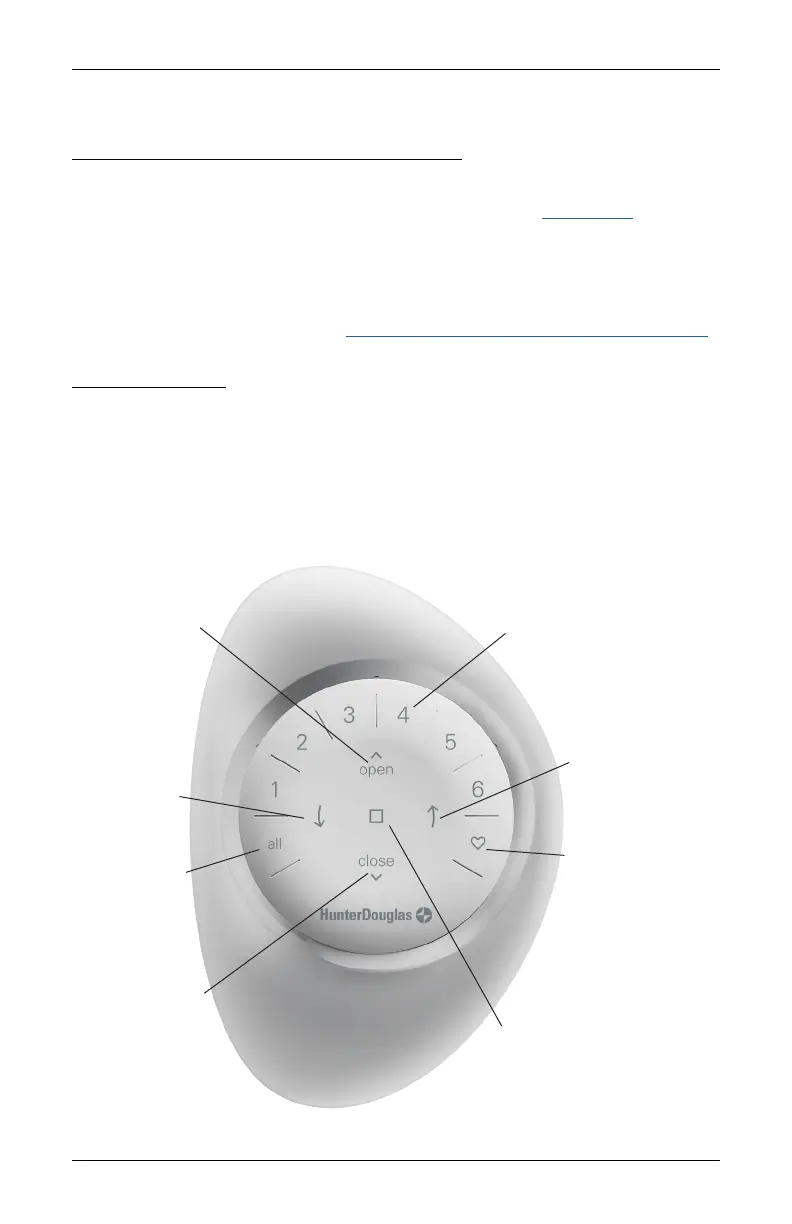
Wake up the remote by picking it up or pressing ■ STOP.
■
Press group number(s) 1, 2, 3, 4, 5, and/or 6 to select one or more groups. Selected group
numbers light up white on the remote.
■
Press selected group number(s) 1, 2, 3, 4, 5 and/or 6 a second time to deselect one or
more groups. Deselected group numbers are not lit.
- Quickly press twice to
send shade(s) to your
second Favorite
position**
OPEN
LEFT ARROW
RIGHT ARROW
STOP
- Stops motion
FAVORITE
- Press once to send
shade(s) to your first
Favorite position*
*The default first Favorite position is the front shade(s) at 50% open.
**Both Favorite positions can be updated in the PowerView
®
App > Shade Settings.
GROUP NUMBERS
- Each number represents
a different group
CLOSE
- Raise shade(s)
- Lower shade(s)
- No function
- No function
ALL
- Press to select
all groups



 To Next Page