EasyManua.ls Logo

Hytera HP68X - User Manual

Hytera HP68X
48 pages
Print Icon
To Next Page IconTo Next Page
Loading...
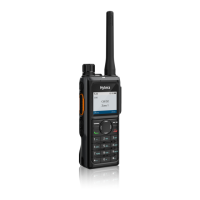
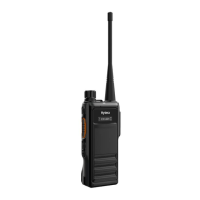
HP68X DIGITAL PORTABLE RADIO
User Manual

Table of Contents

Questions and Answers

  • T
    Troy MasonSep 2, 2025
    Why won't my BT device pair with my Hytera HP68X Portable Radio?
    • S
      stephanie19Sep 2, 2025
      If your BT device won't pair with your Hytera Portable Radio, the battery power of the BT device may be low; recharge the BT device. Also, the BT device may be too far away from the radio; move the BT device closer to the radio.
  • J
    Jenna WoodsAug 31, 2025
    What to do if GPS is not working on Hytera HP68X Portable Radio?
    • A
      amanda42Aug 31, 2025
      If the GPS on your Hytera Portable Radio cannot locate your position, the radio may be in an unfavorable location where no GPS signal is received. Move to an open and flat area, and try again.
  • M
    Mr. James Whitehead DDSAug 29, 2025
    Why is the voice unclear on my Hytera HP68X?
    • B
      Beverly AllenAug 30, 2025
      If the voice is unclear on your Hytera Portable Radio, the signal may be weak. Ensure that all call participants are within the communication range.
  • C
    Cynthia AndersonAug 27, 2025
    What causes unknown voices on Hytera Portable Radio?
    • E
      erussellAug 28, 2025
      Unknown voices or sounds on your Hytera Portable Radio channel can occur if you're interrupted by radios using the same frequency; try changing the frequency or adjusting the squelch level. Alternatively, the radio might be set with no signaling; set signaling for all member radios to avoid interference at the same frequency.
  • B
    Brandy KentAug 27, 2025
    How to restore communications with group members on Hytera HP68X?
    • J
      jameshaydenAug 27, 2025
      If you're unable to communicate with group members on your Hytera Portable Radio, check the following: Ensure the frequency or signaling type is consistent with that of other members by setting your TX/RX frequency and signaling to the same as theirs. Verify that the channel type (digital/analog) is set consistently across all radios. You might also be too far away from the group; move closer to other members.
  • R
    Richard LeeAug 25, 2025
    Why is there so much noise and hiss on my Hytera HP68X Portable Radio?
    • J
      Jason JonesAug 25, 2025
      Excessive noise and hiss on your Hytera Portable Radio can stem from several factors. The signal might be weak; ensure all call participants are within communication range. The radio's position could be unfavorable, with the signal blocked by tall buildings or underground locations; move to an open, flat area and restart the radio. External disturbances, such as electromagnetic interference, may also be a factor; move away from equipment that could be causing interference.
  • R
    Rachel ClarkAug 22, 2025
    What to do if the voice is weak on my Hytera HP68X?
    • K
      Kathleen SotoAug 22, 2025
      If the voice is weak, discontinuous, or totally inactive during receiving on your Hytera Portable Radio, consider these potential solutions: * The battery voltage may be low: Recharge or replace the battery. * The volume may be low: Increase the volume. * The antenna may be loosened or improperly installed: Turn the radio off, then remove and reattach the antenna. * The speaker may be blocked or damaged: Clean the surface of the speaker.

Summary

Preface

Copyright Information

Disclaimer

FCC Statement

Compliance with RF Exposure Standards

RF Exposure Compliance and Control Guidelines and Operating Instructions

Guidelines and procedures for controlling RF exposure and ensuring compliance with occupational/controlled environmental limits.

ISEDC Statement

EU Regulatory Conformance

Documentation Conventions

Icon Conventions

Details the icons used in the manual and their meanings, such as NOTE, CAUTION, and DANGER.

Notation Conventions

Explains text formatting conventions like Boldface, Italics, and Courier New for menus, commands, and examples.

1. Packing List

2. Product Overview

2.1 Product Layout

Diagrams and descriptions of the radio's physical parts, numbered for identification.

2.2 Programmable Keys

Information on how to program keys like SK1, SK2, P1, P2, Up, and Down for shortcuts.

3. Before Use

3.1 Charging the Battery

Instructions on how to charge the battery using the approved charger and LED indicator status.

3.2 Attaching the Belt Clip

Step-by-step guide on how to attach the belt clip to the radio's battery.

3.3 Attaching the Antenna

Guidance on attaching the antenna and a caution against swinging the radio by the antenna.

3.4 Attaching the Battery

Procedure for attaching the battery, with a caution about using approved batteries.

3.5 Attaching the Audio Accessory

Instructions for attaching audio accessories, emphasizing care for waterproof and dustproof performance, and securing the connector.

4. Basic Operations

4.1 Turning the Radio On or Off

Procedure for powering the radio on or off by pressing and holding the power button.

4.2 Adjusting the Volume

How to increase or decrease volume using the Smart knob.

4.3 Locking or Unlocking the Keypad

Methods for locking and unlocking the keypad to prevent unintended operations, including Auto Lock and Manual Lock.

4.4 Using the Keypad

Guide on using the keypad for entering text, numbers, and special characters.

4.5 Selecting a Zone

Steps to select a zone, either via the menu or preprogrammed keys.

4.6 Selecting a Channel

Instructions on how to select a channel using the Smart knob, menu, or preprogrammed keys.

5. Status Indications

5.1 LCD Icons

Explanation of various icons displayed on the LCD screen and their corresponding radio status.

5.2 LED Indications

Description of LED indicator colors and patterns and their meanings for radio status.

6. Call Services

6.1 Group Call

Details on initiating, receiving, and ending group calls through various methods.

6.1.1 Initiating a Group Call

Methods to initiate a group call: through preset contact, contact list, call logs, or manual dialing.

6.1.2 Receiving a Group Call

Information on how to answer a group call.

6.1.3 Ending a Group Call

How a group call ends.

6.2 Private Call

Explanation of initiating, receiving, and ending private calls.

6.2.1 Initiating a Private Call

Methods to initiate a private call: through preset contact, contact list, or manual dialing.

6.2.2 Receiving a Private Call

How to answer a private call.

6.2.3 Ending a Private Call

How a private call ends.

6.3 All Call

Details on initiating, receiving, and ending all calls.

6.3.1 Initiating an All Call

Methods to initiate an all call: through preset contact, contact list, or one touch call/menu.

6.3.2 Receiving an All Call

How to answer an all call.

6.3.3 Ending an All Call

How an all call ends.

6.4 Phone Call

Information on making and receiving phone calls between radio and phone.

6.4.1 Initiating a Phone Call

Methods to initiate a phone call: through contact list or manual dialing.

6.4.2 Receiving a Phone Call

How to answer an incoming phone call.

6.4.3 Ending a Phone Call

Conditions under which a phone call ends.

6.5 Call on Analog Channel

Initiating and receiving calls on analog channels with or without signaling.

6.5.1 Call Without Signaling

How to initiate a call to all users on an analog channel without signaling.

6.5.2 Call with Signaling

Steps to initiate a call to a specific contact on an analog channel with signaling.

7. Message Services

7.1 Sending a Message

Methods for sending text or quick text messages via message, contact, or call logs.

7.2 Replying to a Message

Procedure for replying to an existing message.

7.3 Editing a Message

Options for editing messages, including forward, resend, delete, and delete all.

8. Supplementary Features

8.1 Settings

Overview of setting radio parameters like Basic Settings, Call Settings, and Security.

8.1.1 Basic Settings

Configuration options for Language, Display, Night Mode, Brightness, Keypad Lock, and Date & Time.

Keypad Mode

Settings for enabling or disabling manual dialing and triggering One Touch Call/Menu.

MIC & SPK

Options for selecting the microphone and speaker for transmitting and receiving voice.

8.1.2 Call Settings

Settings for Power Level, VOX, Talker Alias, Talk Around, Squelch Level, and Compandor.

8.1.3 Security

Features for Power-on Password and Encrypt, including enabling and setting encryption keys.

Man Down

Feature that automatically enters emergency mode based on radio inclination or motionlessness.

Lone Worker

Feature that automatically sends an emergency alarm based on user inactivity or lack of voice transmission.

8.1.4 Checking the Product Information

How to view device information, radio ID, serial number, and model name.

8.2 Contacts

Managing contacts, including creating new contacts and editing favorite contacts.

8.2.1 Creating a Contact

Steps to create a new contact via the contact menu or from call logs.

8.2.2 Editing a Favorite Contact

How to view, edit, or delete favorite contacts.

8.3 Profiles

Setting audio, alert tone, and vibration profiles like General, Meeting, and Outdoor.

8.3.1 Switching the Profile

Methods to switch between different radio profiles.

8.3.2 Setting the Alert Tone

How to enable, disable, and adjust the volume of alert tones.

8.3.3 Audio Settings

Configuration for Mic AGC and Noise Suppression to improve voice quality.

8.4 Scan

Enabling and setting up the scan feature to monitor channels.

8.4.1 Enabling the Scan Feature

Steps to enable the scan feature via menu or a preprogrammed key.

8.4.2 Setting the Scan List

How to add, set default, or view channels in the scan list.

8.5 Positioning

Information about the positioning feature for collecting satellite-based location data.

8.5.1 Enabling the Positioning Feature

Steps to enable GPS, COMPASS, or GLONASS positioning systems.

8.5.2 Selecting the Positioning System

How to select the desired positioning system (GPS, COMPASS/GLONASS).

8.5.3 Viewing the Position

How to view local position information or a nearby contact's location.

8.5.4 Sending a Position Message

Steps to send a position message to a contact.

8.5.5 Call Location

Features for displaying location during a call (Voice w/Location, Display Call Location).

8.5.6 GPS Report

How to report location information to the control center using GPS Report or Quick GPS.

8.5.7 Quick GPS

Details on the Quick GPS feature for efficient periodic or single upload of GPS data.

8.6 BT

Features and procedures for Bluetooth connectivity and audio management.

8.6.1 Connecting a BT Device

Steps to turn on, search, and connect a Bluetooth device to the radio.

8.6.2 BT Audio Switch

How to switch audio output between BT earpiece and the radio.

8.6.3 Setting the BT

Options for changing BT name and setting visibility for device detection.

8.7 One Touch Call;Menu

Using the One Touch Call/Menu feature to quickly initiate services or functions.

8.8 Quick Dial

Enabling or disabling features or switching menus via manual dialing.

8.9 Roam

Enabling the Roam feature and setting up the Roam List for seamless communication.

8.10 Priority Interrupt

Using Priority Interrupt to interrupt ongoing activities for new calls or data services.

8.10.1 Manual Priority Interrupt

How to interrupt ongoing activities using the Manual Priority Interrupt key.

8.10.2 Auto Priority Interrupt

Types of Auto Priority Interrupt and how to interrupt ongoing calls.

8.11 Emergency

Using the Emergency feature to seek help, including different emergency types and modes.

8.11.1 Initiating an Emergency Call

How to initiate an emergency call using the Emergency On key.

8.11.2 Receiving an Emergency Call

How to answer an emergency call.

8.11.3 Ending an Emergency Call

Ways to end an emergency call, by calling party or called party.

8.12 Emergency Erase Data

Feature to erase encrypted data in case of emergency to prevent unauthorized access.

8.13 Radio Disable;Enable

Sending commands to disable or enable the radio remotely.

9. Troubleshooting

10. Care and Cleaning

10.1 Product Care

Guidelines for maintaining the product's optimum performance and service life.

10.2 Product Cleaning

Instructions for cleaning the product safely and effectively.

11. Optional Accessories

12. Abbreviations

Hytera HP68X Specifications

General IconGeneral
Frequency RangeUHF: 400-527 MHz; VHF: 136-174 MHz
Channel Capacity1024
Operating Voltage7.4 V
Storage Temperature-40°C to +85°C
Vocoder TypeAMBE+2
Zone Capacity64
Channel Spacing12.5kHz/20kHz/25kHz
BatteryLi-ion, 2000 mAh
WeightApprox. 290g
Operating Temperature-30℃ ~ +60℃
Digital ProtocolDMR
Output PowerVHF: 5 W, UHF: 4 W

Related product manuals