22
Using the Projector
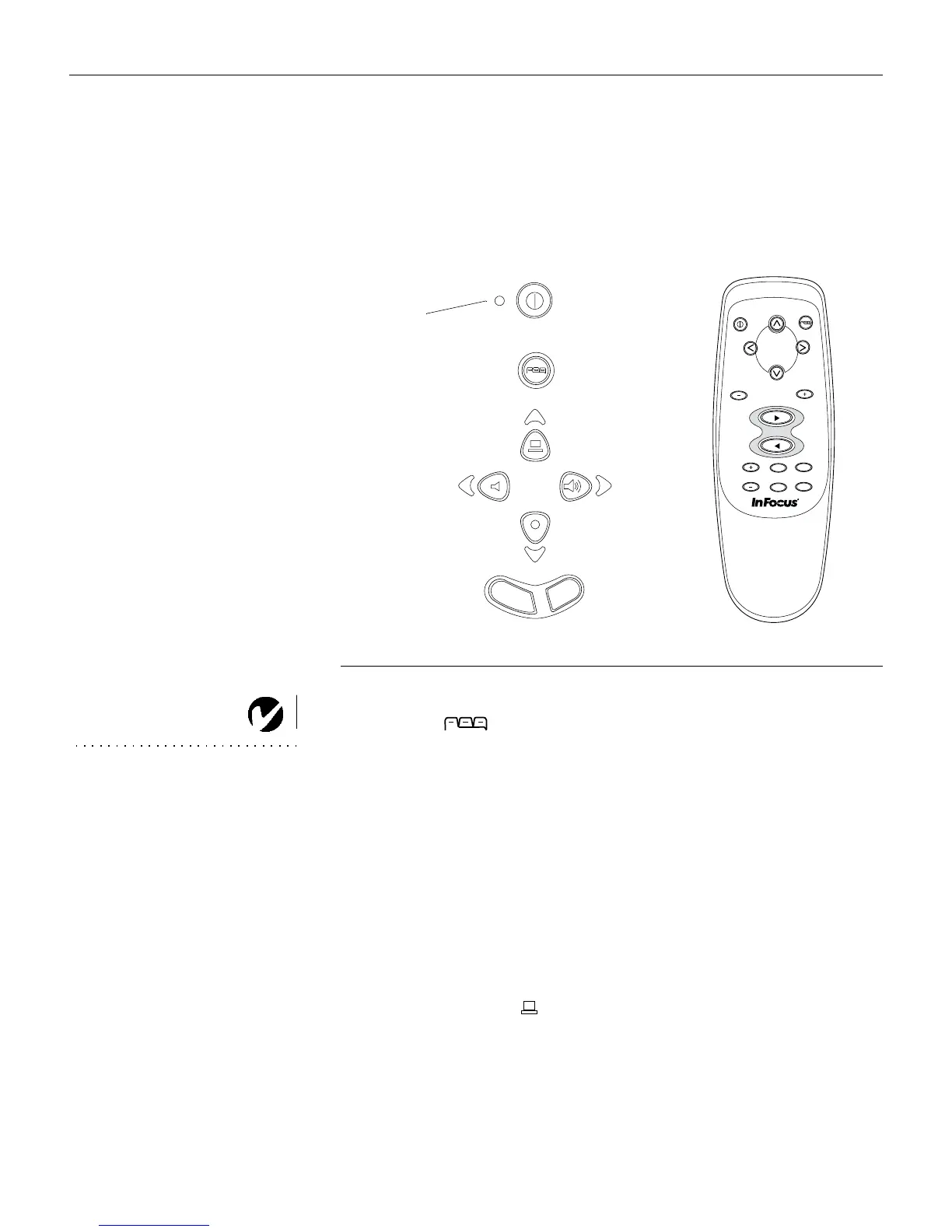
Using the Keypad and Remote Buttons
While the menus are displayed, the volume, source, and standby
buttons on the keypad act as menu navigation buttons. See
“Using the On-Screen Menus” on page 25 for details.
F
IGURE
17
Keypad and remote buttons
Menu/select
NOTE: If you have turned Auto
Source off (page 33), you may
need to press the source button
more than once to display an
active source. The sources switch
in this order: PC 1-Analog,
PC 1-Digital, Video 1 S-Video, and
Video 2-Composite.
Press the
menu/select
button to open the on-screen menus. Press
menu/select
again (while Exit is highlighted) to close the menus.
(The menus automatically close after 30 seconds if no buttons are
pressed.) When you close the menus, the projector saves any
changes you made. For more information about the on-screen
menus, see page 25.
Mouse buttons (keypad only)
Use the mouse buttons to zoom in and out on the image. See
“Zoom mode” on page 24 for details.
Source (keypad only) or Data and Video (remote only)
When you have more than one source (computer and video) con-
nected to the projector, select between them by pressing the
source
button on the keypad or the
data
or
video
button on the
remote.
source
standby
volume +volume -
menu
power
LED
data
video
keystone
forward
zoom mode
menu/
select
backward
standby
power
zoom +
zoom -





 To Next Page