EasyManua.ls Logo

Insignia NS-HURSK18 - User Manual

Insignia NS-HURSK18
25 pages
Print Icon
To Next Page IconTo Next Page
Loading...
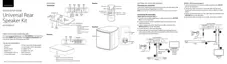
Before using your new product, please read these instructions to prevent any damage.
USER GUIDE
Universal Rear
Speaker Kit
NS-HURSK18
NS-HURSK18_17-0639_MAN_V2_ENG.fm Page 1 Tuesday, August 1, 2017 11:48 PM

Other manuals for Insignia NS-HURSK18

Questions and Answers

  • A
    Alexander OsborneAug 2, 2025
    What to do if my Insignia NS-HURSK18 Speakers have no sound?
    • R
      Ryan ThomasAug 2, 2025
      If your Insignia speakers produce no sound or very low-level sound, ensure you're connected to an audio OUT jack on your sound source, not an INPUT. Check that the speaker volume is at an adequate level and not muted by pressing the mute button on the remote. Verify the correct audio source is selected using the transmitter button or remote. Confirm the power is on, all connections are secure, and the volume on your sound source is turned up. If using an OPTICAL connection, set the source device’s audio to “PCM” format. Finally, check for damaged audio cables and try a different one.
  • L
    Laura VelasquezAug 7, 2025
    What to do if my Insignia Speakers are not working properly?
    • A
      Amy RodriguezAug 7, 2025
      If your Insignia speakers are not working properly, try unplugging the AC adapters from the wall outlet, waiting 30 seconds, and then plugging them back in. If you are using the OPTICAL connection, ensure the source device’s audio source is set to “PCM” format. Also, verify that the audio cable you are using is not damaged or broken; try using another one.
  • G
    Gregory RogersAug 11, 2025
    Why is the sound breaking up on my Insignia NS-HURSK18 Speakers?
    • J
      John JenkinsAug 11, 2025
      If the sound from your Insignia speakers is breaking up or buzzing, first ensure you are connected to the audio OUT jack on your sound source. Check that all connections are secure and that cables are not broken or damaged. If you're using an OPTICAL connection, ensure the source device’s audio source is set to “PCM” format. Try connecting to a different source device to identify if the issue is with the original source. Use a different connection method, such as Optical instead of AUX, to test the jacks. Also, make sure the audio cable you are using is not damaged; try using another one.
  • T
    Timothy OliverAug 17, 2025
    Why doesn't my TV remote control my Insignia NS-HURSK18?
    • M
      Michael OwenAug 17, 2025
      If your TV remote does not control your Insignia speakers, ensure that the universal remote control is programmed to your speakers. Note that universal remotes will only control your speakers’ volume. Use the controls on your speakers or the remote that came with it to change the speakers’ audio source or sound mode. Also, make sure that you aim your universal remote at the remote sensor on the front of your speakers and that you select the correct source on your universal remote.
  • K
    Kristen ValentineAug 22, 2025
    What to do if my Insignia NS-HURSK18 Speakers remote control does not work?
    • N
      Nicole ChapmanAug 22, 2025
      If the remote control for your Insignia speakers isn't working, first, remove any obstacles between the remote and the IR sensor on the speakers. If that doesn't work, the remote control battery may be exhausted, so replace it. Lastly, move closer to the speakers, keeping in mind the remote control is effective up to approximately 23 ft. (7 m).
  • C
    Claudia WilliamsAug 27, 2025
    How to mute TV speakers when using Insignia NS-HURSK18?
    • S
      Steve CurryAug 27, 2025
      To resolve hearing sound from both your TV and Insignia speakers, turn off or mute the internal speakers of your TV. Consult your TV’s manual for specific instructions on how to do this.

Summary

Introduction

Important safety instructions

Essential guidelines for safe product operation and handling.

Package contents

Features

Speakers

Details on the speaker units, including mounting and connection points.

Transmitter

Receiver

Remote control

Using the remote control

Programming a universal remote

Instructions for programming a universal remote to control the speaker kit.

Setting up your speakers

Step 1 - Choosing your connection

Guide to selecting the appropriate audio connection based on source device ports.

Step 2 - Connecting the transmitter

Digital Optical connection (best)

Detailed steps for connecting the transmitter using a digital optical cable.

AUX connection (good)

Instructions for connecting the transmitter via an AUX audio cable.

Step 3 - Connecting the speakers to the receiver

Step 4 - Connecting the AC adapter

Step 5 - Connecting the receiver to the transmitter

Pairing your devices

Procedure to wirelessly connect the transmitter and receiver for operation.

Disconnecting your devices

Steps to properly disconnect the paired transmitter and receiver.

Positioning the speakers

Using your speakers

Listening to your speakers

Instructions for operating the system, selecting sources, and adjusting volume.

Maintaining your speakers

Replacing the remote control battery

Guide on how to replace the battery in the remote control.

Troubleshooting

Specifications

Legal notices

FCC Part 15

Compliance information regarding FCC rules and regulations for the device.

Compliance Information

FCC Warning

Important warnings regarding FCC compliance and device operation.

Canada IC Statement

Compliance statement for devices operating under Industry Canada regulations.

Radiation Exposure Statement

Information on the device's compliance with radiation exposure limits.

Dolby License Notice

Acknowledgement of Dolby Laboratories' licenses and trademarks.

ONE-YEAR LIMITED WARRANTY

Insignia NS-HURSK18 Specifications

General IconGeneral
BrandInsignia
ModelNS-HURSK18
CategorySpeakers
LanguageEnglish

Related product manuals