133
Multi Zone—Continued
If you’ve connected your Zone 2/3 speakers to the AV
receiver, as explained in “Connecting Your Zone 2
Speakers Directly to the AV receiver” on page 130 or
“Connecting Your Zone 3 Speakers Directly to the AV
receiver” on page 132, you must set the “Powered
Zone2” or “Powered Zone3” setting to “Act” (Acti-
vated).
Notes:
• Powered Zone2/3 cannot be used if “Speaker Type
(Front)” is set to “Bi-Amp” (see page 50).
• “Powered Zone3” cannot be used if “Powered Zone2”
is set to “Not Act”.
• This procedure can also be performed on the AV
receiver by using its [Setup] button, arrow buttons, and
[Enter] button.
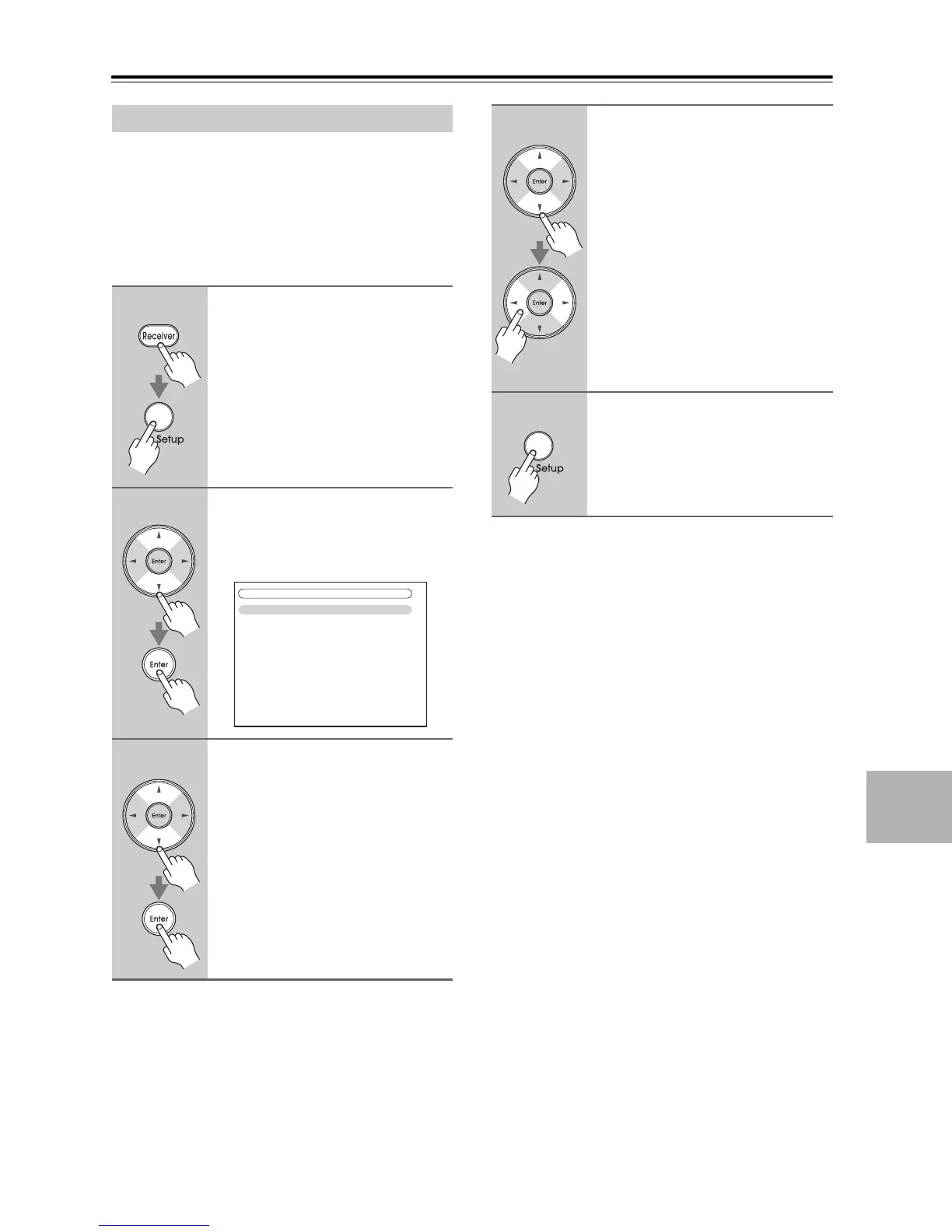
Setting the Powered Zone 2/3
1
Press the [Receiver] button
followed by the [Setup] button.
The main menu appears onscreen.
If the main menu doesn’t appear, make
sure the appropriate external input is
selected on your TV.
2
Use the Up and Down [q]/[w]
buttons to select “2. Speaker
Setup”, and then press [Enter].
The “Speaker Setup” menu appears.
3
Use the Up and Down [q]/[w]
buttons to select “1. Speaker
Settings”, and then press [Enter].
The “Speaker Settings” menu appears.
2. Speaker Setup
1. Speaker Settings
2. Speaker Configuration
3. Speaker Distance
4. Level Calibration
5. Equalizer Settings
6. THX Audio Setup
4
Use the Up and Down [q]/[w]
buttons to select “Powered
Zone2” or “Powered Zone3”, and
use the Left and Right [e]/[r]
buttons to select:
Not Act:
ZONE 2/3 L/R speaker terminals
not activated (Powered Zone 2/3
disabled).
Act:
ZONE 2/3 L/R speaker terminals
activated (Powered Zone 2/3
enabled).
5
Press the [Setup] button.
The setup menu closes.



 To Next Page