Chapter 2 — Configuring the CK31
CK31 Handheld Computer User’s Manual 49
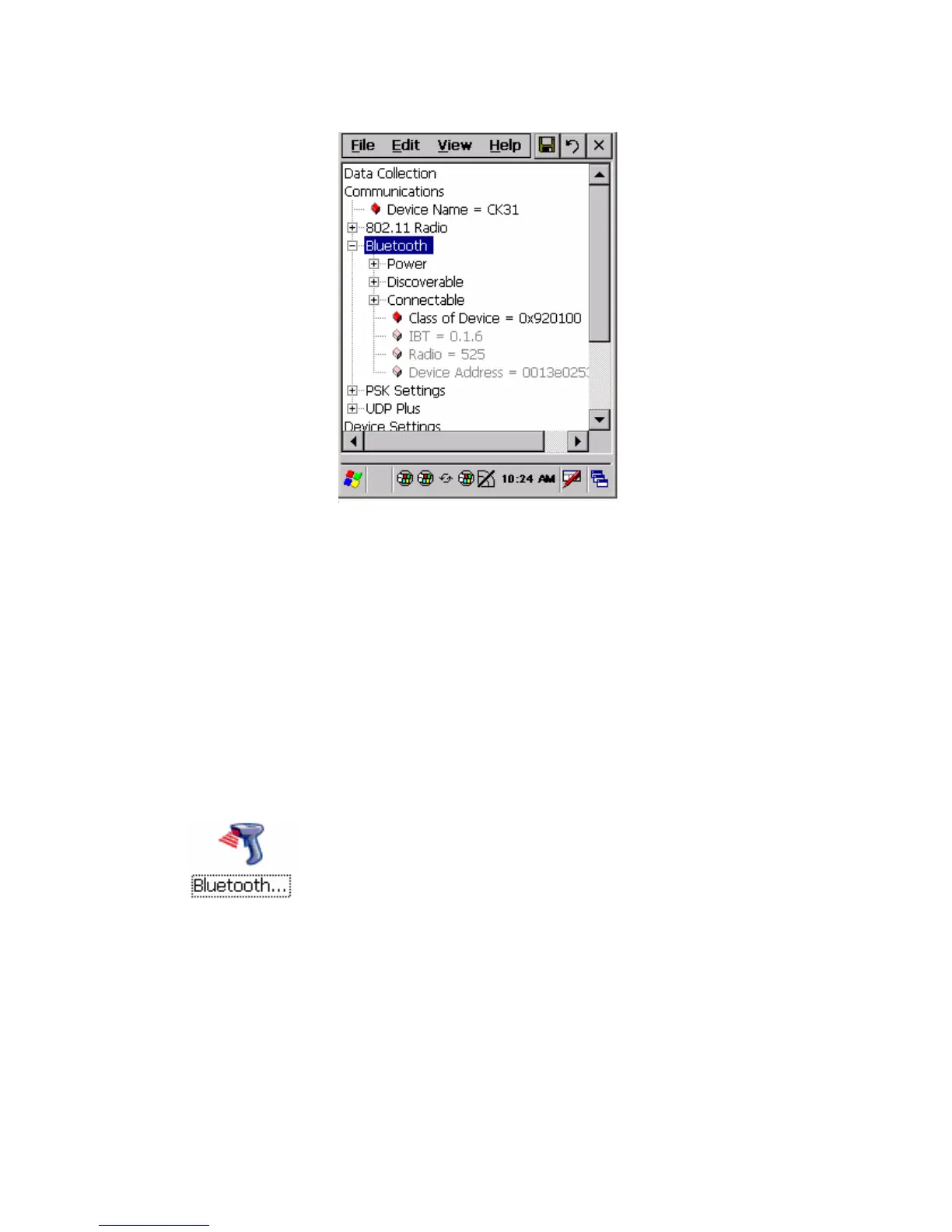
2 Tap the Power parameter and select On.
3 If you want to allow incoming connections from wireless
scanners, you must enable two parameters:
• Tap the Discoverable parameter and select Enable.
• Tap the Connectable parameter and select Enable.
If you do not want to allow incoming connections, make sure
Discoverable and Connectable are both disabled.
4 Save your changes and exit Intermec Settings.
5 From the Start menu, tap Programs > Windows Explorer >
Program Files > Intermec > Network > Bluetooth.
6 Double-tap the BluetoothScannerWizard icon. The
Connection Wizard appears.
7 Tap Add Device. The wizard advances to the next screen.
8 Make sure Device Discovery is selected and tap Next. The
wizard starts discovering devices.
9 Select the device you want to connect to from the Devices list
and then tap Next.
10 In the Authen. Request dialog box, type 0000 for the PIN
and tap OK.


 To Next Page