59
OPERATION AND SETUP WITH THE APP
inVENTer Connect controller platform | Operating instructions
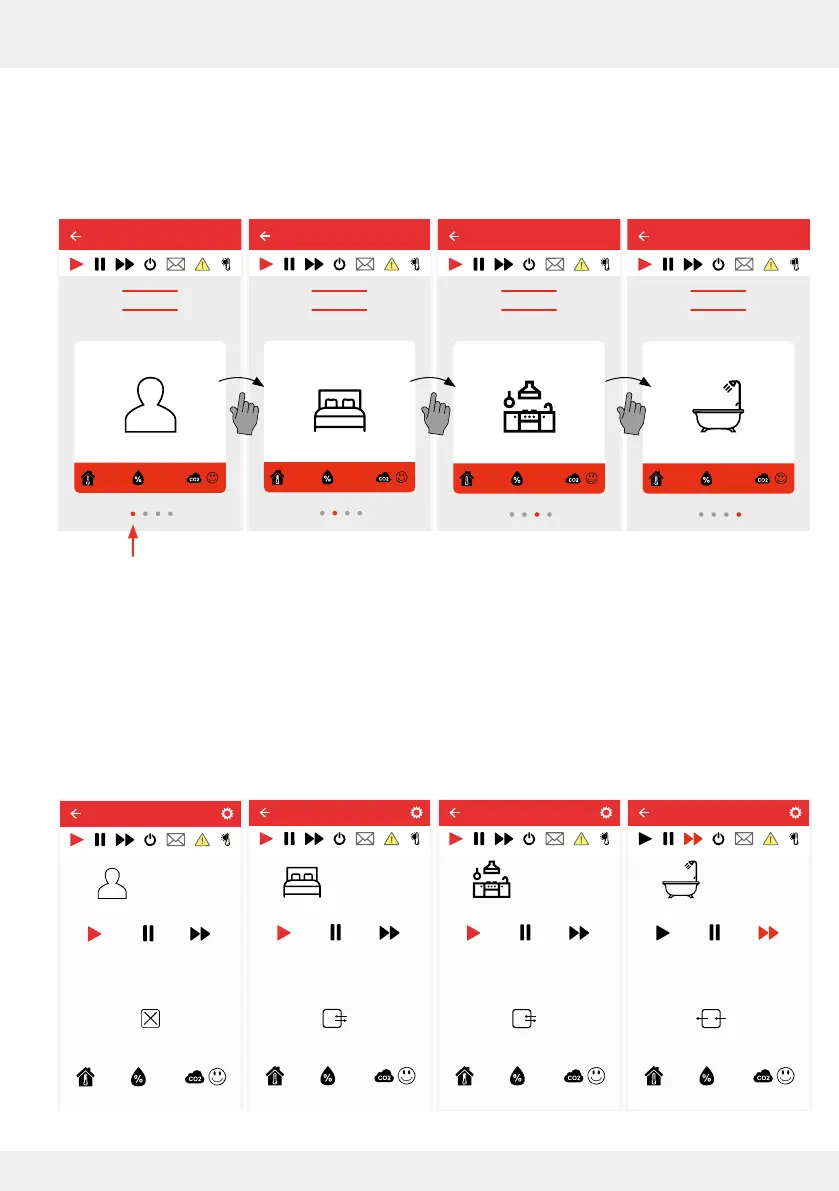
View of the ventilation zones
You can view the ventilation zones that have been dened at any time and change settings if
necessary.
Example:
4 ventilation zones are dened. The red dot shows which ventilation zone is currently selected.
► Tap on the symbol of a ventilation zone.
The window opens in which the following values for this zone are displayed:
• Ventilation prole
• Ventilation level (fan speed)
• Ventilation mode (operating mode)
and where you can change these settings by overriding them.
Default
Current ventilator power level 1
Ventilation zone 1
Override
25,8°C 24,9%
Easy Connect e16
Ventilation zone 1
Ventilation zone overview
25,8°C
24,9%
Easy Connect e16
Ventilation zone 2
Ventilation zone overview
18,4°C
39,2%
Easy Connect e16
Ventilation zone 3
Ventilation zone overview
22,8°C
33,7%
Easy Connect e16
Ventilation zone 4
Ventilation zone overview
24,3°C
55,4%
Current ventilator power level 1
Ventilation zone 2
Override
18,4°C 39,2%
Bedroom
Current ventilator power level 3
Ventilation zone 3
Override
22,8°C 33,7%
Kitchen
Current ventilator power level 4
Ventilation zone 4
Override
24,3°C 55,4%
Bathroom



 To Next Page