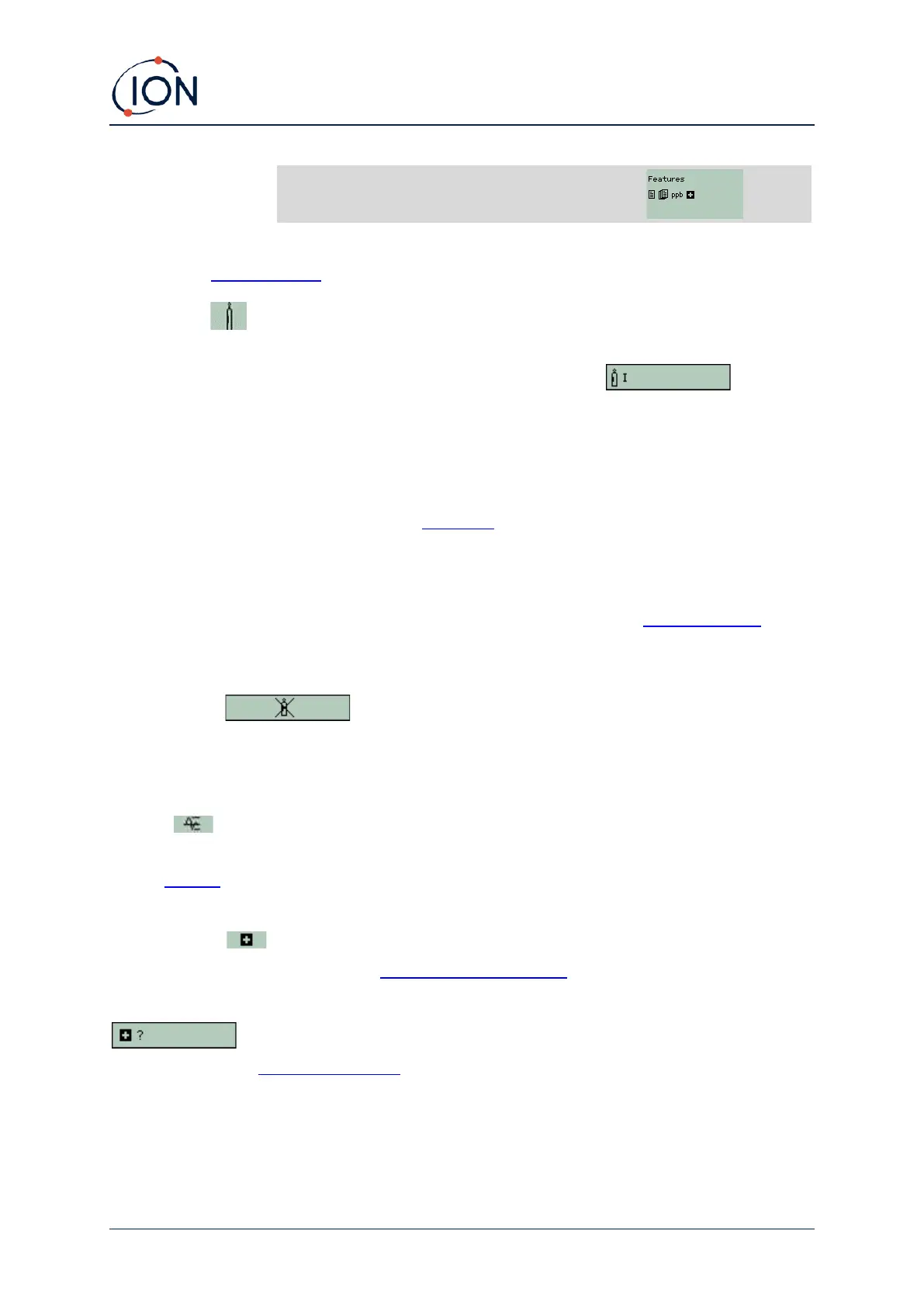
* Refer to the Features screen for details of these optional upgrades.
Gas Selection
Pressing the Gas Selection soft key to display two possible options. The first is the All gases, an
alphabetical letter which can be changed using the Up and Down keys: . Press the
Enter key to list the gases beginning with that letter. Using the Up and Down keys scroll through the
gases starting with that letter to find the subject gas. Press Enter to select the chosen gas. If a tick '
✓' appears, press Enter again, and TIGER XT will use the relevant data for the selected gas from the
gas table for alarms, response factor, etc.
The second option is if the user has selected Favourites in Tiger PC. Now the option to choose
between the Favourites and All gases will appear. If Favourites is selected, a list of the favourited
gases will appear. Use the Up and Down keys scroll through the gases and press Enter to select the
chosen gas. If a tick '✓' appears, press Enter again, and TIGER XT will use the relevant data for the
selected gas from the gas table for alarms, response factor, etc. Refer to the Gas Table Screen for
more details on the Favourites Gas Table.
If the selected gas has no numeric response factor, or is incompatible with the lamp selected, a
warning symbol will appear. The message can be cleared by pressing the Enter
key. The gas will still be selected. An alternative lamp type may then be selected to match the
chosen gas. If an incompatible gas/lamp combination is selected the instrument will show the
warning symbol again.
Average
Press the Average soft key to display a rolling average over 10 seconds (the user can change this
time in Tiger PC). A tick '✓' appears when time is up. Pressing the Reset soft key resets the
calculation even if there is an average already running. Press Esc to cancel.
Health & Safety
Optional, only available if the relevant upgrade has been installed.
Press the Health & Safety soft key to display the Health & Safety symbol with a question mark
to ask if they would like to start a new session. Press Enter to confirm and start
the calculations. The Health & Safety icon will flash.
The STEL and TWA values are then shown. To stop calculations, press Enter. A question mark is then
displayed to ask if the user would like to end the session. Press Enter again to confirm that
calculations are to be stopped. A tick '✓' then appears beside the question mark, and then main
running screen is displayed.


 To Next Page