i-ALERT2 Application Guide 44 of 64
After requesting an FFT, the LED on the i-Alert2 will stop flashing for 10-30 seconds while the FFT is being computed. Once
complete, the user will be prompted to download the FFT immediately or at a later time. By selecting Download Alarm
FFT’s, the user can download all alarm FFT’s. For Version 2 Devices, the App will only download FFT’s that do not currently
exist on the tablet or phone.
STORED AND ALARM GENERATED FFT DATA
You can access stored datasets including those stored when an alarm is triggered. This is a powerful feature that can assist
in resolving difficult or intermittent problems that would typically be missed with traditional walk around periodic vibration
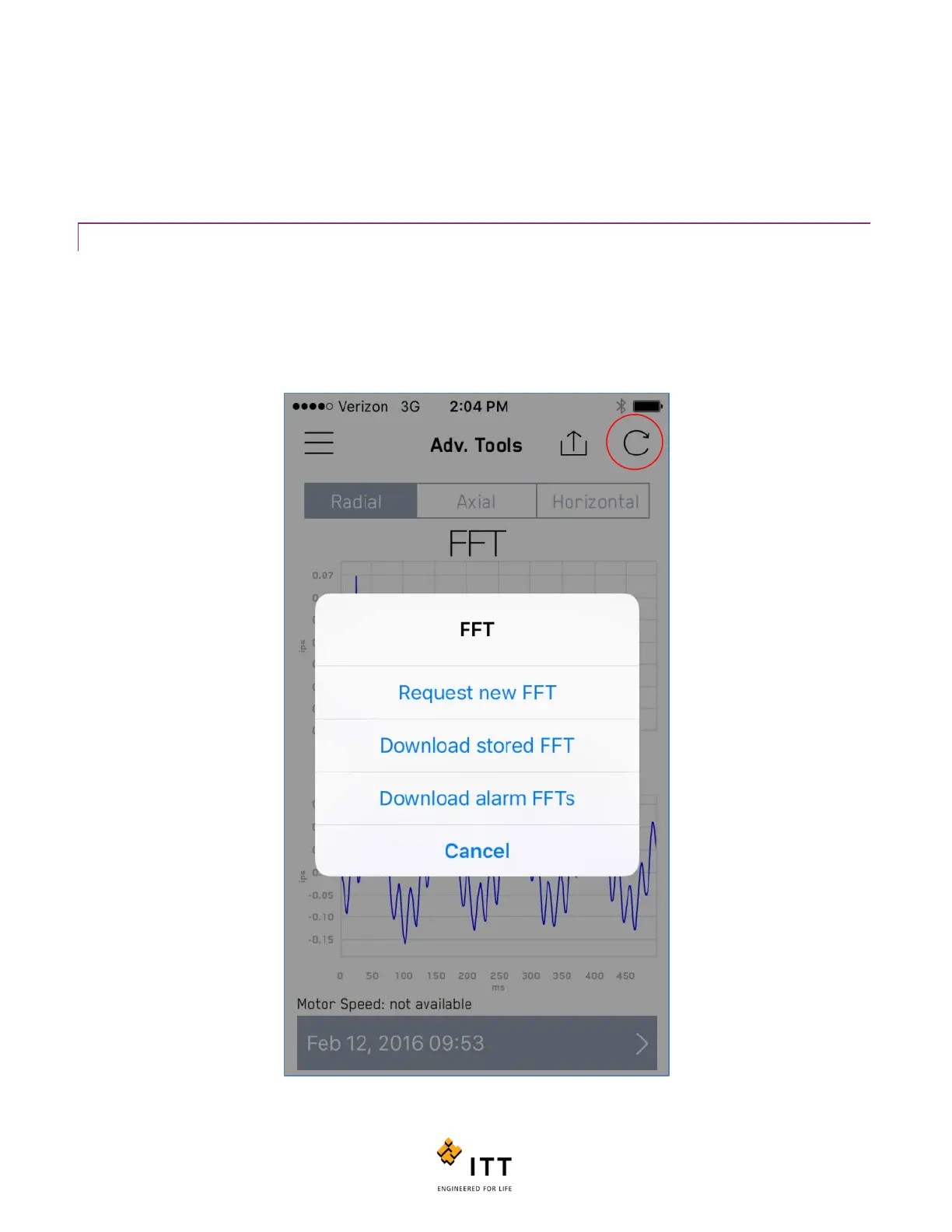
monitoring, to access historical FFT and TWF data sets, simply tap the circular arrow icon at the top right of the page while
viewing any sensor’s FFT data in the Advanced Tools menu. A message will appear asking you what particular datasets you
would like to view or if you would like to request a new FFT. See figure 40.
Figure 40: Request new FFT or access stored FFT datasets



 To Next Page