i-ALERT2 Application Guide 45 of 64
EQUIPMENT INFORMATION
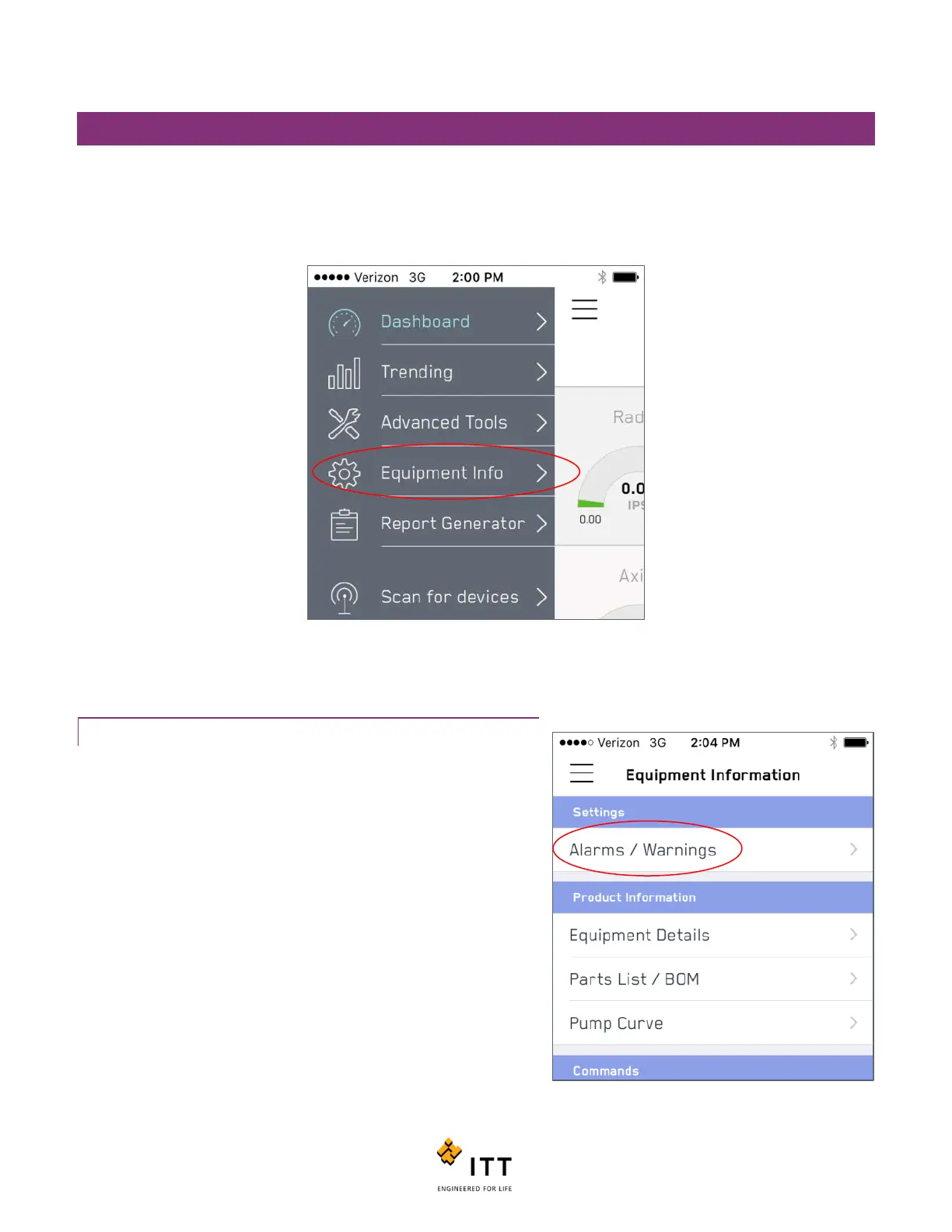
One of the most useful features of the i-ALERT2 mobile app is the ability to instantly access equipment details. The
“Equipment Information” page also includes functionality that allows a user to adjust alarm and warning limits as well as
send commands to the i-ALERT2 monitor to reset the device. To access the Equipment information page, tap the icon in the
upper left that looks like three horizontal lines and then choose “Equipment Info.” See figure 41.
Figure 41: Equipment information
ALARMS / WARNINGS
To view and change the Alarm/Warning limits in the i-ALERT2 monitor,
tap the “Alarms / Warnings” tag. See figure 24.
The “Alarm Settings” page will be displayed. (figure 42) From here a
user can adjust the overall vibration amplitudes and temperatures that
cause the device to go into alarm or warning modes. Tap the “ + “ or
“ – “ icons at the right hand side to adjust values.
After updating the alarm or warning settings, they must then be sent
down to the i-ALERT2 device in order to be programmed in. To do this,
tap the “Send” button at the top right. (Figure 43).
Figure 42: Alarms/Warnings



 To Next Page