15
3. BLOCKING IN THE SYSTEM
3.1 BLOCKING USERS
Any user can be temporarily blocked (e.g. when a user loses a tag or his access code is revealed). When
user’s access is blocked the user access code or a tag will no longer be accepted by the control panel. The
blocked user will also not receive any text message alerts or voice reports to a mobile phone.
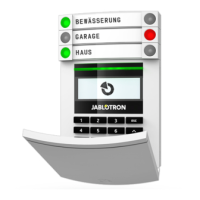
Only the system administrator or service technician can block a user by choosing Settings / Users / User
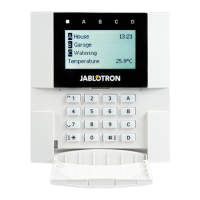
/ Bypass and selecting “Yes” on the LCD keypad.
3.2 BLOCKING DETECTORS
A detector can be temporarily blocked in a similar way a user can be blocked. A detector is blocked
when its activation is temporarily not desirable (for example a motion detector in a room with a pet or disa-
ble a siren sounding). Only the alarm function is deactivated however the system still performs diagnostics
of tamper contacts and sends tamper alarm and service events.
Only the system administrator or service technician can block a detector. It can be achieved by choo-
sing Settings / Devices / Bypass and selecting Yes on the LCD keypad. A device can be also blocked from
MyJABLOTRON smartphone app in the “More/Devices” roll up menu.
WARNING: This function is limited by the selected System profi le of the control panel. Always consult blocking
detectors with your service technician. If the premises are guarded by a security agency, consult them as well.
4.1 CHANGING USER ACCESS CODE
Only the system administrator and the service technician can change the security codes. These chan-
ges are done after authorization on keypad by selecting Settings / Users / User / Code. To enter a new
code, you must enter edit mode by pressing ENT (the line will start to fl ash). Now you can edit the code.
The new code will be confi rmed by pressing ENT again. After the changes are complete the change must
be saved by selecting Save when the control panel prompts with “Save Settings?
Codes can be also changed in the MyJABLOTRON smartphone app in the “More/Change the user
code” roll up menu.
4.2 CHANGING, DELETING OR ADDING AN RFID TAG
Only the administrator and the service technician can add, change or delete RFID tags from the LCD
menu on the keypad. These changes are done after authorization by selecting Settings / Users / User /
Access card. To enter a new RFID tag, you must enter edit mode by pressing ENT (access card line will start
to fl ash). Then the RFID tag must be placed on to the reader (in front of keys) or the serial number under a
bar code must be entered manually. After confi rming by pressing ENT again, the RFID card/tag is added.
To delete an access card enter “0” into the serial number fi eld. After the changes are complete the change
must be saved by selecting Save when the control panel prompts with “Save Settings?
4. CONTROL PANEL USER SETTINGS




 To Next Page