16 4. CONTROL PANEL USER SETTINGS
4.3 CHANGING A PHONE NUMBER
Only the administrator and the service technician can add, change or delete telephone numbers of the
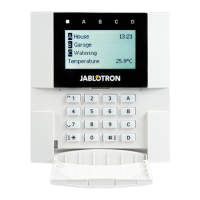
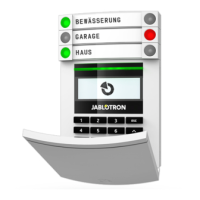
users from the LCD menu on the keypad. This can be done after authorization by selecting Settings / Users
/ User / Phone. The user must be in edit mode to make changes. This is done by pressing ENT.
After making the changes, they must be confi rmed by pressing ENT again. To delete a phone number enter
“0” into the phone number fi eld. After the changes are complete the change must be saved by selecting
Save when the system prompts with “Save Settings?”
4.4 ADDING/ DELETING A USER
Only the service technician can add new users to the system (or delete them). New users can be added
to the system (or deleted from it) only via the N-Link (the service technician). When creating new users, it is
necessary to assign them with access permissions (rights) to individual sections and programmable outputs
control with required authorization.
The security system stores all performed operations and events (setting, unsetting, alarms, faults,
messages sent to users and ARCs) in the micro SD card in the system’s control panel. Each entry includes
the date, time (start and end), and source (cause / origin) of the event
The different ways of browsing the system’s event history:
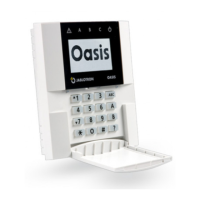
5.1 USING THE LCD KEYPAD
Accessing the event history using the keypad requires user authorization. Once authorized, the available
options (based on user permissions) are displayed by choosing Event Memory. Records can be viewed from
the most recent to the oldest using arrows.
5.2 LOGGING INTO MYJABLOTRON (THE SMARTPHONE APP)
All system events can be viewed using after logging in the MyJABLOTRON smartphone app. The
account shows history in a range which corresponds with the user’s permissions.
5. EVENT HISTORY




 To Next Page