Note: play under frame by frame, the playback status should be paused firstly.
【Operation tips】show function of the key that cursor placed.
Special functions:
Local zoom:When the system is in single-window full-screen playback mode, you can
drag your mouse in the screen to select a section and then left click mouse to realize
local zoom. You can right click mouse to exit.
Note: When current resolution of the channel is over Max resolution, to playback this
channel, will show a Red “X”.
3.5.4 Record controls
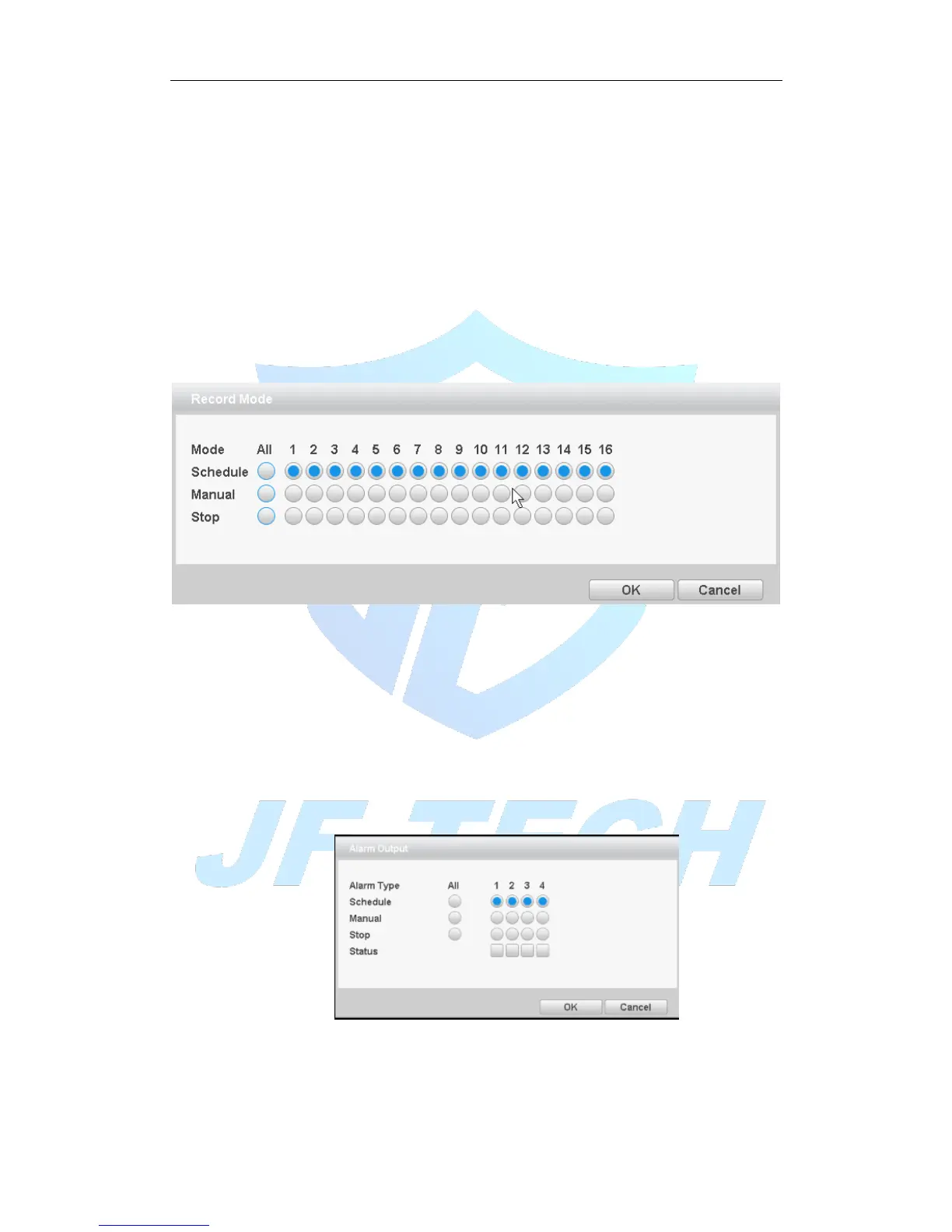
Please check current channel status: “○” means it is not in recording status, “●” means
it is in recording status.
You can use desktop shortcut menu to enter the recording control interface.
Figure 3.11record control
【Schedule】Record according to the configuration.
【Manual】Click the all button and the according channel is recording no matter the
channel in any state.
【Stop】Click the stop button and the according channel stops recording no matter the
channel in any state.
3.5.5 Alarm output
Control each channel alarm output state, ■ means that the channel has alarm output.
You can use desktop shortcut menu to enter the alarm output interface.
Figure 3.12 alarm output
[Schedule] according to the configuration information, and outputs an alarm signal;
[Manual] no matter what state, select "Manual" button, the corresponding channel
output alarm signal;



 To Next Page