will be ok.
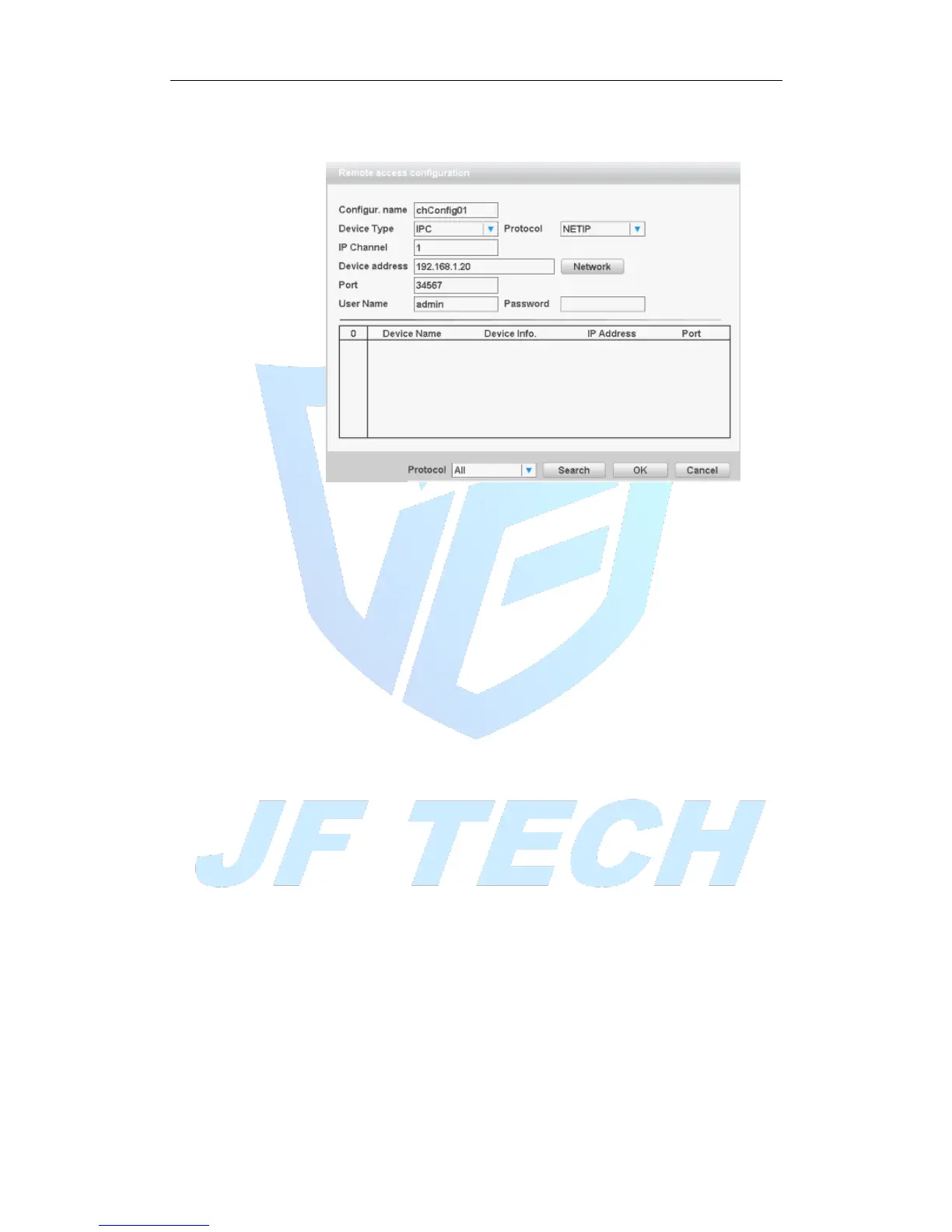
【Add】click add will come out below page to add new device
Figure 4.48 Remote access configurations
【Configure Name】device is with default configure title, user can revise it if
necessary;
【Device Type】3 types: IPC、DVR、HVR,user can choose as what you like, default
is IPC;
【Protocol】There are two protocols: NTEIP and ONVIF, the default is NETIP;
【IP channel】User can input remote channel title from the device that you want
to connect remotely;
【Device Address】to enter remote device IP, the system defaults to 192.168.1.20;
【Port】Default is 34567
【User name】Default is admin
【password]】default is blank
Note:
1. In Figure 4.47, the protocol search drop-down box on the left side, there are
three, namely NETIP, ONVIF, the whole, the user can choose according to demand,
click search it will search for the corresponding protocol online device.
2. Click the Search button, the following will show the device as shown in the
search to 4.48, the user can double-click the device IP connections want according
to their needs, and you can add the device. At this point in Figure 4.47 device
address and port the appropriate changes, and the user name and password is still
the default parameters, the user must be entered manually.
3. Double-click the discovered devices, network setup in Figure 4.47 by graying
light, click the button; you can just add the device to the network settings shown
in Figure 4.48.



 To Next Page