18
Language Setting
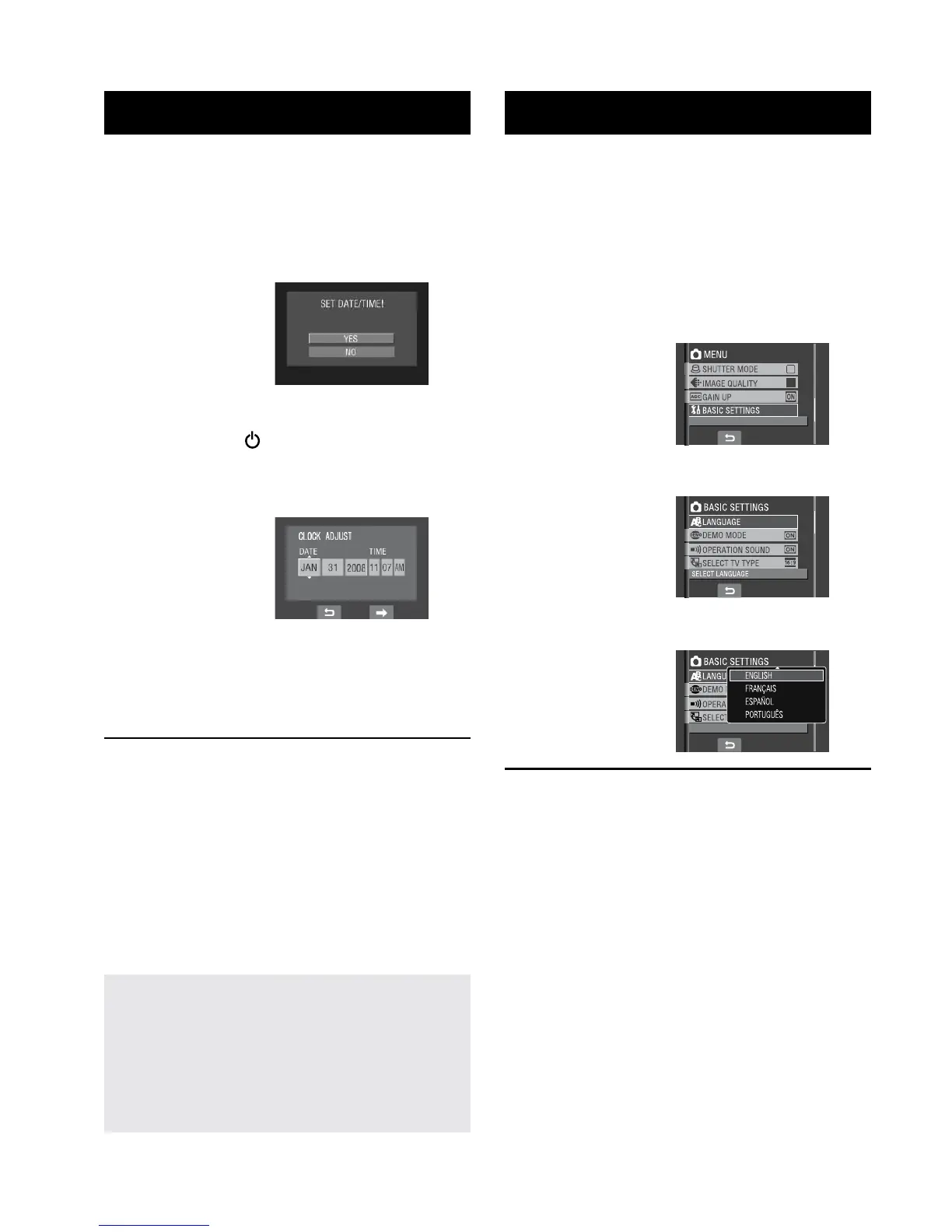
The language on the display can be changed.
1
Open the LCD monitor to turn on the
camcorder.
2
Touch the MENU button.
3
Select [BASIC SETTINGS].
4
Select [LANGUAGE].
5
Select the desired language.
L
To return to the previous screen
Select
@
.
L
To quit the screen
Touch the MENU button.
Date/Time Setting
1
Open the LCD monitor to turn on the
camcorder.
2
When [SET DATE/TIME!] appears,
select [YES] within 10 seconds.
If you do not select within 10 seconds, the
screen disappears. In such case, press the
power button ( ) and turn the camcorder
on again.
3
Set the date and time.
Repeat this step to input the month, day,
year, hour and minute.
4
Touch the OK button to finish.
L
To change the date and time
1) Touch the
MENU button.
2) Select [BASIC SETTINGS], and then
[CLOCK ADJUST].
3) Set the date and time.
L
To return to the previous screen
Select
@
.
L
To quit the screen
Touch the MENU button.
You have now finished configuring the
necessary settings.
L
To use the camcorder right away
See page 2
1.
L
To configure other settings
See page 1
9.
Necessary Settings before Use (Continued)


 To Next Page
 Loading...