41
ENGLISH
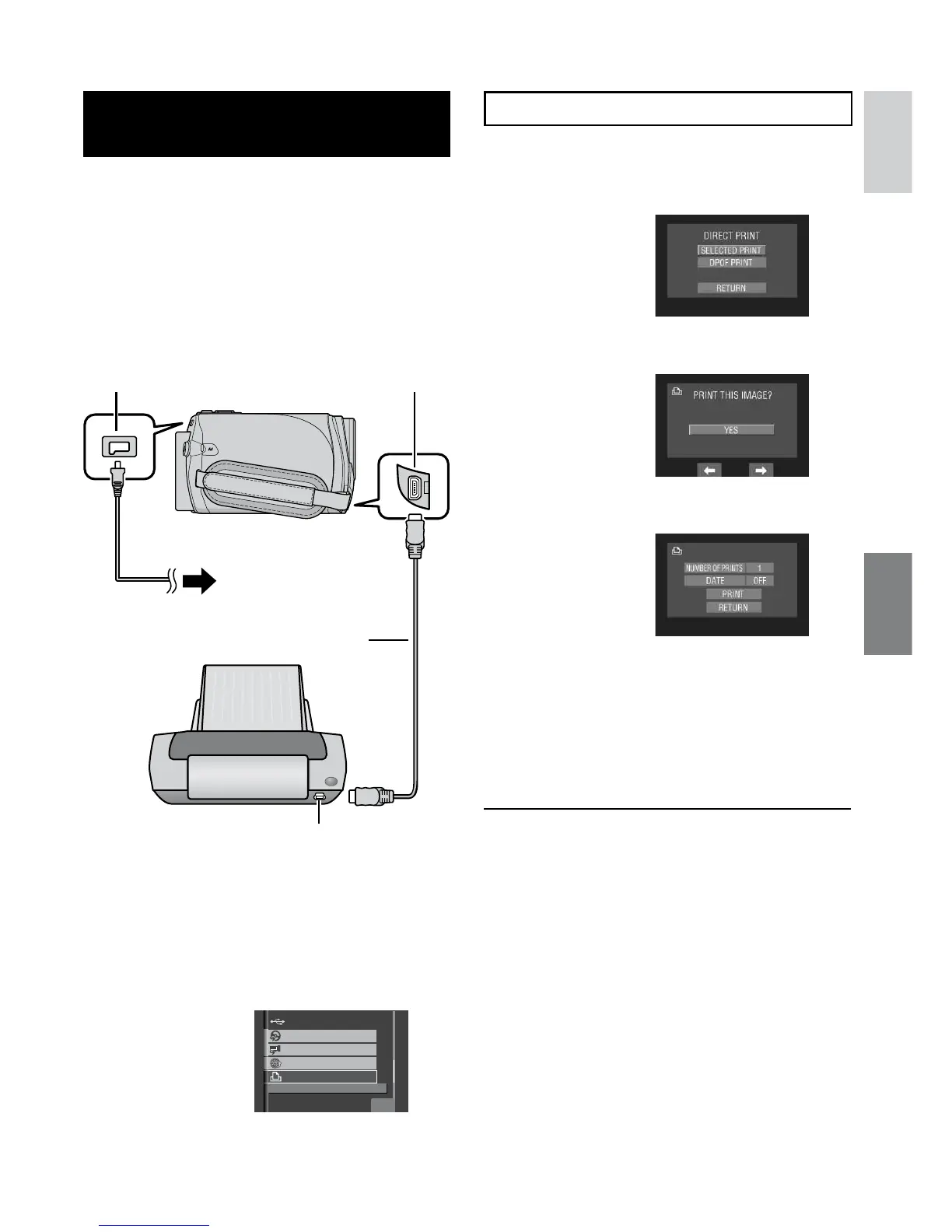
Direct Printing with PictBridge
Printer
If your printer is compatible with PictBridge,PictBridge,
still images can be printed easily by
connecting the camcorder directly to the
printer with the USB cable. DPOF setting can
also be used. (Z pg. 40)
Preparation:
Close the LCD monitor to turn off the
camcorder.
To Print by Selecting a Still Image
After performing steps 1-2 (Z left column)
3
Select [SELECTED PRINT].
4
Select the desired image.
5
Select the desired setting.
•
[NUMBER OF PRINTS]:
The number of prints can be set from 1
to 99.
•
[DATE]:
Set whether to print the date and time.
6
Select [PRINT].
L To stop printing after printing starts
1) Select [STOP].
2) When [QUIT PRINTING?] appears,
select [YES].
DC Jack USB Jack
AC Adapter
USB Cable
USB Jack
PictBridge
Printer
To AC Outlet


 To Next Page
 Loading...