55
ENGLISH
Continued on Next page
Creating a DVD-Video
Preparation:
•
Install the software from the included CD-
ROM. (Z pg. 49)
•
Connect the camcorder to the PC with the
USB cable. (Z pg. 51)
•
Open the LCD monitor to turn on the
camcorder.
Copying Video Files that Have Never
Been Copied
1
On the camcorder, press the DIRECT
DVD button.
Although a dialog box appears on the PC,
you do not need to use it. PowerCinema
starts automatically.
2
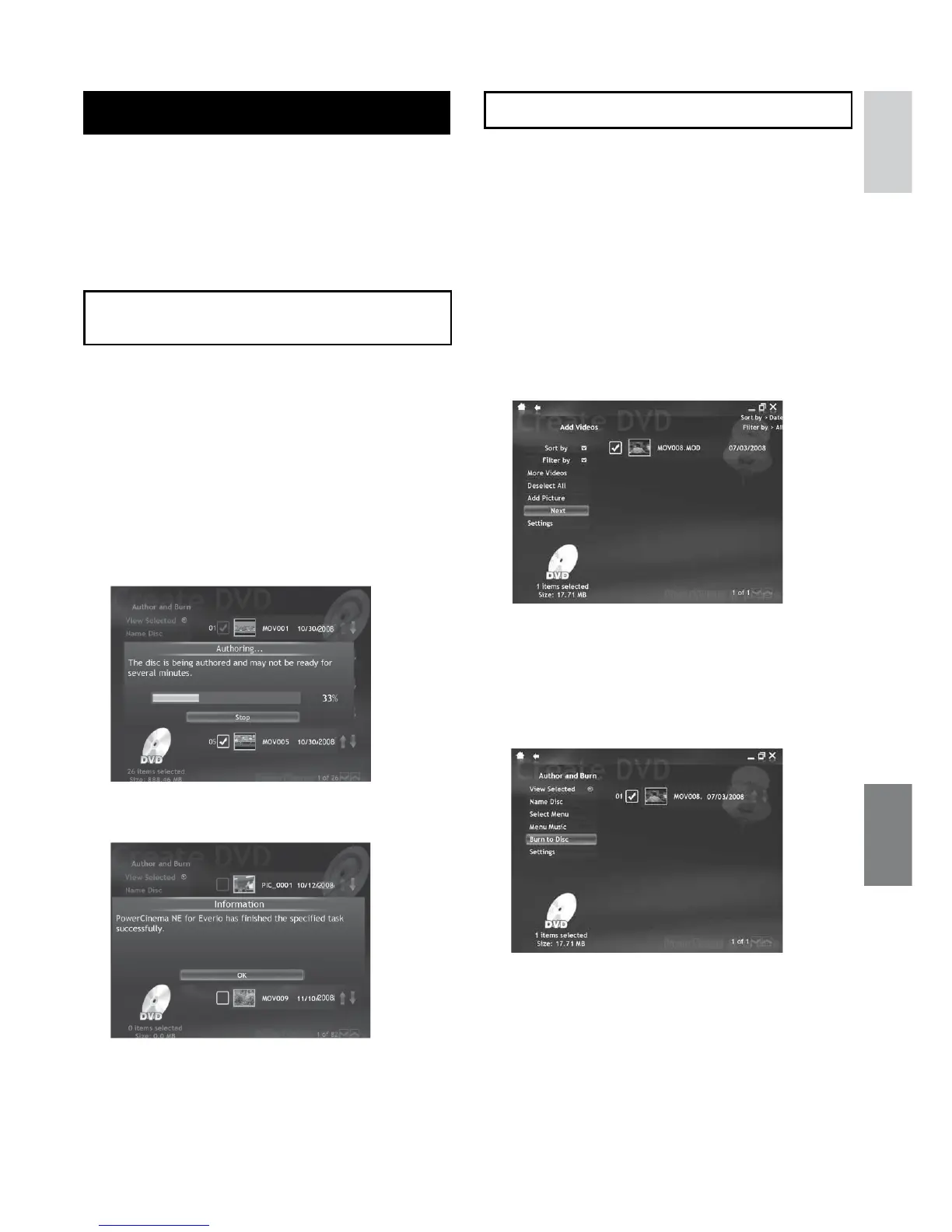
On the PC, authoring and burning
starts.
Click [Stop] to cancel the procedure.
3
Click [OK].
Selecting Files for Backup
1
On the camcorder, select [CREATE
DVD].
Although a dialog box appears on the PC,
you do not need to use it. PowerCinema
starts automatically.
2
On the PC, click the check box of the
desired file.
The s mark appears on the left of the
selected file.
To select other files, repeat this step.
3
Click [Next].
4
Click [Burn to Disc].
Authoring and burning starts.
Click [Stop] to cancel the procedure.
5
Click [OK].


 To Next Page
 Loading...