EasyManua.ls Logo

JVC GY-HM790CHU - User Manual

JVC GY-HM790CHU
144 pages
Print Icon
To Next Page IconTo Next Page
Loading...
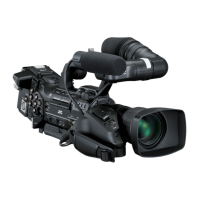
HD MEMORY CARD CAMERA RECORDER
GY-HM790U
GY-HM790CHU
GY-HM790E
GY-HM790CHE
INSTRUCTIONS
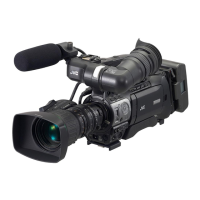
* The illustration shows the GY-HM790E with the supplied viewfinder, microphone and lens attached.
* GY-HM790CHU/GY-HM790CHE does not come with a lens.
For Customer Use:
Enter below the Serial No. which is located on the body.
Retain this information for future reference.
Model No. GY-HM790U/GY-HM790CHU
Serial No.
Please read the following before getting started:
Thank you for purchasing this JVC product.
Before operating this unit, please read the instructions
carefully to ensure the best possible performance.
In this manual, each model number is described without the last letter
(U/E) which means the shipping destination. (U: for USA and Canada,
E: for Europe)
Only “U”models (GY-HM790CHU/GY-HM790U) have been evaluated by
UL.
LST1108-001A
Downloaded From VideoCamera-Manual.com Manuals

Table of Contents

Questions and Answers

  • C
    clarkandrewAug 18, 2025
    How to fix JVC GY-HM790CHU power not turning on?
    • S
      Sarah BallardAug 18, 2025
      If your JVC Camcorder's power isn't turning on, make sure the AC adapter is properly connected and that the battery is charged. Also, if you've just turned it off, wait at least 5 seconds before trying to turn it back on.
  • V
    Vanessa LawrenceAug 20, 2025
    What to do if JVC Camcorder unable to start recording?
    • D
      Daniel SimsAug 20, 2025
      If you can't start recording with your JVC Camcorder, check if the record button lock switch on the handle is turned on. Also, verify that the write-protect switch of the SDHC card is turned off. Finally, ensure the camera recorder is set to Camera mode, indicated by a blue/purple light on the operation mode indicator. If it's another color, use the [CAM/MEDIA] selection button to switch to Camera mode.
  • C
    Crystal RodriguezAug 23, 2025
    Why no sound during playback on JVC GY-HM790CHU Camcorder?
    • T
      thomaslindaAug 23, 2025
      If there's no sound during playback on your JVC Camcorder, it might be because the clip was recorded in Variable Frame Rec mode.
  • G
    Gregory CarterAug 26, 2025
    Why camera image is not output on the LCD monitor and viewfinder screens of JVC GY-HM790CHU Camcorder?
    • B
      Brent ChurchAug 26, 2025
      If the camera image is not showing on the LCD monitor and viewfinder screens of your JVC Camcorder, ensure that the camera recorder is set to the Camera mode. The operation mode indicator should light up in blue/purple. If the operation mode indicator lights up in another color, camera images are not output. Use the [CAM/MEDIA] selection button to switch to the Camera mode.
  • M
    Michael FosterAug 28, 2025
    How to fix dark or blurred images on JVC GY-HM790CHU Camcorder LCD monitor and viewfinder?
    • R
      Rebekah BensonAug 28, 2025
      If the images on your JVC Camcorder's LCD monitor and viewfinder screens appear dark or blurred, try these steps: * Readjust the brightness of the LCD monitor screen and viewfinder. * Check if the [ND FILTER] switch is set to [1/16]. * Make sure the iris isn't closed. * Verify the shutter speed setting isn't too high. * Check the connection of the viewfinder cable. * Adjust the amount of peaking using the [LCD PEAKING +/-] button for the LCD monitor screen and the [VF PEAKING] knob for the viewfinder screen. * Ensure the [GENLOCK/AUX] selection switch isn't set to AAUXB (U model).
  • W
    Wendy YoungAug 30, 2025
    Why [AUDIO LEVEL CH-1/CH-2] adjustment knob does not work on JVC GY-HM790CHU Camcorder?
    • J
      Jason KingAug 30, 2025
      If your JVC Camcorder's [AUDIO LEVEL CH-1/CH-2] adjustment knob isn't working, check if the [AUDIO LEVEL CH-1/CH-2] switch is set to AAUTOB and if the [FULL AUTO] switch is set to AONB.
  • R
    Ricky EdwardsSep 2, 2025
    What to do if playback does not start after selecting a clip on JVC GY-HM790CHU Camcorder?
    • E
      eric10Sep 2, 2025
      If your JVC Camcorder isn't playing back after you select a clip thumbnail and press the Set button (R), the selected clip may not be playable due to a different video format setting.
  • C
    christopher61Sep 4, 2025
    How to fix JVC Camcorder SDHC card cannot be initialized?
    • M
      Michael KingSep 5, 2025
      If your JVC Camcorder is not initializing (formatting) the SDHC card, check if the write-protect switch of the SDHC card is turned on. If it is, turn it off.
  • L
    Laura StewartSep 7, 2025
    Why battery alarm appears on JVC GY-HM790CHU after loading charged battery?
    • A
      Anthony CarrollSep 7, 2025
      If your JVC Camcorder shows a battery alarm even after loading a charged battery, it could be that the battery is too old.
  • J
    Jared TannerSep 9, 2025
    Why HDV/DV signals cannot be input on JVC GY-HM790CHU?
    • A
      Amy GonzalezSep 9, 2025
      If your JVC Camcorder cannot input HDV/DV signals, check if the camera recorder is set to the IEEE1394 Input mode (operation mode indicator lights up in orange). Verify that [System Definition] in the [Record Format] menu is correctly set.

Summary

Introduction

IMPORTANT SAFEGUARDS

Essential safety instructions for operating the appliance safely.

Safety Precautions

FOR USA AND CANADA

Safety guidelines specific to the United States and Canada.

POUR CANADA

Safety guidelines for Canada in French.

Precautions for Proper Use

Power Supply

Turning On;Off the Power

SDHC Cards

Write-Protect Switch on the SDHC Card

How to use the write-protect switch to secure data on SDHC cards.

Shooting

Basic Shooting Procedures

Step-by-step guide to start recording video and audio.

Focus Assist Function

Details on using the focus assist feature for sharper images.

Selecting System Definition, File Format and Video Format

Adjusting the Iris

Adjusting the White Balance

Setting the ND Filter

Adjusting Audio Input Settings and Recording Level

Setting Zebra Pattern

Protecting Important Scenes (OK Mark Function)

Special Recording

Playback

Playing Back Recorded Clips

Steps to view recorded video clips from the SDHC card.

Appending and Deleting OK Marks

Menu Display and Detailed Settings

Camera Function Menu

Media Menu

Setup File Manage Menu

Configuring Setup Files

Connecting External Devices

Error Displays and Actions

Troubleshooting

JVC GY-HM790CHU Specifications

General IconGeneral
Video Resolution1920 x 1080
Recording FormatAVCHD, MPEG-2
Maximum ApertureF1.6 - F2.8
Audio Inputs2 x XLR
Camera TypeShoulder Mount
Sensor Size1/3 inch
Effective Pixels1920 x 1080
Viewfinder0.45-inch color LCD
LCD Screen3.5 inch
Recording MediaSD/SDHC/SDXC
ConnectorsHDMI, USB, Component, Composite
Dimensions180 x 235 x 428 mm

Related product manuals