EasyManua.ls Logo

JVC HR-D540EE - Recording from an External Source

JVC HR-D540EE
90 pages
Print Icon
To Next Page IconTo Next Page
To Previous Page IconTo Previous Page
Loading...
[
VPS
RECORDING
VPS
(Video
Programme
System)
is
a
broadcast
system
emptoyed
by
TV
stations
in
certain
countries.
in
the
VPS
system,
TV
Stations
transmit
different
VPS
codes
for
different
TV
programmes,
which
control
the
starting
and
stopping
of
the
video
recorder
and
have
precedence
over
times
preset
in
the
timer
for
accurate
recording
of
a
particular
programme
from
start
to
finish.
For
using
this
function,
an
optional
adapter,
the
VPS
adapter
must
be
connected
to
the
rear
panel
of
the
recorder.
RECORDING
FROM
AN
EXTERNAL
SOURCE
a
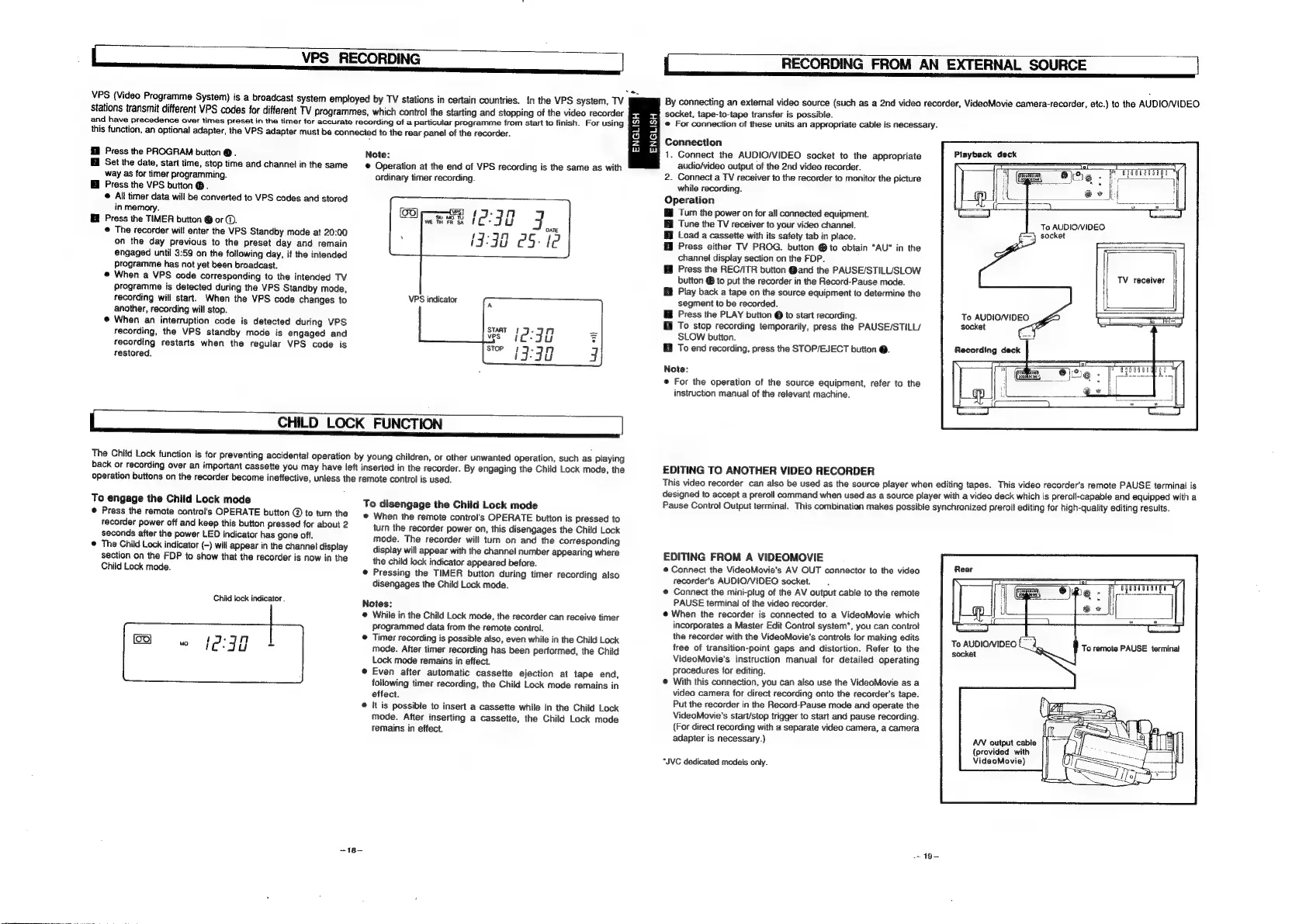
By
connecting
an
external
video
source
(such
as
a
2nd
video
recorder,
VideoMovie
camera-recorder,
etc.)
to
the
AUDIO/VIDEO
socket,
tape-to-tape
transfer
is
possible.
e
For
connection
of
these
units
an
appropriate
cable
is
necessary.
Connection
1.
Connect
the
AUDIO/VIDEO
socket
to
the
appropriate
audio/video
output
of
the
2nd
video
recorder.
2.
Connect
a
TV
receiver
to
the
recorder
to
monitor
the
picture
while
recording.
Operation
Hi
Turn
the
power
on
for
all
connected
equipment.
Ei
Tune
the
TV
receiver
to
your
video
channel.
To
AUDIOWIDEO
ff
Load
a
cassette
with
its
safety
tab
in
place.
3}
socket
fi
Press
either
TV
PROG.
button
@
to
obtain
“AU"
in
the
channel
display
section
on
the
FOP.
®
Press
the
REC/ITR
button
@and
the
PAUSE/STILUSLOW
button
@
to
put
the
recorder
in
the
Record-Pause
mode.
G
Play
back
a
tape
on
the
source
equipment
to
determine
the
segment
to
be
recorded.
@
Press
the
PLAY
button
@
to
start
recording.
1
To
stop
recording
temporarily,
press
the
PAUSE/STILL/
SLOW
button.
3
To
end
recording,
press
the
STOP/EJECT
button
@.
ENGLISH
ENGLISH
Press
the
PROGRAM
button
@
.
Note:
Bi
Set
the
date,
start
time,
stop
time
and
channel
inthe
same
e
Operation
at
the
end
of
VPS
recording
is
the
same
as
with
way
as
for
timer
programming.
ordinary
timer
recording.
@
Press
the
VPS
button
@.
Cras
(230
J
ATE
19:98
25:
ie
©
All
timer
data
will
be
converted
to
VPS
codes
and
stored
VPS
indicator
Playback
deck
in
memory.
Hf
Press
the
TIMER
button
@
or
@.
@
The
recorder
will
enter
the
VPS
Standby
mode
at
20:00
on
the
day
previous
to
the
preset
day
and
remain
engaged
until
3:59
on
the
following
day,
if
the
intended
programme
has
not
yet
been
broadcast.
©
When
a
VPS
code
corresponding
to
the
intended
TV
programme
is
detected
during
the
VPS
Standby
mode,
recording
will
start.
When
the
VPS
code
changes
to
another,
recording
will
stop.
@
When
an
interruption
code
is
detected
during
VPS
recording,
the
VPS
standby
mode
is
engaged
and
recording
restarts
when
the
regular
VPS
code
is
restored.
[
CHILD
LOCK
FUNCTION
The
Child
Lock
function
is
for
preventing
accidental
operation
by
young
children,
or
other
unwanted
operation,
such
as
playing
back
or
recording
over
an
important
cassette
you
may
have
left
inserted
in
the
recorder.
By
engaging
the
Child
Lock
mode,
the
operation
buttons
on
the
recarder
become
ineffective,
unless
the
remote
control
is
used.
TV
receiver
To
AUDIO/VVIDEO
Note:
®
For
the
operation
of
the
source
equipment,
refer
to
the
instruction
manual
of
the
relevant
machine.
EDITING
TO
ANOTHER
VIDEO
RECORDER
This
video
recorder
can
also
be
used
as
the
source
player
when
editing
tapes.
This
video
recorder's
remote
PAUSE
terminal
is
designed
to
accept
a
preroll
command
when
used
as
a
source
player
with
a
video
deck
which
is
preroll-capable
and
equipped
with
a
To
engage
the
Child
Lock
mode
©
Press
the
remote
control's
OPERATE
button
@
to
turn
the
recorder
power
off
and
keep
this
button
pressed
for
about
2
seconds
after
the
power
LED
indicator
has
gone
off.
©
The
Child
Lock
indicator
(-)
wil!
appear
in
the
channel
display
section
on
the
FDP
to
show
that
the
recorder
is
now
in
the
Child
Lock
mode.
Child
lock
indicator
.
To
disengage
the
Child
Lock
mode
@
When
the
remote
control’s
OPERATE
button
is
pressed
to
turn
the
recorder
power
on,
this
disengages
the
Child
Lock
mode.
The
recorder
will
turn
on
and
the
corresponding
display
will
appear
with
the
channel
number
appearing
where
the
child
lock
indicator
appeared
before.
©
Pressing
the
TIMER
button
during
timer
recording
also
disengages
the
Child
Lock
made.
Notes:
@
While
in
the
Child
Lock
mode,
the
recorder
can
receive
timer
programmed
data
from
the
remote
control.
©
Timer
recording
is
possible
also,
even
while
in
the
Child
Lock
mode.
After
timer
recording
has
been
performed,
the
Child
Lock
mode
remains
in
effect.
©
Even
after
automatic
cassette
ejection
at
tape
end,
following
timer
recording,
the
Child
Lock
mode
remains
in
effect.
®
it
is
possible
to
insert
a
cassette
while
in
the
Child
Lock
mode.
After
inserting
a
cassette,
the
Child
Lock
mode
remains
in
effect.
-~18—
Pause
Control
Output
terminal.
This
combination
makes
possible
synchronized
preroll
editing
for
high-quality
editing
results.
EDITING
FROM
A
VIDEOMOVIE
©
Connect
the
VideoMovie’s
AV
OUT
connector
to
the
video
recorder's
AUDIO/VIDEO
socket.
@
Connect
the
mini-plug
of
the
AV
output
cable
to
the
remote
PAUSE
terminal
of
the
video
recorder.
e@
When
the
recorder
is
connected
to
a
VideoMovie
which
incorporates
a
Master
Edit
Control
system*,
you
can
contro!
the
recorder
with
the
VideoMovie's
controls
for
making
edits
free
of
transition-point
gaps
and
distortion.
Refer
to
the
VideoMovie's
instruction
manual
for
detailed
operating
procedures
for
editing.
©
With
this
connection,
you
can
also
use
the
VideoMovie
as
a
video
camera
for
direct
recording
onto
the
recorder's
tape.
Put
the
recorder
in
the
Record-Pause
made
and
operate
the
VideoMovie's
start/stop
trigger
to
start
and
pause
recording.
(For
direct
recording
with
a
separate
video
camera,
a
camera
adapter
is
necessary.)
“JVC
dedicated
models
only.
-+
19-
To
AUDIO/VIDEO
(_-
socket
AN
output
cable
(provided
with
VideoMovie)

Related product manuals