EasyManua.ls Logo

JVC HR-D540EE - Clock Setting; Video Channel Setting

JVC HR-D540EE
90 pages
Print Icon
To Next Page IconTo Next Page
To Previous Page IconTo Previous Page
Loading...
|
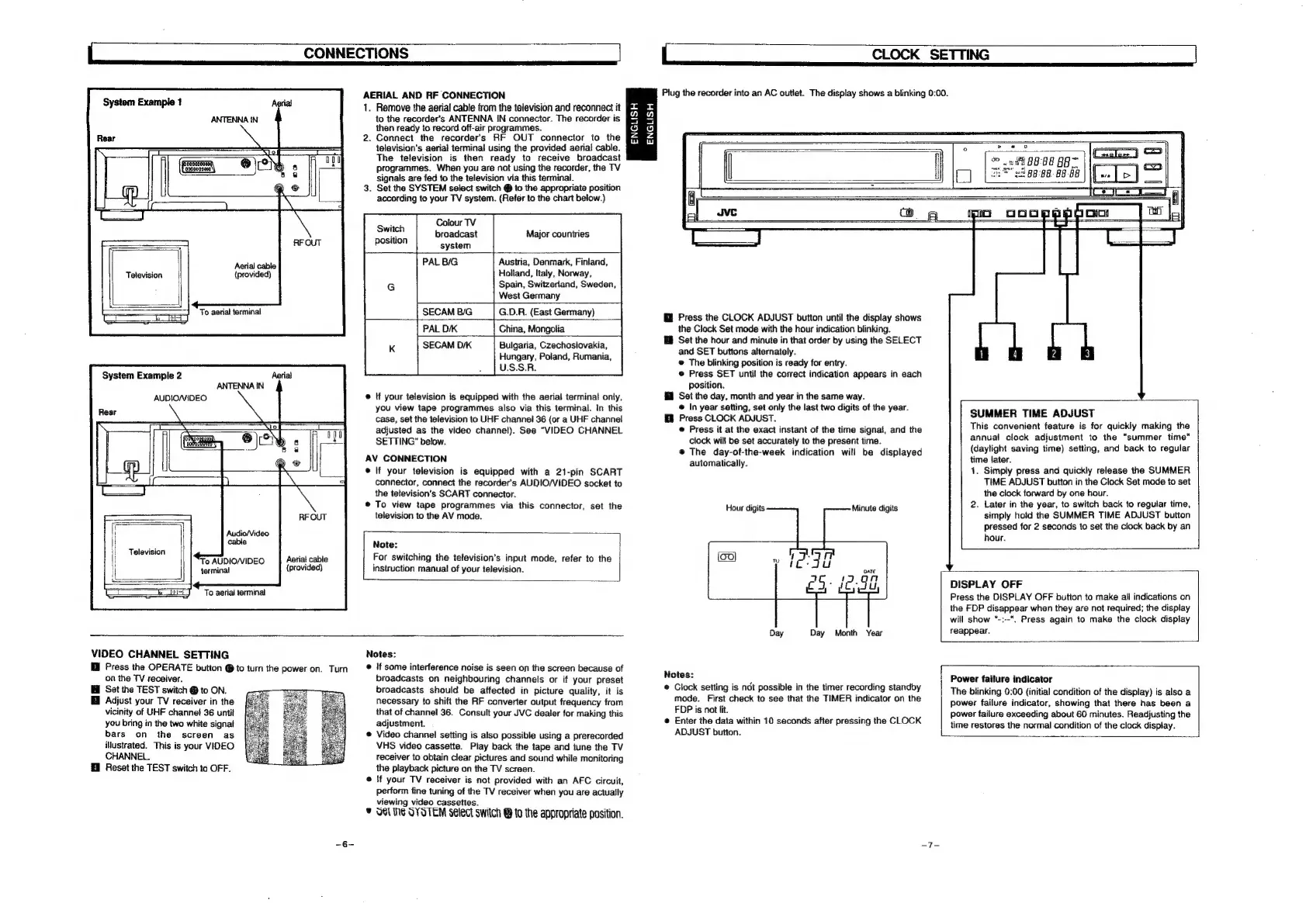
CONNECTIONS
|
Aerial
cable
Television
(provided)
To
aerial
terminal
Aerial
ANTENNA
iN
AUDIO/VIDEO
System
Example
2
Aerial
cable
I
‘To
AUDIO/VIDEO
(provided)
terminal
AERIAL
AND
RF
CONNECTION
1.
Remove
the
aerial
cable
from
the
television
and
reconnect
it
to
the
recorder's
ANTENNA
IN
connector.
The
recorder
is
then
ready
to
record
off-air
programmes.
2.
Connect
the
recorders
RF
OUT
connector
to
the
television's
aerial
termina!
using
the
provided
aerial
cable.
The
television
is
then
ready
to
receive
broadcast
programmes.
When
you
are
not
using
the
recorder,
the
TV
signals
are
fed
to
the
television
via
this
terminal.
3.
Set
the
SYSTEM
select
switch
@
to
the
appropriate
position
according
to
your
TV
system.
(Reter
to
the
chart
below.)
ENGLISH
ENGLISH
Colour
TV
broadcast
system
PAL
B/G
Switch
position
Austria,
Denmark,
Finland,
7
Holland,
Italy,
Norway,
G
Spain,
Switzerland,
Sweden,
West
Germany
G.D.R.
(East
Germany)
|
China,
Mongolia
Bulgaria,
Czechoslovakia,
Hungary,
Poland,
Rumania,
U.S.S.R.
Major
countries
SECAM
B/G
PAL
D/K
SECAM
D/K
©
tf
your
television
is
equipped
with
the
aerial
terminal
only,
you
view
tape
programmes
also
via
this
terminal.
In
this
case,
set
the
television
to
UHF
channel
36
(or
a
UHF
channel
adjusted
as
the
video
channel).
See
"VIDEO
CHANNEL
SETTING”
below.
AV
CONNECTION
@
If
your
television
is
equipped
with
a
21-pin
SCART
connector,
connect
the
recorder’s
AUDIO/VIDEO
socket
to
the
television's
SCART
connector.
@
To
view
tape
programmes
via
this
connector,
set
the
television
to
the
AV
mode.
Note:
For
switching
the
television's
input
mode,
refer
to
the
instruction
manual
of
your
television.
VIDEO
CHANNEL
SETTING
M@
Press
the
OPERATE
button
@
to
turn
the
power
on.
Turn
on
the
TV
receiver.
Set
the
TEST
switch
@
to
ON.
i
Adjust
your
TV
receiver
in
the
vicinity
of
UHF
channel
36
until
you
bring
in
the
two
white
signal
bars
on
the
screen
as
illustrated.
This
is
your
VIDEO
CHANNEL.
Reset
the
TEST
switch
to
OFF.
Notes:
@
If
some
interference
noise
is
seen
on
the
screen
because
of
broadcasts
on
neighbouring
channels
or
if
your
preset
broadcasts
should
be
affected
in
picture
quality,
it
is
necessary
to
shift
the
RF
converter
output
frequency
from
that
of
channel
36.
Consult
your
JVC
dealer
for
making
this
adjustment.
@
Video
channel
setting
is
also
possible
using
a
prerecorded
VHS
video
cassette.
Play
back
the
tape
and
tune
the
TV
receiver
to
obtain
clear
pictures
and
sound
while
monitoring
the
playback
picture
on
the
TV
screen.
@
if
your
TV
receiver
is
not
provided
with
an
AFC
circuit,
perform
fine
tuning
of
the
TV
receiver
when
you
are
actually
viewing
video
cassettes.
©
OGL
Ne
OYOTEM
select
switch
@
to
the
appropriate
position.
|
CLOCK
SETTING
Plug
the
recorder
into
an
AC
outlet.
The
display
shows
a
blinking
0:00.
fi
Press
the
CLOCK
ADJUST
button
until
the
display
shows
the
Clock
Set
mode
with
the
hour
indication
blinking.
&
Set
the
hour
and
minute
in
that
order
by
using
the
SELECT
and
SET
buttons
alternately.
®
The
blinking position
is
ready
for
entry.
e
Press
SET
until
the
correct
indication
appears
in
each
position.
{83
Set
the
day,
month
and
year
in
the
same
way.
@
In
year
setting,
set
only
the
last
two
digits
of
the
year.
Hl
Press
CLOCK
ADJUST.
SUMMER
TIME
ADJUST
Press
it
at
the
exact
instant
of
the
time
signa!,
and
the
sua
ee
asain
oe
ee
clock
will
be
set
accurately
to
the
present
time.
i
vod
a
©
The
day-of-the-week
indication
will
be
displayed
aie
eee
time)
setting,
and
back
to
regular
automatically.
"
7
Ne
1.
Simply
press
and
quickly
release
the
SUMMER
TIME
ADJUST
button
in
the
Clock
Set
mode
to
set
the
clock
forward
by
one
hour.
ini
i
igi
2.
Later
in
the
year,
to
switch
back
to
regular
time,
H
digits
ae
nee
os
simply
hold
the
SUMMER
TIME
ADJUST
button
pressed
for
2
seconds
to
set
the
clock
back
by
an
hour.
f
.
7
198
ATE
pe
fare]
fh
DISPLAY
OFF
Press
the
DISPLAY
OFF
button
to
make
all
indications
on
the
FDP
disappear
when
they
are
not
required;
the
display
will
show
*-:--".
Press
again
to
make
the
clock
display
Day Day
Month
Year
reappear.
ey
pierre
dace
aint
Power
failure
indicator
©
Glock
setting
1s
‘not:
possile
In
the
‘timer:
recording
‘stancoy
The
blinking
0:00
(initial
condition
of
the
display)
is
also
a
shes
Be
Ghack
to:
see
that;
tha
TIMER.
indicator;on:the
power
failure
indicator,
showing
that
there
has
been
a
Se
Ds
:
power
failure
exceeding
about
60
minutes.
Readjusting
the
e'Enier
the
dala
within
0
seconds
alien
pressing
the
CLOCK
time
restores
the
normal
condition
of
the
clock
display.
ADJUST
button.

Related product manuals