EasyManua.ls Logo

JVC HR-D540EE - Operating Procedure

JVC HR-D540EE
90 pages
Print Icon
To Next Page IconTo Next Page
To Previous Page IconTo Previous Page
Loading...
[
SPECIAL-EFFECTS
PLAYBACK
|
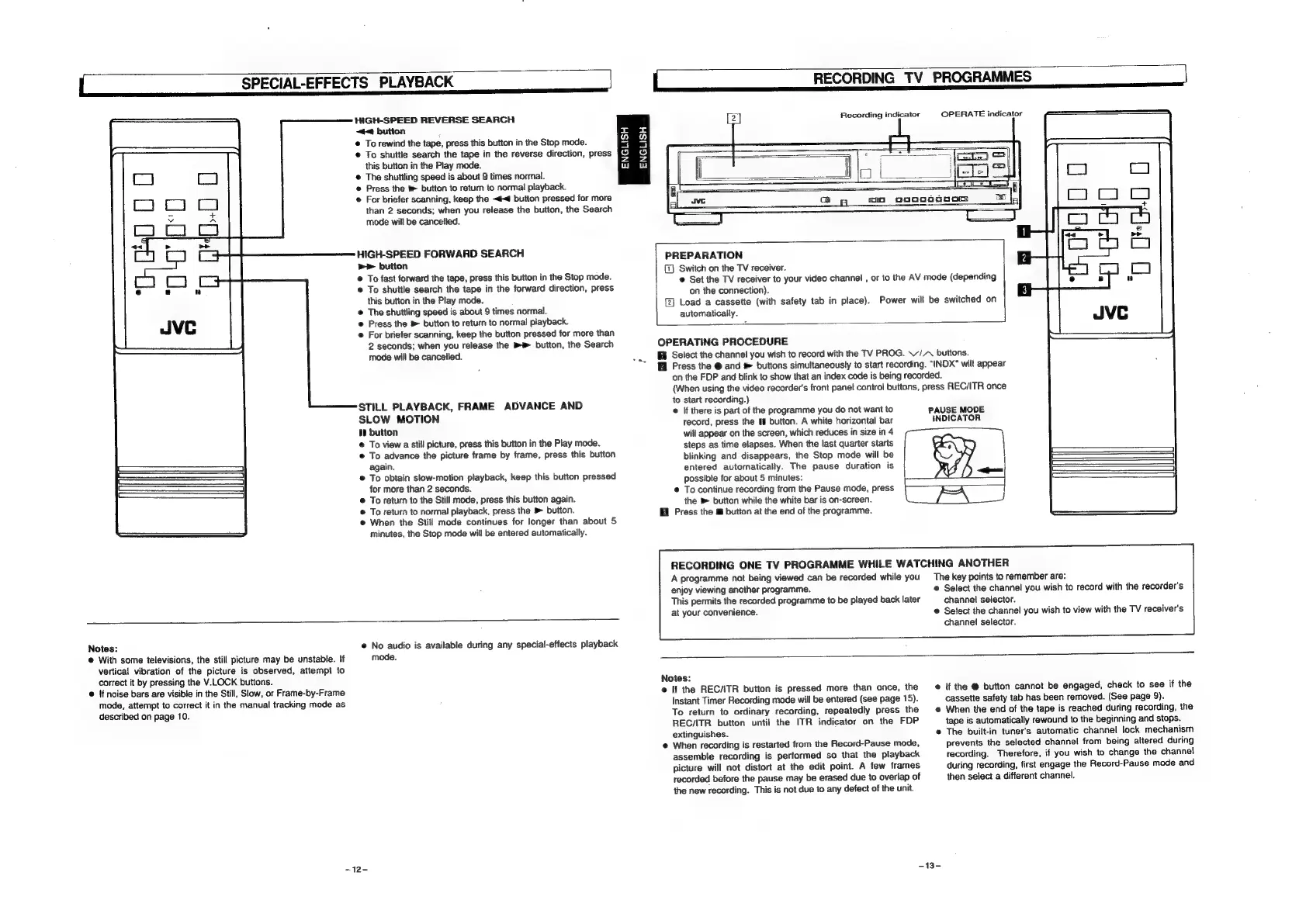
HIGH-SPEED
REVERSE
SEARCH
~#<
bution
@
To
rewind
the
tape,
press
this
button
in
the
Stop
mode.
e
To
shuttle
search
the
tape
in
the
reverse
direction,
press
this
button
in
the
Play
mode.
The
shuttling
speed
is
about
9
times
normal.
©
Press
the
®
button
to
return
to
normal
playback.
@
For
briefer
scanning,
keep
the
~#<4
button
pressed
for
more
than
2
seconds;
when
you
release
the
button,
the
Search
mode
will
be
cancelled.
ENGLISH
ENGLISH
HIGH-SPEED
FORWARD
SEARCH
Pr
button
©
To
fast
forward
the
tape,
press
this
button
in
the
Stop
mode.
@
To
shuttle
search
the
tape
in
the
forward
direction,
press
this
button
in
the
Play
mode.
The
shuttling
speed
is
about
9
times
normal.
©
Press
the
®
button
to
return
to
normal
playback
@
For
briefer
scanning,
keep
the
button
pressed
for
more
than
2
seconds;
when
you
release
the
®®
button,
the
Search
mode
will
be
cancelled.
STILL
PLAYBACK,
FRAME
ADVANCE
AND
SLOW
MOTION
i
button
@
To
view
a
still
picture,
press
this
button
in
the
Play
mode.
®
To
advance
the
picture
frame
by
frame,
press
this
button
again.
®
To
obtain
slow-motion
playback,
keep
this
button
pressed
for
more
than
2
seconds.
©
To
return
to
the
Still
mode,
press
this
button again.
@
To
return
to
normal
playback,
press
the
>
button.
@
When
the
Still
mode
continues
for
longer
than
about
5
minutes,
the
Stop
mode
will
be
entered
automatically.
Notes:
@
With
some
televisions,
the
still
picture
may
be
unstable.
If
vertical
vibration
of
the
picture
is
observed,
attempt
to
correct
it
by
pressing
the
V.LOCK
buttons.
@
{f
noise
bars
are
visible
in
the
Still,
Slow,
or
Frame-by-Frame
mode,
attempt
to
correct
it
in
the
manual
tracking
mode
as
described
on
page
10.
@
No
audio
is
available
during
any
special-effects
playback
mode.
~12-
|
RECORDING
TV
PROGRAMMES
|
OPERATE
indicator
Recording
indicator
PREPARATION
(7)
Switch
on
the
TV
receiver.
©
Set
the
TV
receiver
to
your
video
channel
,
or
to
the
AV
mode
(depending
on
the
connection).
{2]
Load
a
cassette
(with
safety
tab
in
place).
automatically.
Power
will
be
switched
on
OPERATING
PROCEDURE
BB
Select
the
channel
you
wish
to
record
with
the
TV
PROG.
\/
A
buttons.
Press
the
@
and
>
buttons
simultaneously
to
start
recording.
"INDX"
wilt
appear
on
the
FDP
and
blink
to
show
that
an
index
code
is
being
recorded.
(When
using
the
video
recorder's
front
panel
control
buttons,
press
REC/ITR
once
to
start
recording.)
@
If
there
is
part
of
the
programme
you
do
not
want
to
tecord,
press
the
If
button.
A
white
horizontal
bar
will
appear
on
the
screen,
which
reduces
in
size
in
4
steps
as
time
elapses.
When
the
last
quarter
starts
blinking
and
disappears,
the
Stop
mode
will
be
entered
automatically.
The
pause
duration
is
possible
for
about
5
minutes:
@
To
continue
recording
from
the
Pause
mode,
press
the
®
button
while
the
white
bar
is
on-screen.
i
Press
the
&
button
at
the
end
of
the
programme.
PAUSE
MODE
INDICATOR
RECORDING
ONE
TV
PROGRAMME
WHILE
WATCHING
ANOTHER
A
programme
not
being
viewed
can
be
recorded
while
you
enjoy
viewing
another
programme.
This
permits
the
recorded
programme
to
be
played
back
later
at
your
convenience.
The
key
points
to
remember
are:
e
Select
the
channel
you
wish
to
record
with
the
recorders
channel
selector.
©
Select
the
channel
you
wish
to
view
with
the
TV
receiver's
channel
selector.
Notes:
@
If
the
RECATR
button
is
pressed
more
than
once,
the
Instant
Timer
Recording
mode
will
be
entered
(see
page
15).
To
return
to
ordinary
recording,
repeatedly
press
the
REC/ITR
button
until
the
ITR
indicator
on
the
FDP
extinguishes.
@
When
recording
is
restarted
from
the
Record-Pause
mode,
assemble
recording
is
performed
so
that
the
playback
picture
will
not
distort
at
the
edit
point.
A
few
frames
recorded
before
the
pause
may
be
erased
due
to
overlap
of
the
new
recording.
This
is
not
due
to
any
defect
of
the
unit.
if
the
@
button
cannot
be
engaged,
check
to
see
if
the
cassette
safety
tab
has
been
removed.
(See
page
9).
®
When
the
end
of
the
tape
is
reached
during
recording,
the
tape
is
automatically
rewound
to
the
beginning
and
stops.
®
The
built-in
tuners
automatic
channel
lock
mechanism
prevents
the
selected
channel
from
being
altered
during
recording.
Therefore,
if
you
wish
to
change
the
channel
during
recording,
first
engage
the
Record-Pause
mode
and
then
select
a
different
channel.
-13-

Related product manuals