2 Select an item to jump to by touching as
follows.
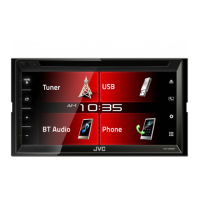
For KW-V340BT/KW-V340BTM:
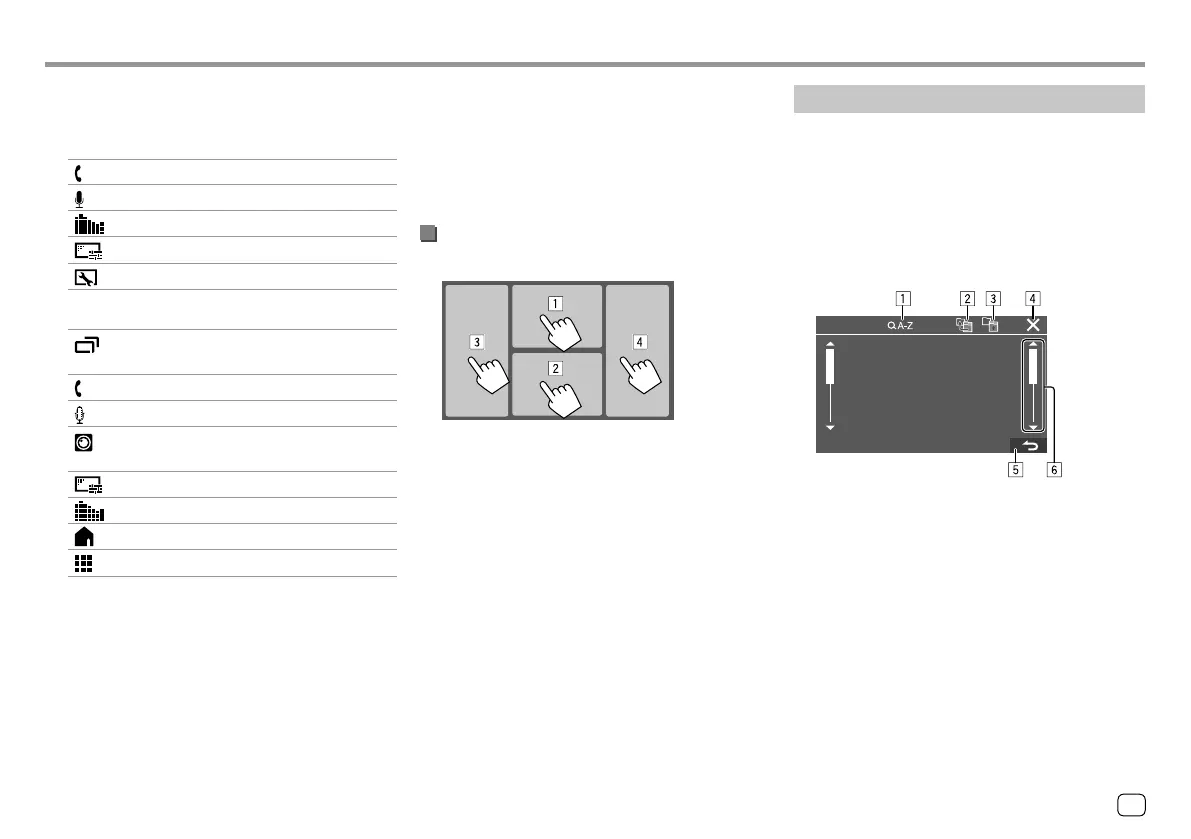
[ ]
Displays the phone control screen.
[
]
Activates the voice dialing.
[
]
Displays the <Equalizer> screen.
[
]
Displays the picture adjustment screen.
[
]
Displays the <User Customize> screen.
For KW-V440BT/KW-V440BTM:
[ ]
(Touch) Switches the screen.
(Hold) Turns off the screen.
[
]
Displays the phone control screen.
[
]
Activates the voice dialing.
[
]
Displays the picture from the connected
rear view camera.
[
]
Displays the picture adjustment screen.
[
]
Displays the <Equalizer> screen.
[
]
Displays the Home screen.
[
]
Displays all playback sources and items.
• The playback source buttons/items displayed on
the Home screen are displayed on the pop-up
short-cut menu. Touching these operation keys
changes the playback source.
Various Screens and OperationsVarious Screens and Operations
To close the pop-up menu
• KW-V340BT/KW-V340BTM: Touch [K] or touch the
screen anywhere other than the pop-up short-cut
menu.
• KW-V440BT/KW-V440BTM: Press FNC on the
monitor panel.
Using touch screen operation during
playback
Touching the areas performs the following actions:
1 Displays the video control menu while playing a
video.
2 While playing a video: Displays the source control
screen.
While playing an audio file: Displays the playback
operation keys.
3 Goes to the previous chapter/track.*
4 Goes to the next chapter/track.*
* Not available for video from an external component (AV-IN).
List/setting screen
Below are the common operation keys which appear
on the list/setting screen..
• The appearance of the operation keys may differ,
however the similar operation keys have the same
operations.
• Available operation keys differ depends on the
setting screens. Not all these operation keys are
shown on every screen.
Touching the operation keys performs the following
actions:
1 Enters alphabet search* to list the items in
alphabetical order. When a keypad appears, touch
the first letter you want to search for.
2 Returns to the root folder.
3 Returns to the upper layer.
4 Closes the current screen.
5 Exits from the current screen or returns to the
previous screen.
6 Changes the page to display more items.
* Alphabet search is not available when the playlist is selected.
9ENGLISH
00_KW-V2018ST_M_ENG.indb 900_KW-V2018ST_M_ENG.indb 9 17/6/2017 7:35:45 AM17/6/2017 7:35:45 AM


 To Next Page