SettingsSettings
System settings
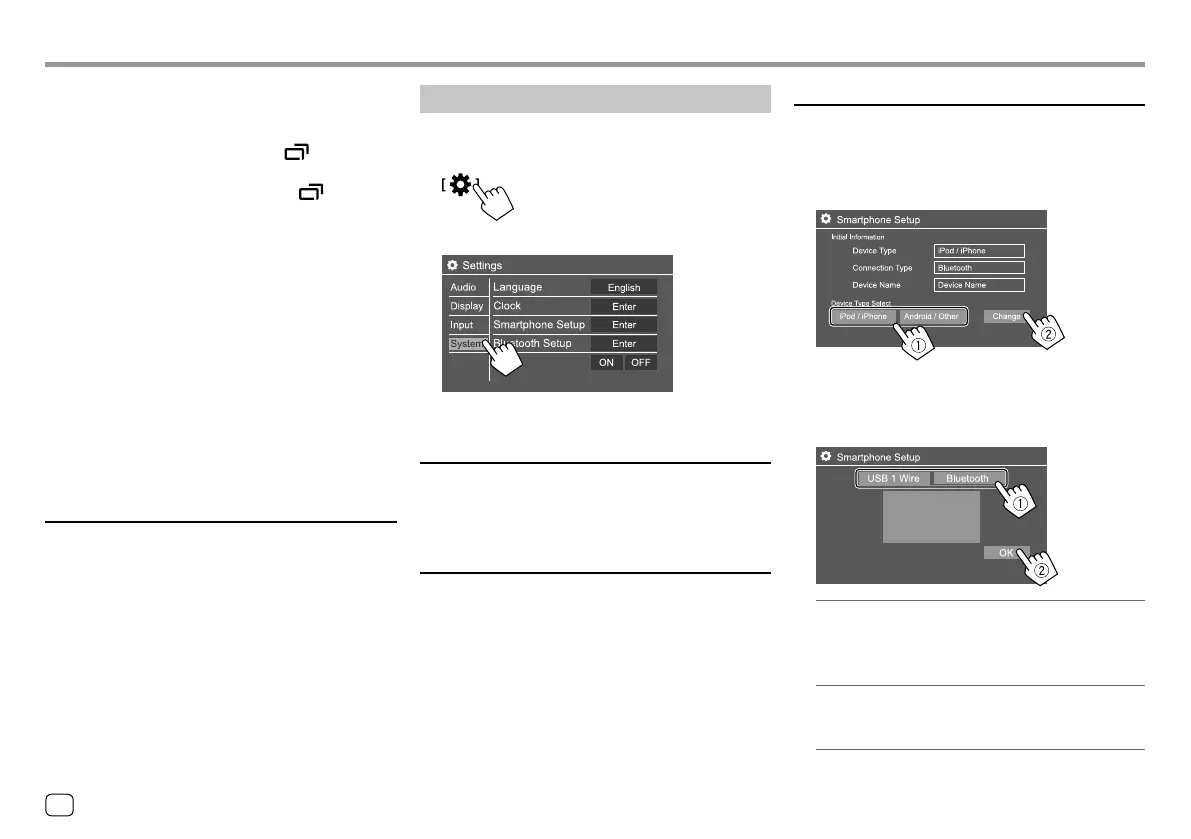
Display the <System> screen.
On the Home screen, touch as follows:
Then, on the <Settings> screen, touch [System].
E.g. System settings screen for KW-V440BT
<Language>
Select the text language used for on-screen
information. For details, see “Initial settings” on
page4.
<Clock>
Set the clock. For details, see “Clock settings” on
page5.
<Smartphone Setup>
Specify the connection method of Android/iPod/
iPhone.
1 Select the device type (1), then touch
[Change] (
2).
2 Select the connection method (1), then
confirm the selection ([OK] or [Next]) (
2).
If [iPod/iPhone] is selected in step 1:
[USB 1 Wire] Select this when the device is
connected via the USB input
terminal (on the monitor panel or
cable from the rear panel).
[Bluetooth] Select this when the device is
connected via Bluetooth. (Go to
step 3.)
<Input>
Select the source screen to be displayed when you
perform the following operation.
For KW-V340BT/KW-V340BTM: Press button on
the monitor panel.
For KW-V440BT/KW-V440BTM: Touch [ ] on the
pop-up short-cut menu.
• RGB: Switches to the navigation screen from the
connected navigation unit.
• OFF (Initial): Deactivates the display switch function.
<Output>
Select which front speakers are used for the navigation
guidance.
• Lch: Output from front left channel only.
• Rch: Output from front right channel only.
• L+Rch (Initial): Output from both front left and front
right channels.
<Volume>
0 to 35: Adjust the volume of the navigation guidance.
<TV Tuner Control>
(Only for KW-V440BT Region 3 (except for Indonesian
models), KW-V440BTM Region 2)
• ON: Enables to control TV operation on the “AV-IN”.
• OFF (Initial): Select this to use “AV-IN” with the other
component than TV Tuner.
38
ENGLISH
04_KW_V340BT_M_Body02.indd 3804_KW_V340BT_M_Body02.indd 38 5/7/2017 4:05:52 PM5/7/2017 4:05:52 PM


 To Next Page