SettingsSettings
<Time Alignment>
Make fine adjustments to the delay time of the speaker
output to create a more suitable environment for your
car.
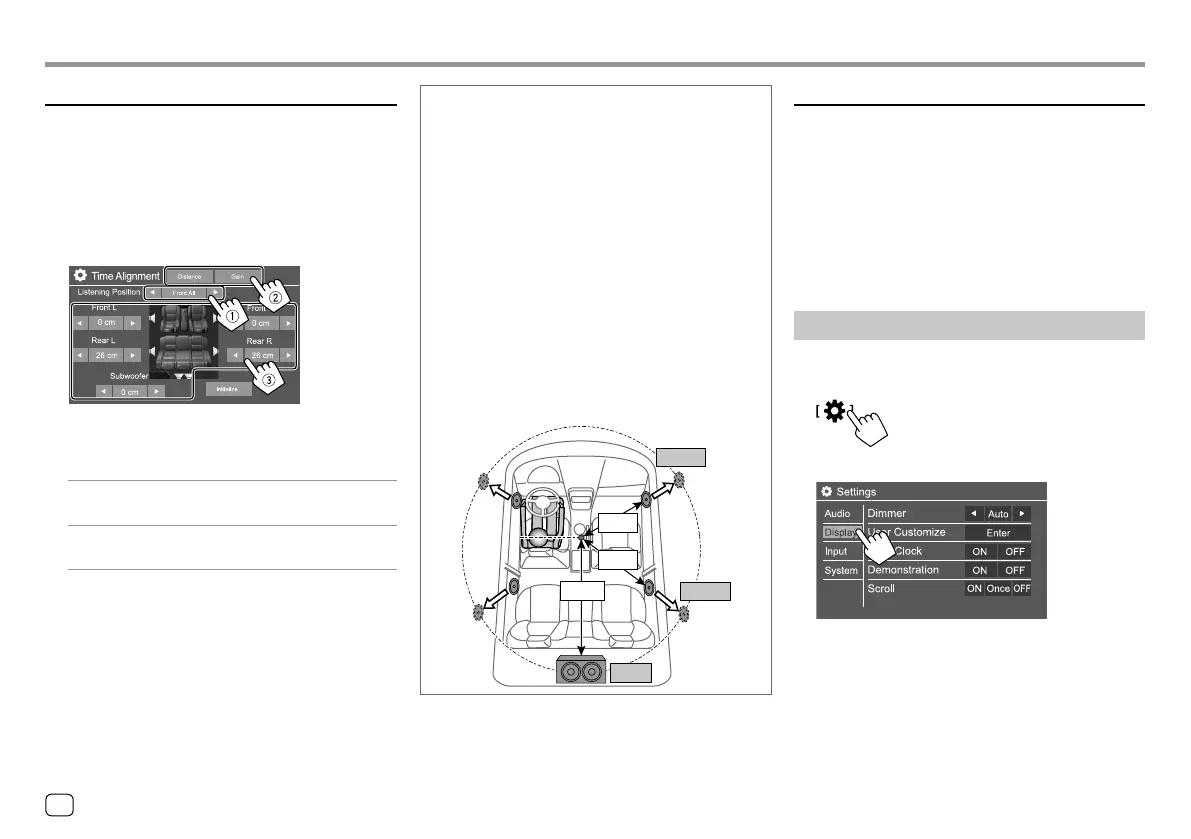
Select the listening position (1), select
[Distance] or [Gain](
2) to make an
adjustment, then adjust each speaker setting
(
3).
1 Select from <All>, <FrontL>, <Front R> or
<Front All>*.
2 Select an item to adjust.
[Distance] Adjusts the digital time alignment
value.
[Gain] Adjusts the output volume of the
selected speaker.
3 To determine the adjustment value, see the
following “Determining the value for <Position
DTA> adjustment”.
To initialize the setting value: Touch [Initialize].
* <Front All> is selectable only when <X'over Network> is set to
[2way].
Determining the value for <Position DTA>
adjustment
If you specify the distance from the center of the
currently set listening position to every speaker, the
delay time will be automatically computed and set.
1 Determine the center of the currently set
listening position as the reference point.
2 Measure the distances from the reference point
to the speakers.
3 Calculate the differences between the distance of
the furthest speaker and other speakers.
4 Set the DTA value calculated in step 3 for
individual speakers.
5 Adjust gain for individual speakers.
E.g. When <Front All> is selected as the listening
position
+90 cm
60 cm
80 cm
+70 cm
150 cm
+0 cm
<Volume Offset>
Adjust and store the auto-adjustment volume level for
each source. If the source is a disc, the adjustment is
stored for each of the following categories:
• DVD/VCD
• CD
• DivX/MPEG1/MPEG2/MP3/WMA/WAV/AAC/FLAC
The volume level will automatically increase or
decrease when you change the source.
• –15 to +6 (Initial: 00)
Display settings
Display the <Display> screen.
On the Home screen, touch as follows:
Then, on the <Settings> screen, touch [Display].
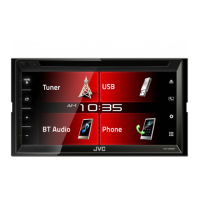
E.g. Display settings screen for KW-V440BT
34
ENGLISH
00_KW-V2018ST_M_ENG.indb 3400_KW-V2018ST_M_ENG.indb 34 17/6/2017 7:35:51 AM17/6/2017 7:35:51 AM


 To Next Page