Other External ComponentsOther External Components
Operations while the camera screen is
displayed
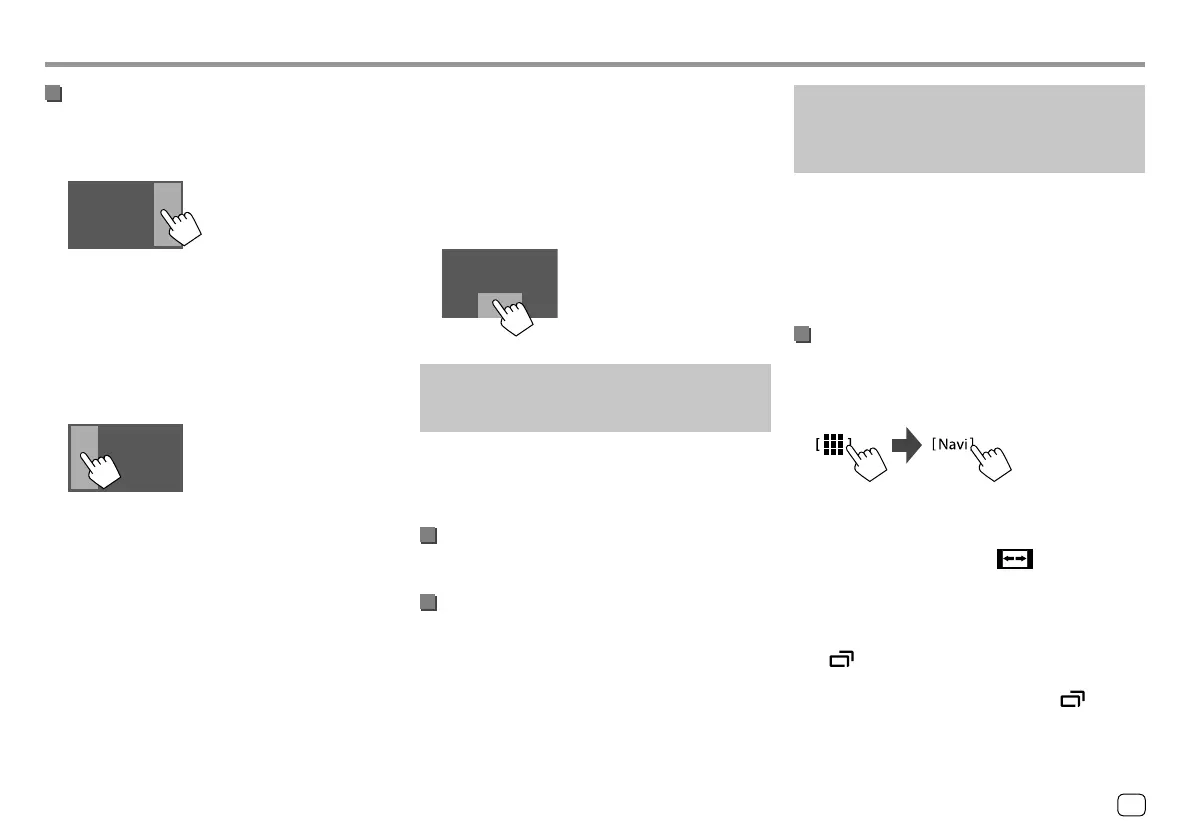
To adjust the picture
Touch the area shown below.
Video menu control screen is displayed. For details, see
“Video menu control operations” on page12.
• To exit video menu control screen, touch the same
area again.
To display parking guide line
Set <Parking Guidelines> to [ON] (Page37) or
touch the area shown below.
• To close the parking guidelines, touch the same area
again.
To exit the camera screen
Touch the area shown below or perform the following
to display the Home screen:
• For KW-V340BT/KW-V340BTM: Press HOME on the
monitor panel.
• For KW-V440BT/KW-V440BTM: Press FNC on the
monitor panel, then touch [Home] on the pop-up
short-cut menu.
TV tuner box
(Only for KW-V440BT Region 3 (except for
Indonesian models), KW-V440BTM Region 2)
You can connect a TV tuner box (commercially
available) to the REMO OUT output terminal to watch
TV.
Connecting a TV tuner box
See page 46 for more information.
Displaying the TV screen
• For settings, see <TV Tuner Control> on page 38.
1 Select “AV-IN” as the source.
2 Turn on the TV tuner box.
To change the channels: Touch [ CH J ] or [ CH K ].
External navigation unit
(Only for KW-V340BT Region 3, KW-V340BTM
Region 2, KW-V440BT Region 3 (except for
Indonesian models), KW-V440BTM Region 2)
You can connect an external navigation unit
(commercially available) to the NAV input terminal so
that you can view the navigation screen. (Page 46)
• The navigation guidance comes out of the front
speakers even when you are listening to an audio
source.
Viewing the navigation screen
• For settings, see <Navigation> on page 37.
Select “Navi” as the source.
On the Home screen, touch as follows:
• While the navigation screen is displayed, the touch
panel operations are available only for navigation.
• The aspect ratio of the navigation screen is fixed
to <FULL> regardless of the [ ] setting.
(Page12).
To exit the navigation screen
For KW-V340BT Region 3, KW-V340BTM Region 2:
Press on the monitor panel.
For KW-V440BT Region 3 (except for Indonesian
models), KW-V440BTM Region 2: Touch [ ] on the
pop-up short-cut menu.
25
ENGLISH
03_KW_V340BT_M_Body01.indd 2503_KW_V340BT_M_Body01.indd 25 5/7/2017 4:03:21 PM5/7/2017 4:03:21 PM


 To Next Page