Bluetooth®Bluetooth®
Pairing a Bluetooth device using a PIN code (for
Bluetooth 2.0)
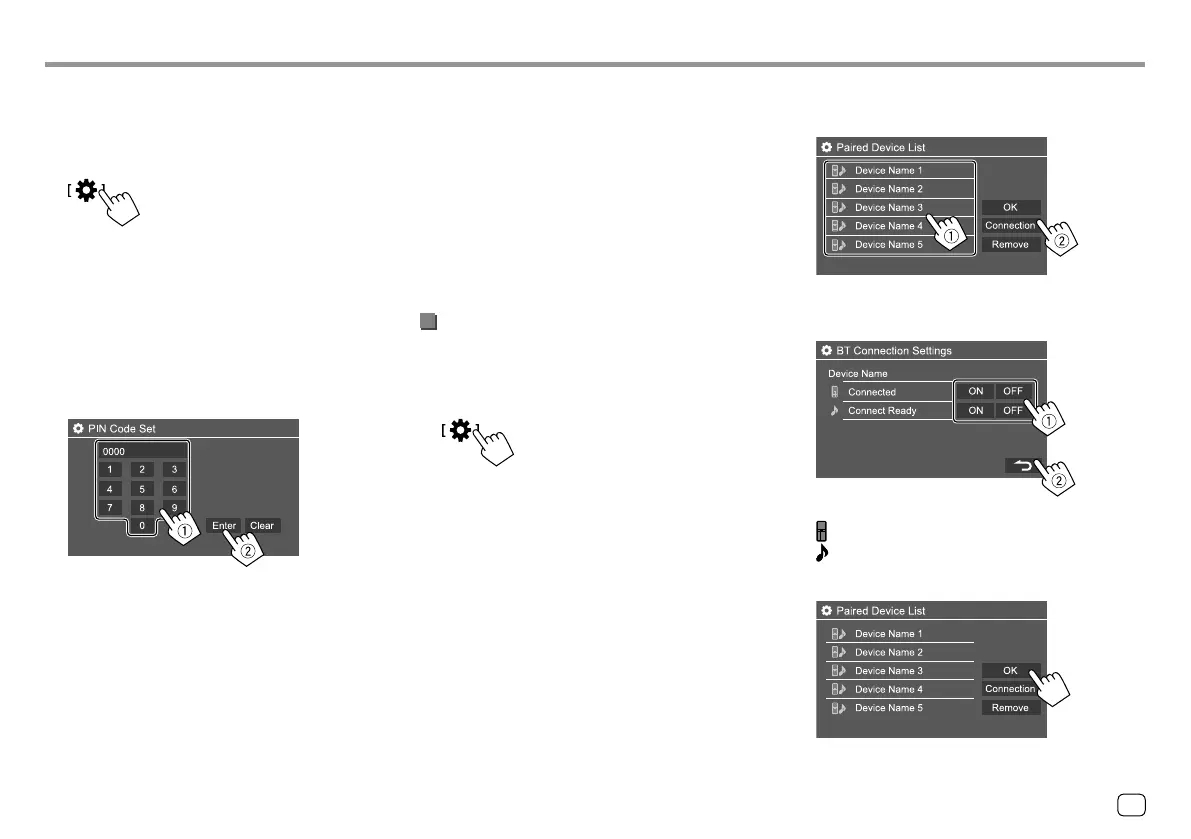
1 Display the <PIN Code Set> screen.
On the Home screen, touch as follows:
Then, on the <Settings> screen, touch as follows:
[System] <Bluetooth Setup> : [Enter]
On the <Bluetooth Setup> screen, touch as
follows:
<PIN Code> : [0000]
2 Change the PIN code.
If you wish to skip changing the PIN code, go to
step 3.
• To delete the last entry, touch [Clear].
• To delete the PIN code, touch and hold [Clear].
3 Search for the unit (“JVC KW-V”) from your
Bluetooth device.
4 Select the unit (“JVC KW-V”) on your
Bluetooth device.
• If a PIN code is required, enter “0000” (initial) or
new PIN code you have entered in step 2.
• When pairing is completed, the device is
registered on the <Paired Device List> screen.
Note
• The PIN code is initially set to “0000”.
• The maximum number of digits in the PIN code is 15.
Connecting/disconnecting a registered
Bluetooth device
1 Display the <Paired Device List> screen.
On the Home screen, touch as follows:
Then, on the <Settings> screen, touch as follows:
[System] <Bluetooth Setup> : [Enter]
On the <Bluetooth Setup> screen, touch as
follows:
<Paired Device List> : [Enter]
2 Select the device (1) you want to connect,
then select [Connection] (
2).
3 Select the device (1) to connect, then
return to the <Paired Device List> (
2).
Select [ON] (to connect) or [OFF] (to disconnect).
: Mobile phone
: Audio device
4 Connect the selected device.
27ENGLISH
00_KW-V2018ST_M_ENG.indb 2700_KW-V2018ST_M_ENG.indb 27 17/6/2017 7:35:49 AM17/6/2017 7:35:49 AM


 To Next Page