SettingsSettings
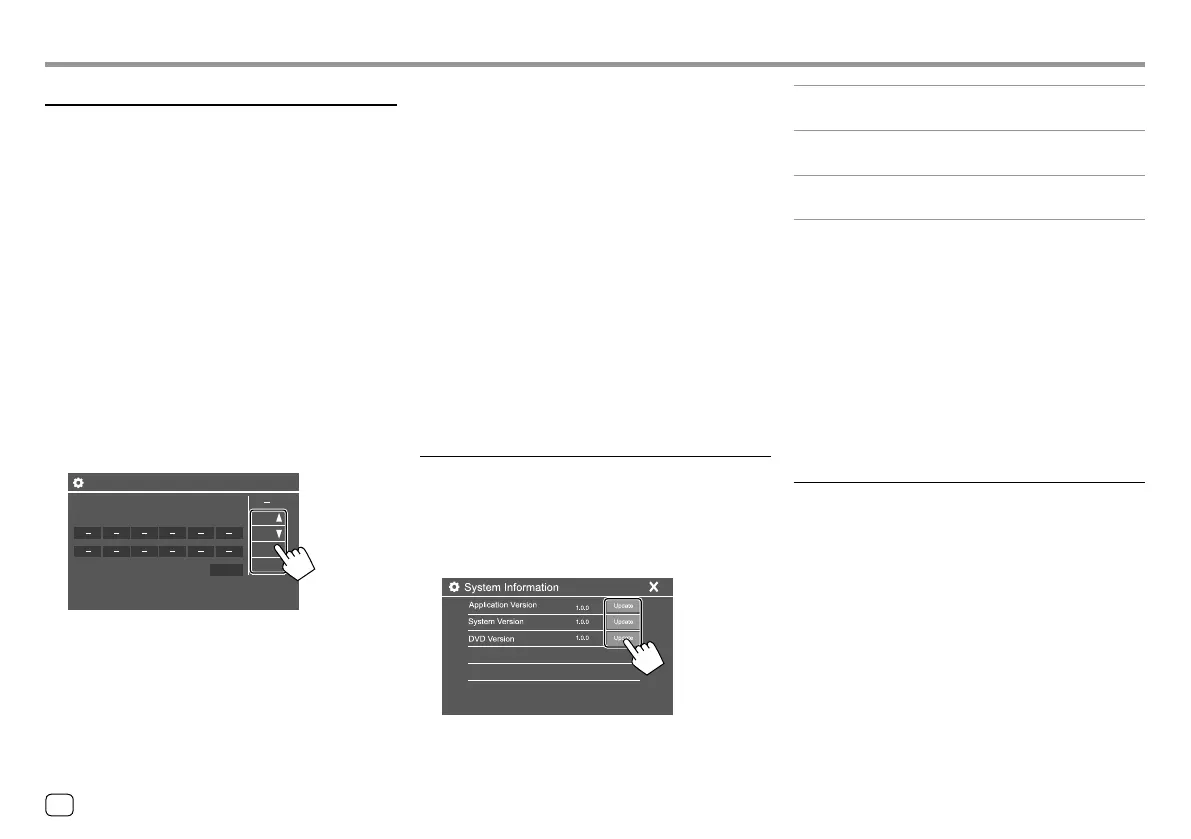
<Application Version>
Updates the system application.
<System Version>
Updates the system.
<DVD Version>
Updates the DVD system application.
The system update starts. It may take a while.
If the update has been completed successfully,
“Update Completed” appears, then reset the unit.
• Do not disconnect the USB device while updating.
• If the update has failed, turn the power off and then
on, and retry the update.
• Even if you have turned off the power during the
update, you can restart the update after the power
is turned on. The update will be performed from the
beginning.
<Open Source Licenses>
Shows the Open Source Licenses.
• The unit can register/change all of the buttons’
functions at the same time. To do this, press all
buttons in turn and after pressing all of them, touch
[Done] on the <Steering Remote Control Setting>
screen. However, new functions cannot be learned
after this operation.
• When changing the functions already learned, touch
the assigned function you want to change in step 3
and then touch to select the new function from the
function list.
• Confirm the contents of the settable functions in the
function list. You cannot edit the function list.
To initialize the setting: Touch [Initialize] for
<Steering Remote Control Setting>.
• A confirmation message appears. Touch [Yes].
– To cancel the initialization, touch [No].
<System Information>
Update the system by connecting a USB device
containing an update file.
• To obtain the update file, visit
<http://www.jvc.net/cs/car/>.
Connect a USB device with the update file to the unit.
<Steering Remote Control Setting>
Assign functions to the keys of the remote controller
on the steering wheel.
• This function is available only when your car is
equipped with the electrical steering remote
controller.
• You can only register/change the functions while
you are parked.
• If your steering remote controller is not compatible,
learning may not be completed and an error
message may appear.
1 Touch [Set] for <Steering Remote Control
Setting> to display the setting screen.
2 Press and hold a button on the steering
remote controller to register or change.
3 Select a function to assign to the selected
button.
Sterring Remote Control Setting
VOL
Please select the function to assign to the button.
VOL
ATT
SRC
Done
4 Repeat steps 2 and 3 to register other
buttons.
5 Touch [Done] to finish procedure.
40
ENGLISH
00_KW-V2018ST_M_ENG.indb 4000_KW-V2018ST_M_ENG.indb 40 17/6/2017 7:35:53 AM17/6/2017 7:35:53 AM


 To Next Page