68
Detailed setting
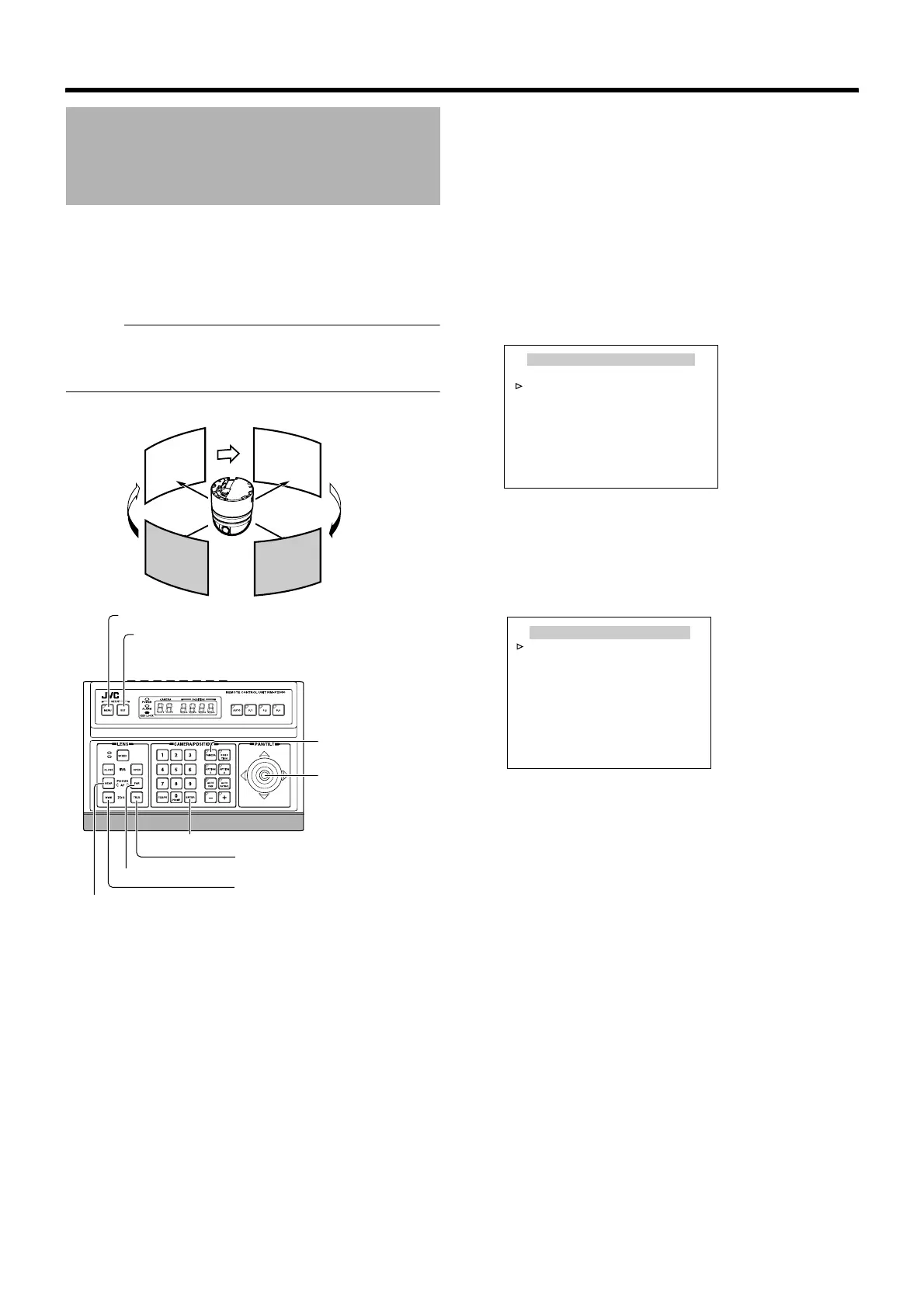
This item sets the Auto Patrol function where the camera
moves to multiple positions in order.
Three modes (mode 1 to 3) and up to 100 patrols (1 to 32)
can be set for each mode. (It is convenient if you set the
mode in day or time slots. For example, mode 1 is night,
mode 2 is day and so on.)
Memo :
● Register the positions before setting. For details on
registering positions, refer to the RM-P2580 Instruction
Manual.
䡵 Preparation
1
Select a camera (
A
RM-P2580 Instruction Manual)
● [CAMERA] button B Numeric keypad (camera number)
B [ENTER] button
● Images from the selected camera are output.
2 Display the [MENU] screen (A Page 34)
3 Shift up and down the [PAN/TILT] lever, move the
cursor (Z) to the [AUTO PAN/PATROL/TRACE]
item and press the [SET] button
The [AUTO PAN/PATROL/TRACE] screen is displayed.
4 Move the cursor (Z) to the [AUTO PATROL SET..]
item and press the [SET] button
The [AUTO PATROL SET MODE1] screen is displayed.
Auto Patrol Setting
[MENU] button
[SET] button
[CAMERA] button
[PAN/TILT] Lever
[ENTER] button
[TELE] button
[NEAR] button
[FAR] button
[WIDE] button
P
o
s
i
t
i
o
n
1
P
o
s
i
t
i
o
n
3
P
o
si
t
i
o
n
2
P
o
s
i
t
i
o
n
4
High speed
High
speed
High
speed
High speed
AUTO PAN/PATROL/TRACE
<
MENU
>
RETURN
<
SET
>
SUB MENU
AUTO PAN SET..
AUTO PATROL SET..
AUTO TRACE SET..
A. PAN/TRACE VIDEO..
RM. A. PAN KEY A. PAN
RM. A. PATROL KEY A. PATROL
[AUTO PAN/PATROL/TRACE] screen
AUTO PATROL SET MODE1
<
FOCUS
>
MODE
<
ZOOM
>
PAGE
<
MENU
>
RETURN
PATROL1 HOME 10s
PATROL2 POS 1 10s
PATROL3 POS 2 10s
PATROL4 POS 3 10s
PATROL5 POS 4 10s
PATROL6 POS 5 10s
PATROL7 POS 6 10s
PATROL8 POS 7 10s
[AUTO PATROL SET MODE1] screen
(Patrol 1 to 8 display example)


 To Next Page