26
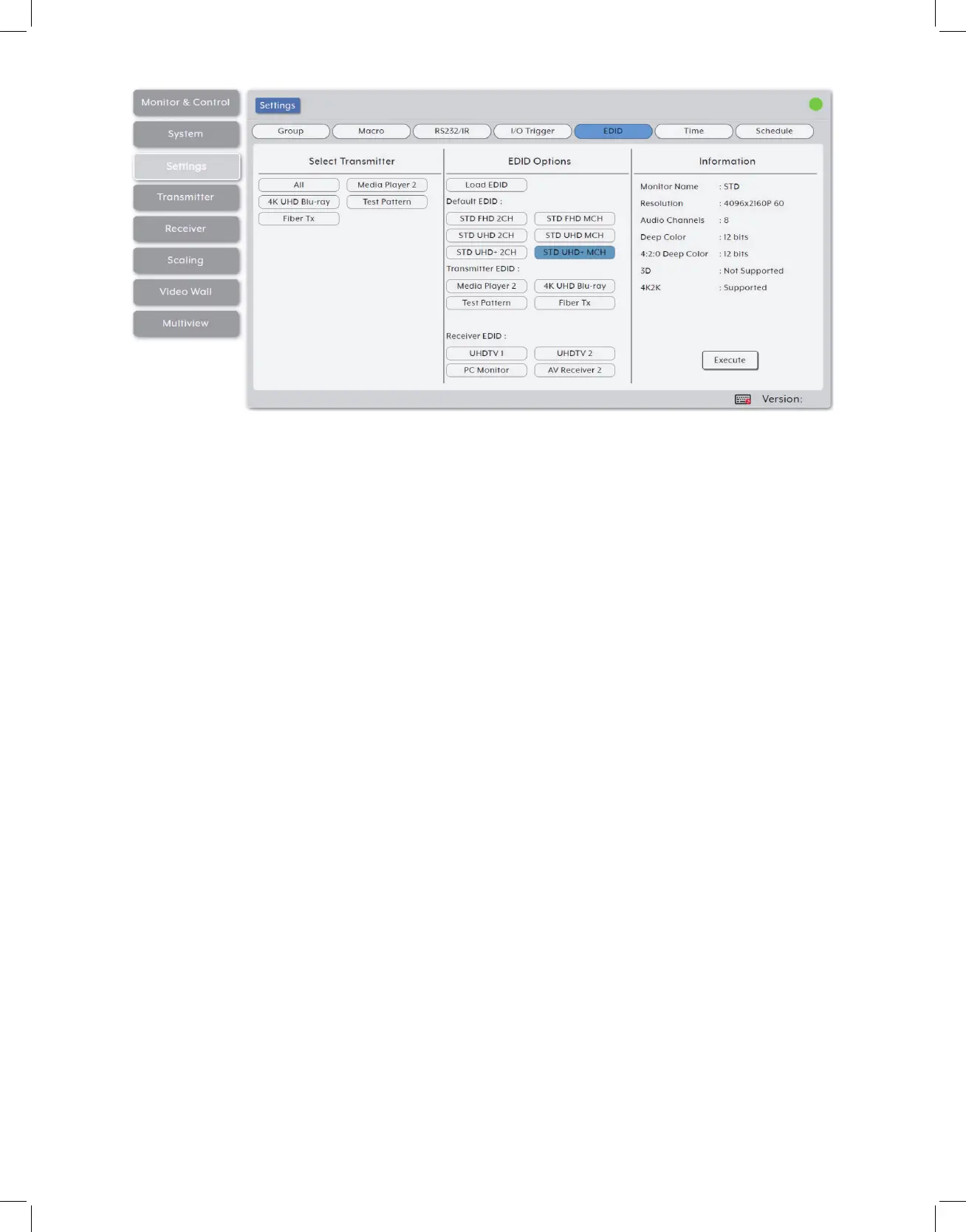
5. EDID: This section provides a way to manage and assign EDID to any or all of the
available transmitters. EDIDs may be assigned from a selection of 6 built in default
EDIDs, the displays connected to any receiver, or from a user uploaded EDID.
• Select Transmitter: This section contains a list of all currently available transmitters
as well as an “All” button. Click on one or more transmitters to select them as the
target for EDID assignment.
• EDID Options: This section displays a list of all currently available EDID sources.
Note: In most cases, assigning a new EDID to an input will cause the affected input to
briefly blink out while the source adapts to the new information.
- Load EDID: To update the EDID of one or more transmitters with a previously saved
User EDID, click the “Load EDID” button to open the file selection window and then
select the EDID file (*.bin format) located on your local PC. After selecting the file, click
the “Open” button to copy the EDID to the IP Master Controller. After the EDID has been
loaded, the details will be displayed in the Information window. Select the transmitter(s)
to copy the EDID to, and then click the “Execute” button in the bottom right window.
- Default EDID: Lists the 6 available default EDIDs that are included with the unit. To
copy one of these EDIDs to one or more transmitters, select the preferred EDID and
then select the transmitter(s) to copy the EDID to. Click the “Execute” button in the
bottom right window to finalize the assignment.


 To Next Page