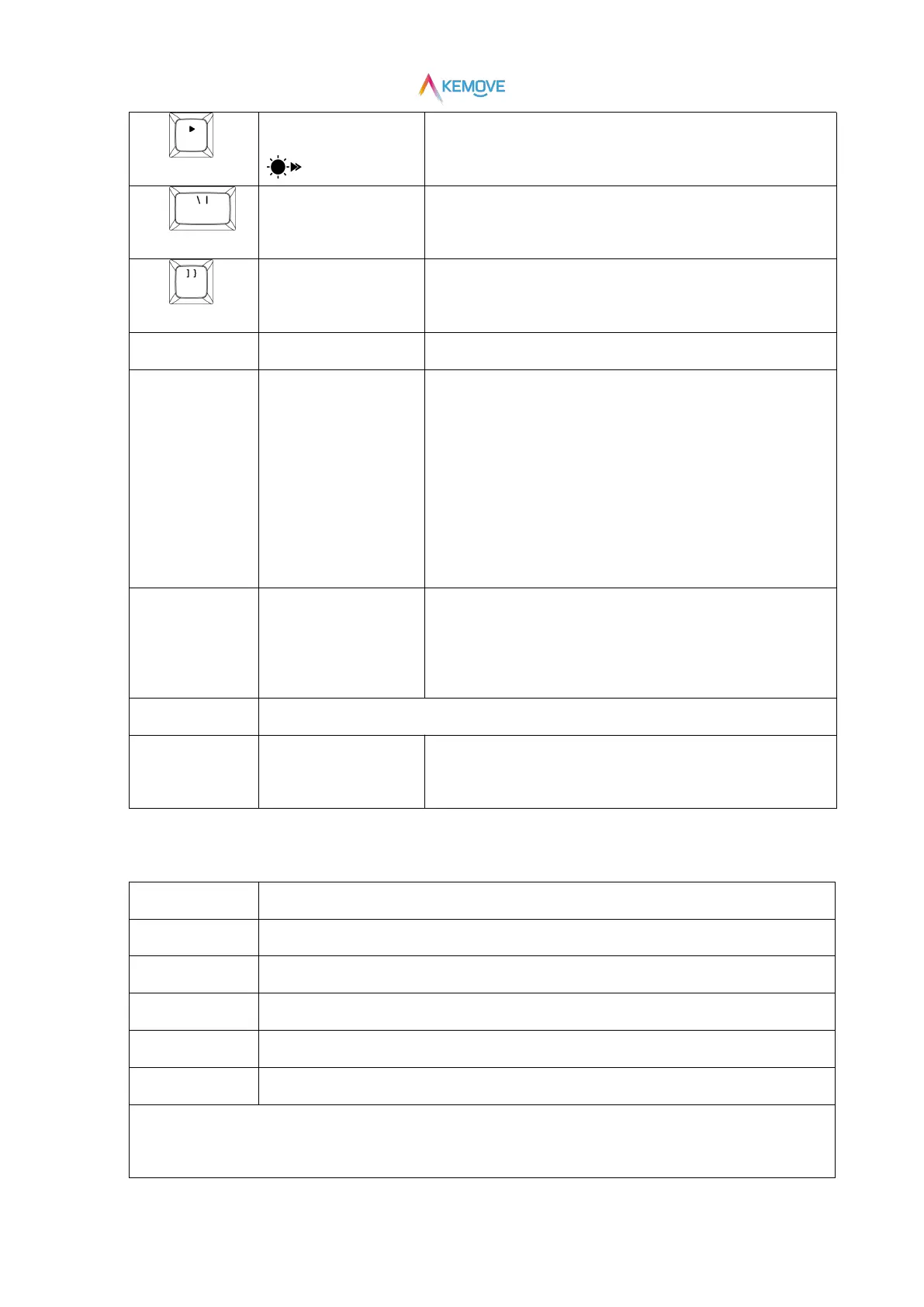
Speed up the lighting effect
There are four gears in total. When it is adjusted to the fastest speed, ▶
Key red light flashes three times
Hardware light effect
switching
Switch only the default lighting effect of the keyboard
Software light effect
switching
Only switch the light effect customized by the user through driving
Turn off the light effect
Turn off the backlight except the function indicator
Enter the power saving
mode
①Enter the power saving mode:
Long press the Fn+Enter for 3 seconds, the light will go out and enter
the power saving mode;
②Exit the power saving mode:
Long press the Fn+Enter for 3 seconds, the light will resume and exit the
power saving mode;
Switch the color of the
default lighting effect of the
keyboard
red-orange-yellow-green-cyan-blue-purple-white-return
to backlight(only some lighting effects support)
Switch keyboard light with light effect
Switch the keyboard light
strip color
red-orange-yellow-green-cyan-blue-purple-white-return
to backlight(only some lighting effects support)
4)Custom key function
Keyboard switch to profile1
Keyboard switch to profile 2
Keyboard switch to profile 3
Keyboard switch to profile 4
Switch back to standard layer
*When the FN key is pressed, the corresponding key on each layer lights up white, indicating the current layer (for example,
when the FN key is pressed, the Q key lights up white, indicating that it is currently in profile1).


 To Next Page