5)Restore Factory Defaults
Press and hold for 5S to restore the keyboard to the factory default setting
6、Driving instructions
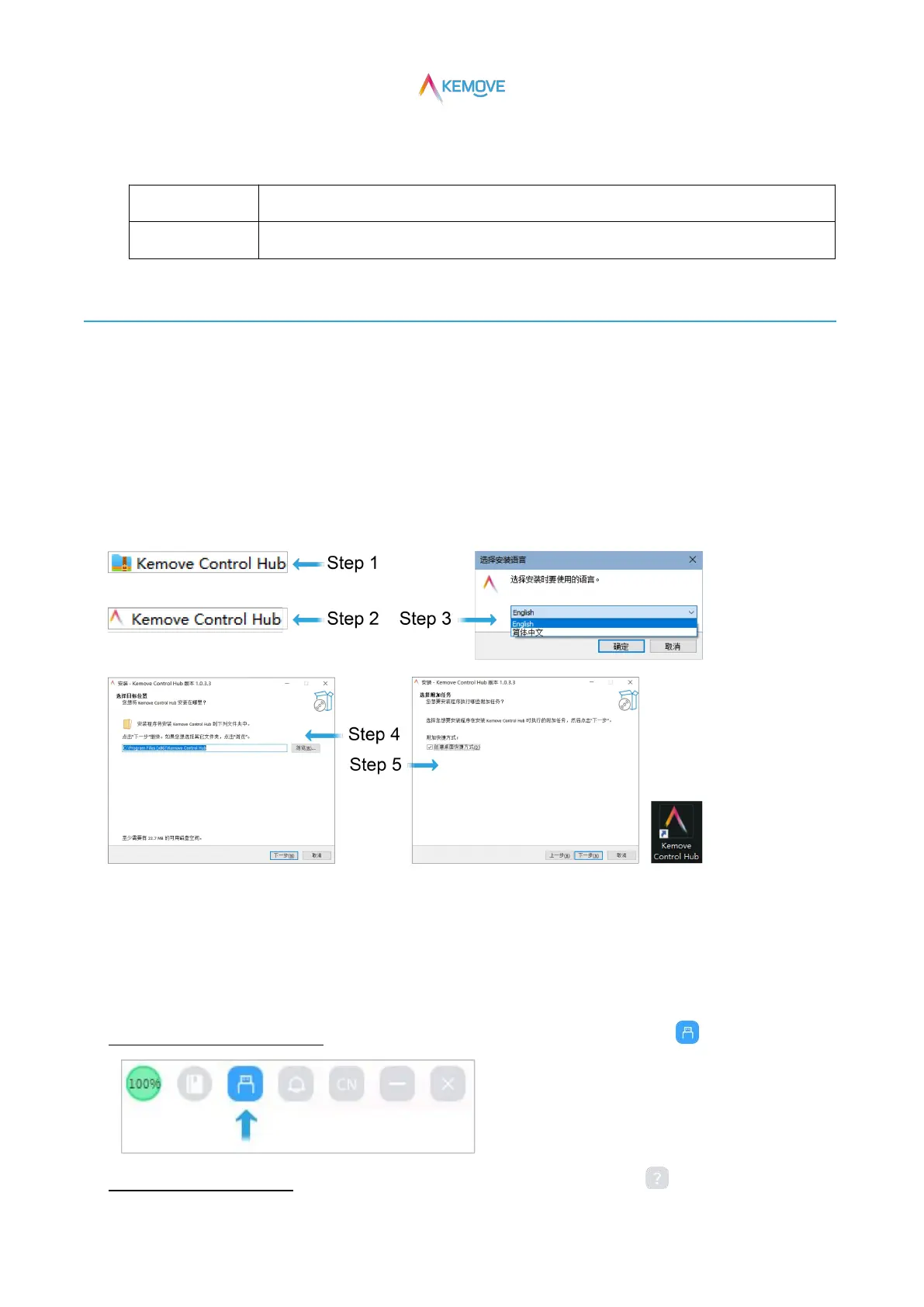
1)Driver download and installation
·Step 1: download the driver "kemove control hub" compressed package;
·Step 2: after decompression, double-click the installer "kemove control hub";
·Step 3: select the installation language and click OK;
·Step 4: select the installation folder directory and click Next;
·Step 5: √ create a desktop shortcut and click next to automatically create a shortcut on the desktop;
2)Drive identification keyboard
·Step 1:Keyboard connected to computer device;
·Step 2:Double click the computer driver desktop shortcut to start the driver:
·Drive recognition keyboard succeeded:Display icon in the upper right corner of the driving interface: ;
·Drive recognition keyboard failed:Display icon in the upper right corner of the driving interface: ;


 To Next Page