7)Light Set
·After selecting the "Light Set" module, there are "Onboard" and "User Lights" on the right side of the driving interface;
①Onboard:There are dozens of built-in default lighting effects, which cannot be changed;
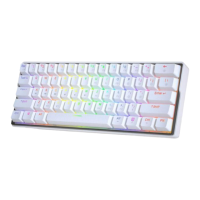
②User Lights:
·Step 1: in the keyboard area, click and drag with the left mouse button to frame multiple key positions to be adjusted at the same
time;
·Step 2: after the box is selected, the color palette will pop up automatically; Click the color to be changed with the left mouse button
to modify it successfully;
·Step 3: right click the blank space in the "User Lights" box to pop up the dialog box;
·Step 4: click "+ Add Light" with the left mouse button in the dialog box;
·Step 5: on the newly added "lamp effect" on the right, right-click to open the dialog box;
·Step 6: click "Save to custom mode" with the left mouse button in the dialog box to successfully add the light effect
(* after that, you can quickly switch custom lights through the "Fn+]}" function combination key on the keyboard);


 To Next Page