Setup
71English
User Interface Setup
You can setup user interface parameters.
1
Press the [MENU] button.
Popup menu appears.
2
Touch [SETUP].
SETUP screen appears.
3
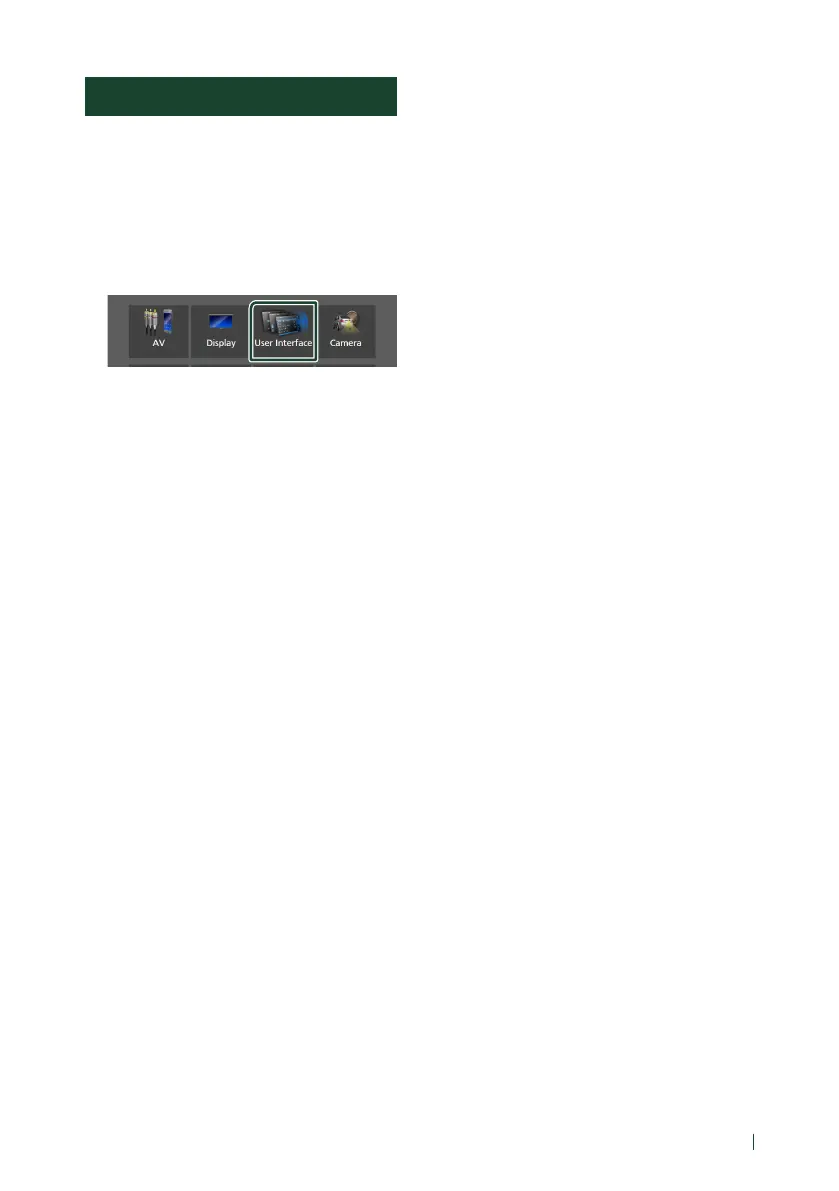
Touch [User Interface].
User Interface screen appears.
4
Set each parameter as follows.
■ [Small Audio Text]
Change the text size for the source control
screen.
[ON] (Default): Change the text size smaller.
[OFF]: Cancel.
■ [Steering Remote Controller]
Sets the desired function in the steering
remote controller.
See Learning function of steering remote.
(P.72)
■ [Beep]
Turn the key touch tone on or off.
Default is “ON”.
■ [Widget SETUP]
Set up the widget displayed on the Home
screen. (P.24)
■ [Gesture Control] *
1
Select to be on or off the Gesture Control.
(P.73)
Default is “ON”.
■ [Gesture Beep] *
1
The beep comes out when a gesture is
detected.
Default is “ON”.
■ [Gesture SETUP] *
1
Assign the functions or sources/screens to
display for gesture control. (P.73)
■ [Gesture Sensitivity] *
1
If you have selected [OFF] for [Gesture
Control], adjust the detection range of the
Gesture Control from “1”(short) to “12”(long).
Default is “7”.
■ [Language Select]
Select a language.
■ [Touch Panel Adjust]
(DDX8020S / DMX8020S)
Adjust the sensing position of the touch
panel. (P.72)
■ [Time Format]
Select the time display format.
"12-Hour" (Default)/"24-Hour"
■ [Clock]
DDX9020DABS / DDX920WDABS /
DMX8520DABS
[GPS-SYNC ](Default) : Synchronizes the clock
time with the GPS.
[Manual] : Set the clock manually.
DDX8020S / DDX820WS / DMX8020S /
DMX820WS
[RDS-SYNC ](Default) : Synchronizes the clock
time with the RDS.
[Manual ]: Set the clock manually.
■ [Time Zone]
Select the time zone.
■ [Clock Adjust]
If you select [Manual] for Clock, adjust the
date and time manually. (P.72)
*1 DDX920WDABS only



 To Next Page
 Loading...