80 N5186A MXG and X-Series SA Measurement Guide
Custom Modulation Measurements
Using PathWave E7608APPC to Create a Waveform File then Automatically Configure
the Analyzer to View the Results
Using PathWave E7608APPC to Create a Waveform File then
Automatically Configure the Analyzer to View the Results
PathWave software tools can be used to create, download, and playback
waveforms through the signal generator.
This example shows you how to create and analyze a 16QAM using the
embedded PathWave software and then automatically configure the analyzer
to make the measurement.
On the MXG:
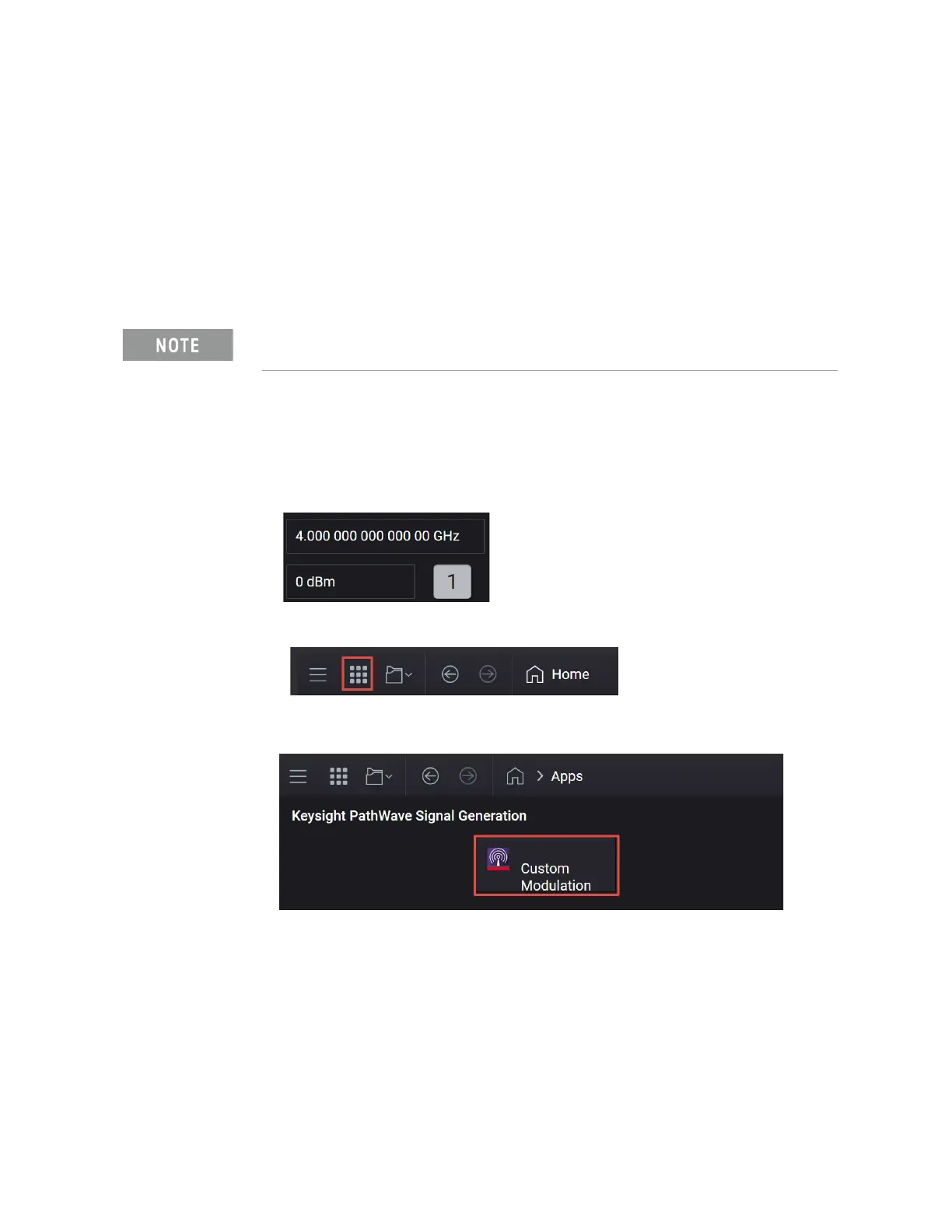
1. Select Preset > Preset to set the MXG to a known state.
2. In the Output area, set Frequency to 4 GHz and Power to
0 dBm.
3. Select the Radio Apps block to open the mode selection panel.
4. Select Custom Modulation to enter the custom modulation application.
5. In the Custom Modulation setup, select the Carrier tab.
The MXG must have the E7608APPC Custom Modulation license installed
and Signal Analyzer Version 2023 A.36.xx or later.



 To Next Page