KIC 2000 v2.4.0.x
56 KIC 2000 User Manual
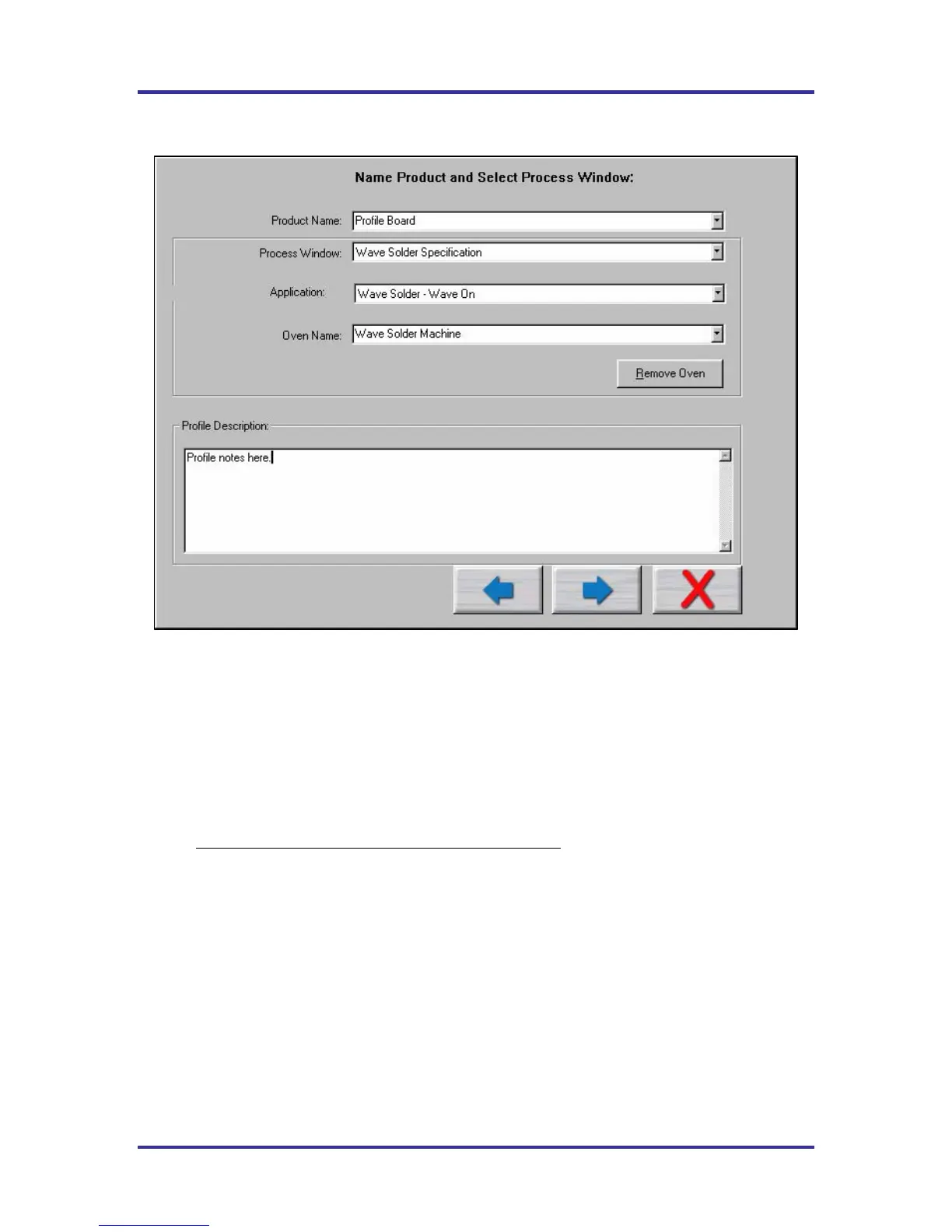
Name Product and Select Process Window/Application Type
Figure 86: Run a Profile Screen #1
• Select your Product Name from the list. If you’re profiling a new product type the name.
• Select your Process Window from the list.
• Select your process type from the Applications list. The KIC 2000 software profile and prediction
results are based on this setting, it is imperative that your select the correct Application type. Failing to
do so can affect the profile results. For wave solder select to run the profile with the wave On or Off.
• If you select Wave on, the KIC 2000 software will utilize two wave TC’s in addition to the Air TC.
The Wave TC’s will measure: wave dwell time and Parallelism when profiling with the wave on.
The Air TC must be positioned to run through the wave(s).
• If you select Wave on, the KIC 2000 software will display preheat and wave profile data, but offer
prediction results only for the pre-heat section of the profile.
• If you select Wave Off, you will profile similar to Solder Reflow, be sure and turn the wave off.
• If you purchased the Wave Surfer select Wave Surfer from the Applications list.
• Select your oven name from the list. If you’re profiling on a new oven or machine, type the name in
the “Oven Name” field.
• Optionally you can type notes or descriptions for this profile in the “Profile Description” field. These
notes will be stored with the profile and can be edited later if necessary.
When you are finished with your selection, choose the Forward Arrow button to proceed. See Figure 86.


 To Next Page