KIC 2000 v2.4.0.x
KIC 2000 User Manual 16
Quick-Start Profile Checklist
The following checklist will go through the steps necessary to setup and complete a temperature profile
and, if necessary, use the prediction or Navigator and run a second profile with changes to the recipe. You
will need the following items:
9 KIC profiler with thermocouples and aluminum tape.
9 Test product for profiling.
9 Knife or scissors for cutting aluminum tape.
9 Kapton tape –optional, to use as a strain relief for the TC wire.
9 Process Specs or Solder Paste name – Complete name – may need specs if it is not on the
list in the software.
9 Scale to weigh (g/oz.) products if using optional Auto-Focus.
9 Gloves – To handle product when it exits the oven.
1. Hardware Setup
• Make sure your KIC Profiler has batteries installed. .
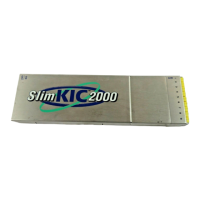
• SlimKIC 2000: Verify that the Receiver is plugged into a COM port on the PC (if you have the
transmit version this needs to be in close proximity to the oven) and the power supply is plugged
into the cable and a power source as well.
• KIC Explorer: Verify that the Base Station is connected to a USB port on the PC (if you have the
transmit version this needs to be in close proximity to the oven).
• SlimKIC 2000: The Red LED on the Receiver should be on.
• The KIC Explorer Base Station will not have any LEDs on until the KIC 2000 software is running
and communicating with the KIC Explorer.
• SlimKIC 2000-Data log model make sure you have the download cable plugged into a COM port
on the PC and the small round 8-pin end plugged into the SlimKIC 2000.
• KIC Explorer-Data Log model make sure you have the download cable connected to a USB port
on the PC and the other end connected to the KIC Explorer.
2. Global Preferences (Top-Left button)
• Choose your units for conveyor speed and distance, temperature, and weight. Set the Maximum
Product Start Temperature. All of the thermocouples being used for the profile must be below this
temperature in order to start a profile. It is best to set this at about 5 degrees Celsius above the
average room temperature, or just leave it at the default setting.
• If you are using Auto-Focus software option, select the units for weight.
• If you are using Auto-Focus software option, an Auto Focus Tab will be added. You can change
the Profile Optimization Settings and Conveyor Speed Constraints if needed, or just leave it at the
default setting.
• Click on the Green Checkmark button when finished.
3. Define/Edit Process Window (Middle-Left button)
• Click on the Solder Paste Menu.
• Choose the paste you are using. If it is not on the list then choose User Defined from the list. You
will need to enter you own specifications.
• Click on the Green Checkmark button.
• If you need to make adjustments to the spec limits or create your own click on the Edit Specs
button.
• Click on the checkboxes for the specs you want to use, and then fill in the temperature and time
limits.
• Click on the Green Checkmark button.


 To Next Page