2.12
Basic operation
Your machine’s copier features
Your machine has the following copier features:
• Single copy (see the right column on this page)
• Stacking multiple copies (see page 2.13)
• Sorting multiple copies (see page 2.13)
• Enlarged or reduced copies (see page 2.13)
• Negative/positive copy (Reverse black and white areas) (see page 2.17)
Basic copy procedure
1
Press
COPY
/
FAX
to change to
Copy mode.
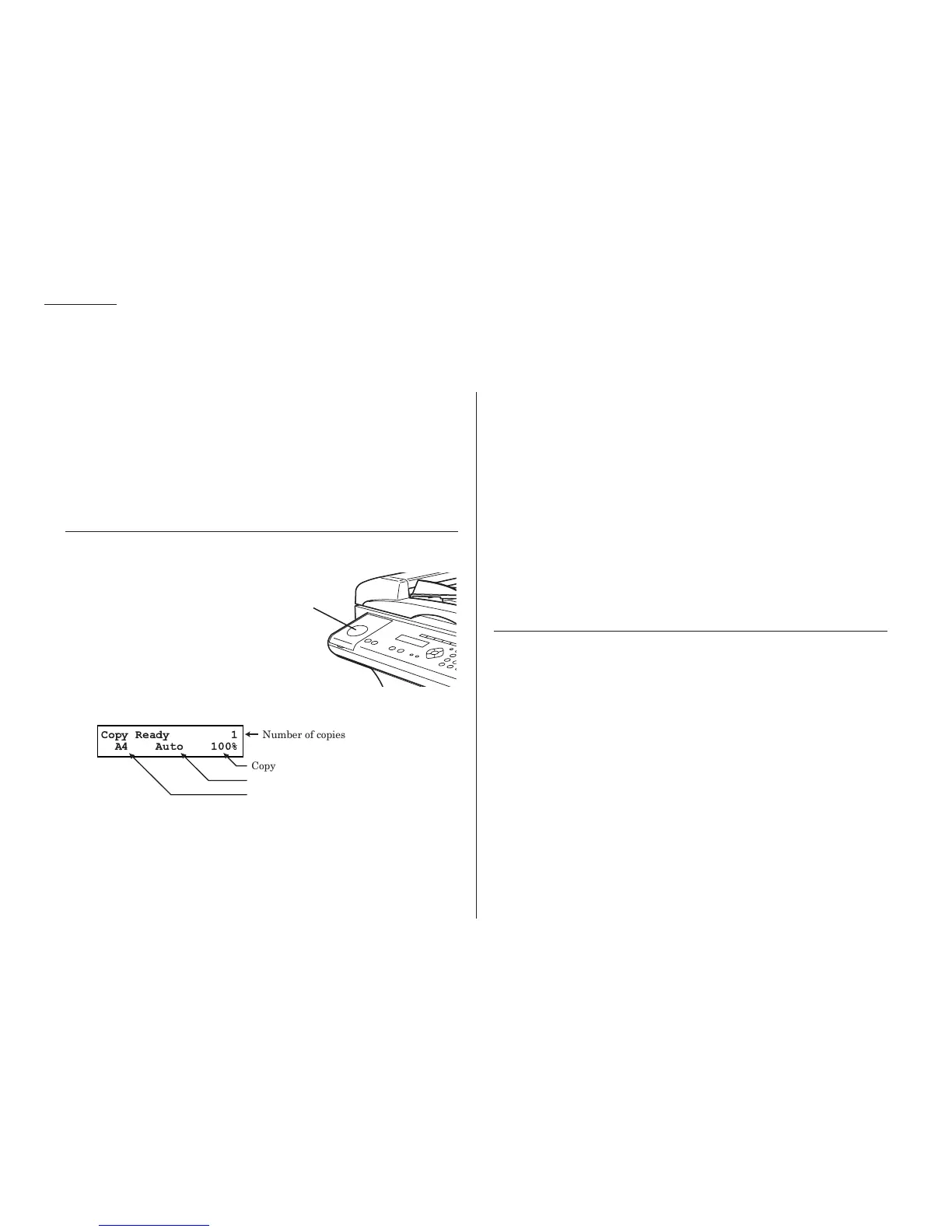
When the machine is in the Copy mode, the
LCD
shows:
Note: For details about each item, see “Making copy settings,” pages
2.15–2.16
2
Place your original document in
ADF
face up, or on the platen glass face
down just as you would to send a fax.
3
Enter the document size by pressing the
DOCUMENT SIZE
.
4
As needed, set the following:
• Select document type and adjust image contrast
• Enter the number of copies
• Set copy reduction or enlargement ratio
Note: For details about each item, see “Making copy settings,” pages
2.15–2.16.
5
Press
START
.
Note: To reset the copy parameter to default setting, press
COPY RESET
.
Note: To stop the copying, press
STOP
.
Single copy
1
Press
COPY
/
FAX
to change to Copy mode.
2
Place your original document in
ADF
face up, or on the platen glass face
down just as you would to send a fax.
3
If you are using platen glass, enter the document size by pressing the
DOCUMENT SIZE
.
4
As needed, set the following:
• Select document type and adjust image contrast
• Set copy reduction or enlargement ratio
Note: If you want to enlarge copy, use the platen glass.
5
Press
START
.










 To Next Page