EasyManua.ls Logo

Konica Minolta 7013 - User Manual

Konica Minolta 7013
150 pages
Print Icon
To Next Page IconTo Next Page
Loading...
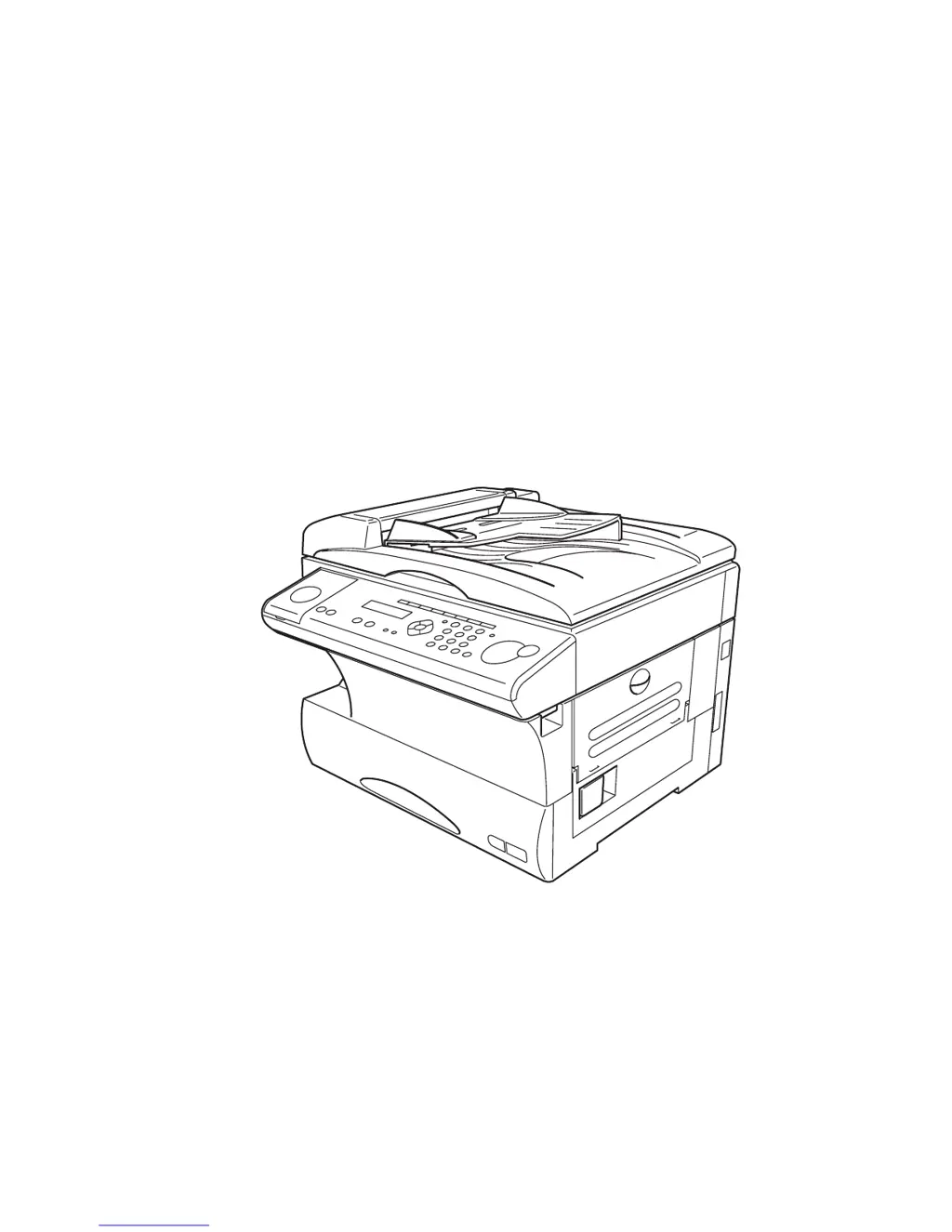
Konica 7013
Operating Instructions
Plain-paper digital Fax/Copier/Printer

Table of Contents

Other manuals for Konica Minolta 7013

Questions and Answers

  • W
    wellsmarkSep 23, 2025
    What does 'Dialing errors - D.0.6' mean on my Konica Minolta 7013 and how to resolve it?
    • I
      istewartSep 23, 2025
      The 'Dialing errors - D.0.6' message on your Konica Minolta All in One Printer means that either the remote unit didn’t respond, the call somehow didn’t go through or STOP was pressed during dialing. Try the call again.
  • D
    David HensonAug 25, 2025
    How to fix communication error on Konica Minolta All in One Printer?
    • A
      alexanderhernandezAug 25, 2025
      If a communication error disrupts the reception or transmission on your Konica Minolta All in One Printer, here's what to do: If you were transmitting, press STOP to clear the error message and then retry the transmission. If you were receiving a fax, try contacting the other person and have them retry the transmission.
  • L
    Larry PearsonAug 25, 2025
    What does 'Open Top Cover' mean on my Konica Minolta 7013 All in One Printer and how to fix it?
    • D
      Dr. Kayla ThomasAug 26, 2025
      The 'Open Top Cover' message on your Konica Minolta All in One Printer indicates a paper jam. Open the cover indicated on the LCD, and carefully remove the jammed paper.
  • K
    Kara SchmidtAug 26, 2025
    What to do if Konica Minolta 7013 All in One Printer says 'TONER EMPTY'?
    • D
      dhernandezAug 27, 2025
      If your Konica Minolta All in One Printer displays 'TONER EMPTY', you need to replace the toner cartridge. The machine cannot print until a new toner cartridge is installed.
  • G
    Gina GriffinAug 27, 2025
    Why does my Konica Minolta 7013 All in One Printer say 'No Toner Cartridge'?
    • A
      Anthony RobinsonAug 27, 2025
      The 'No Toner Cartridge' message on your Konica Minolta All in One Printer means the toner cartridge is either missing or not properly installed. Please properly install the toner cartridge.
  • R
    Richard SmithSep 14, 2025
    What does 'Alarm Check Memory Tx' mean on my Konica Minolta 7013 All in One Printer and how to solve it?
    • H
      hallmonicaSep 14, 2025
      The 'Alarm Check Memory Tx' message on your Konica Minolta All in One Printer means that the memory transmission setting is OFF. Set the Memory Tx to ON, then try again.
  • H
    Haley WilliamsSep 12, 2025
    What does 'Ration must be 100%' mean on my Konica Minolta 7013 All in One Printer and how can I fix it?
    • K
      Kevin KelleySep 12, 2025
      The message 'Ration must be 100%' on your Konica Minolta All in One Printer means that you cannot set the magnification ratio in Negative/Positive copy or Ultra copy mode. Set the magnification ratio to 100 % to use the Negative/Positive copy or Ultra copy mode.
  • E
    Emma ChapmanSep 13, 2025
    What does 'Macro In Use' mean on my Konica Minolta 7013 All in One Printer and how do I resolve it?
    • M
      Mr. Michael KelleySep 13, 2025
      The 'Macro In Use' message on your Konica Minolta All in One Printer means that the Soft key has been programmed in a Macro key. Erase the Macro key, then try again.
  • S
    Scott CraigSep 4, 2025
    What to do if Konica Minolta 7013 says 'TONER ALMOST EMPTY'?
    • R
      Rodney NobleSep 4, 2025
      If your Konica Minolta All in One Printer displays 'TONER ALMOST EMPTY', it means the machine is almost out of toner. Please contact your authorised Konica dealer soon to purchase a new toner cartridge if you don’t already have one.
  • W
    williamsedwardSep 2, 2025
    Why does my Konica Minolta All in One Printer say 'The machine is out of paper'?
    • A
      alexanderkennedySep 2, 2025
      The 'The machine is out of paper' message on your Konica Minolta All in One Printer means that a different sized paper which is not same sized paper you told your machine is loaded. Set correct sized paper or change the paper size setting.

Summary

Konica 7013 Operating Instructions

Before using your Konica fax machine

Getting started

Control Panel Overview

Control Panel Features

Explains the function of each button, light, and display element on the control panel.

Installing the printing supplies

Toner and Drum Cartridge Installation

Step-by-step guide for installing the toner and drum cartridges.

Plug in and power up

Connecting and Initial Power On

Steps for connecting the telephone and power cords and turning the machine on.

Basic Operations

Sending Faxes

Detailed guide on how to send fax documents.

Receiving Faxes

Information on how the fax machine receives incoming messages.

Making Copies

Instructions on how to use the machine's copying capabilities.

Sending faxes

Memory Transmission Modes

Memory Transmission

Using the machine's memory to send documents efficiently.

Receiving faxes

Reception Modes

Explains the different modes for receiving faxes and calls.

Making copies

Advanced Features

Autodialer Functions

Storing and dialing frequently used phone and fax numbers.

Broadcast and Delayed Transmission

Sending faxes to multiple recipients or scheduling transmissions.

Batch Transmission

Storing documents in electronic baskets for later transmission.

Autodialer

Autodialer Basics and Special Characters

Overview of autodialer types and special dialing characters.

Using One-Touch Keys

How to enter, change, and erase one-touch dial entries.

Speed Dial Numbers

Entering and Managing Speed Dial

Instructions for storing, erasing, and printing speed dial entries.

Broadcasting

Sending and Delayed Broadcasts

How to send a single document to multiple recipients, immediately or at a scheduled time.

Batch Transmission

Creating and Modifying Batch Boxes

Setting up electronic baskets to store documents for batch faxing.

Polling

Regular Polling Operations

How to set up the machine to retrieve documents from other fax machines.

F-Code Boxes

Creating and Modifying F-Code Boxes

Step-by-step guide to setting up F-Code boxes for secure communication.

Programmable One-Touch Keys

Programming One-Touch Keys

How to teach keys to perform complex operations with a single press.

Programming F-Code Transmission

Setting Up F-Code Transmission

How to program a one-touch key for F-Code fax transmissions.

Programming F-Code Polling

Setting Up F-Code Polling

How to program a one-touch key for F-Code polling operations.

Programming a Batch Transmission

Setting Up Batch Transmission via One-Touch Key

How to program a one-touch key to initiate batch transmissions.

Security Features

The Passcode and Security Reception

How to set a passcode and activate security reception for received faxes.

Masking the PIN

Activating and Using PIN Mask

How to protect PINs during autodialing and batch transmission.

Setting Block Junk Fax

Changing the Default Settings

Settings for Transmission

How to configure default parameters for sending faxes.

Settings for Transmission

Scan Settings Configuration

How to set default resolution and contrast for scanning.

Memory and TTI Transmission Settings

Settings for Reception

Just in case …

Clearing Paper Jams

Step-by-step guide to safely remove jammed documents from the ADF.

Troubleshooting LCD Errors

Explains LCD error messages and their corresponding solutions.

Clearing Printout Jams

Removing Jammed Printouts

Instructions for clearing paper jams from the printer area.

Print Quality Problems

Troubleshooting Common Errors

Interpreting LCD Error Messages

Explains meanings of various LCD messages and how to resolve them.

Understanding Fax Errors

Error Codes and Reports

Explains error codes and how to interpret fax error reports.

Receiving Faxes and Polling

Konica Minolta 7013 Specifications

General IconGeneral
Print Resolution600 x 600 dpi
Copy Resolution600 x 600 dpi
Paper Capacity250 sheets
Scan Resolution600 x 600 dpi
Fax (Optional)Yes
Fax Speed33.6 Kbps
FunctionsPrint, Copy, Scan, Fax
Hard Disk DriveOptional
InterfaceEthernet
Print Speed (Color)Not applicable
ConnectivityEthernet

Related product manuals