2.15
Basic operation
Memory overflow message
If you’ve stored too much information in your machine’s memory, a “Memory
Overflow” message may appear on the
LCD
:
This appears because (1) too many pages have been stored in the memory, or (2)
the pages that are stored have too much information on them for your fax machine
to remember.
If this message appears, press
START
to tell your machine to copy as many pages in
memory, or press
CANCEL
to delete from memory all pages stored during the current
operation (but not previous operations).
Note: If you don’t operate your machine within 60 seconds, the machine will auto-
matically print the document stored in the memory during the current
operation.
If the paper runs out while copying
When your machine runs out of paper, it beeps, the red light
of the printer status lights glows and the
LCD
shows which
source has run out of paper – the 1st cassette, 2nd cassette
(optional) or the bypass tray.
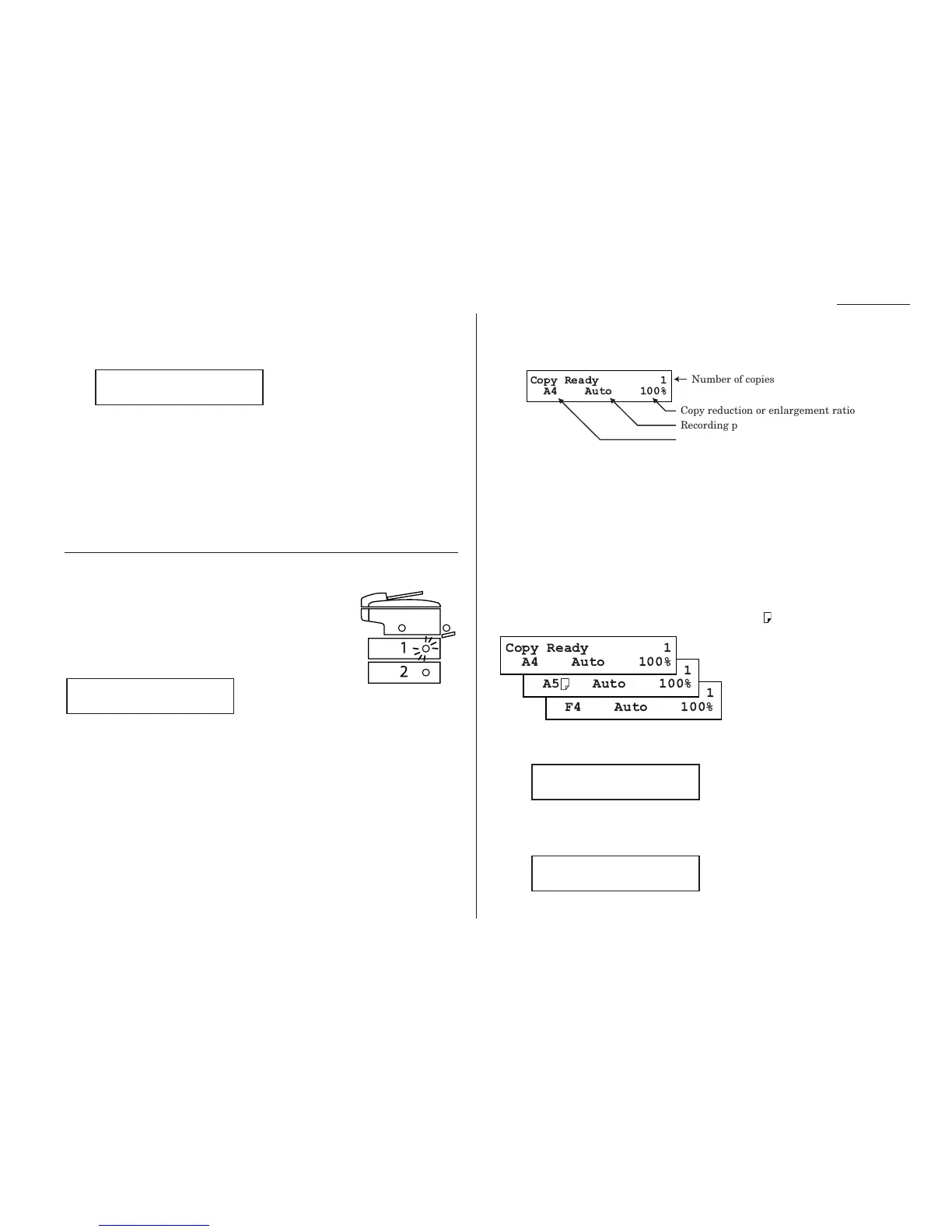
In this example, the machine runs out of the paper in the 1st
cassette:
If you want to cancel the current copying job, press
STOP
. Otherwise, supply the
paper to displayed paper source to resume the copying.
Making copy settings
When the machine is in the Copy mode, the
LCD
shows:
Number of pages
Use the numeric keypad to enter the desired number of copies for the document.
Copy reduction or enlargement rate
Your fax machine can make enlarged and reduced copies. For more information, see
“Enlarged or reduced copies,” pages 2.13–2.14.
Document size
To select the document size manually, press
DOCUMENT SIZE
repeatedly until your
desired document size appears. You can choose the A4, A5 or F4:
Note: When the document size is set to “Auto” (see “Setting copy auto,” page 4.7)
you may see the
LCD
as below:
[ ] means the machine automatically select the document size.
Note: According to the magnification ratio or recording paper size, the document
size will be not displayed:
Copy Ready 1
----- A4 50%
Copy Ready 1
[ A4 ] A4 100%










 To Next Page