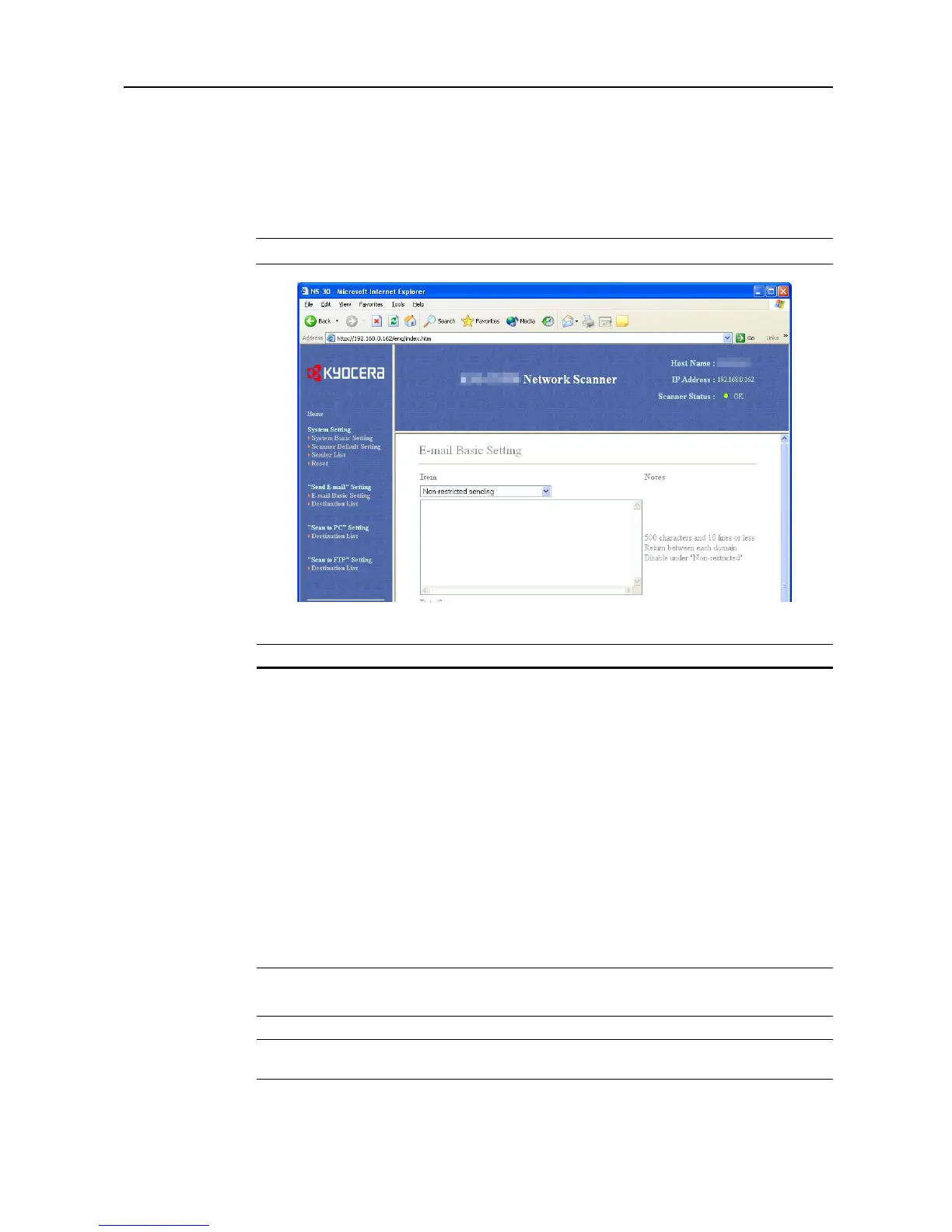
Setting Scanner from a Web Browser
2-19
Send E-mail Setting
This section explains the settings for sending scanned images to computers via e-mail.
E-mail Basic Setting
Set the basic components here for sending e-mail.
IMPORTANT: Press the Registration button after making changes.
Setting Item Description
Item <Destination Domain Setting>
Select destination domain from Non-restricted sending/Permitted
destination domain names/Restricted destination domain names.
Select Non-restricted sending to allow e-mail to be sent to any
domain and ignore domain registration settings.
Select Permitted destination domain names to only allow e-mail to
be sent to addresses belonging to domains that match the contents of
the registered domain list.
Select Restricted destination domain names to only deny e-mail
transmission to addresses belonging to domains that match the
contents of the registered domain list.
<Domain Data>
Enter the domain data. Enter each domain separated by a line feed
using less than 500 characters. Up to 10 domains may be registered.
Any character, such as the asterisk (*), cannot be used as a wildcard.
Enter as ‘com’ to search all.
Data Size Sets the upper limit for the image data size that can be sent per e-mail.
Non-restricted/High (2048 KB)/Mid (1024 KB)/Low (512 KB)
Subject Input an e-mail subject using less than 32 characters.
Body Enter the e-mail message body into this field. Text less than 500
characters long can be registered as e-mail message bodies.







 To Next Page