Setting Scanner from a Web Browser
2-8
IMPORTANT: Always press the Registration button after making changes.
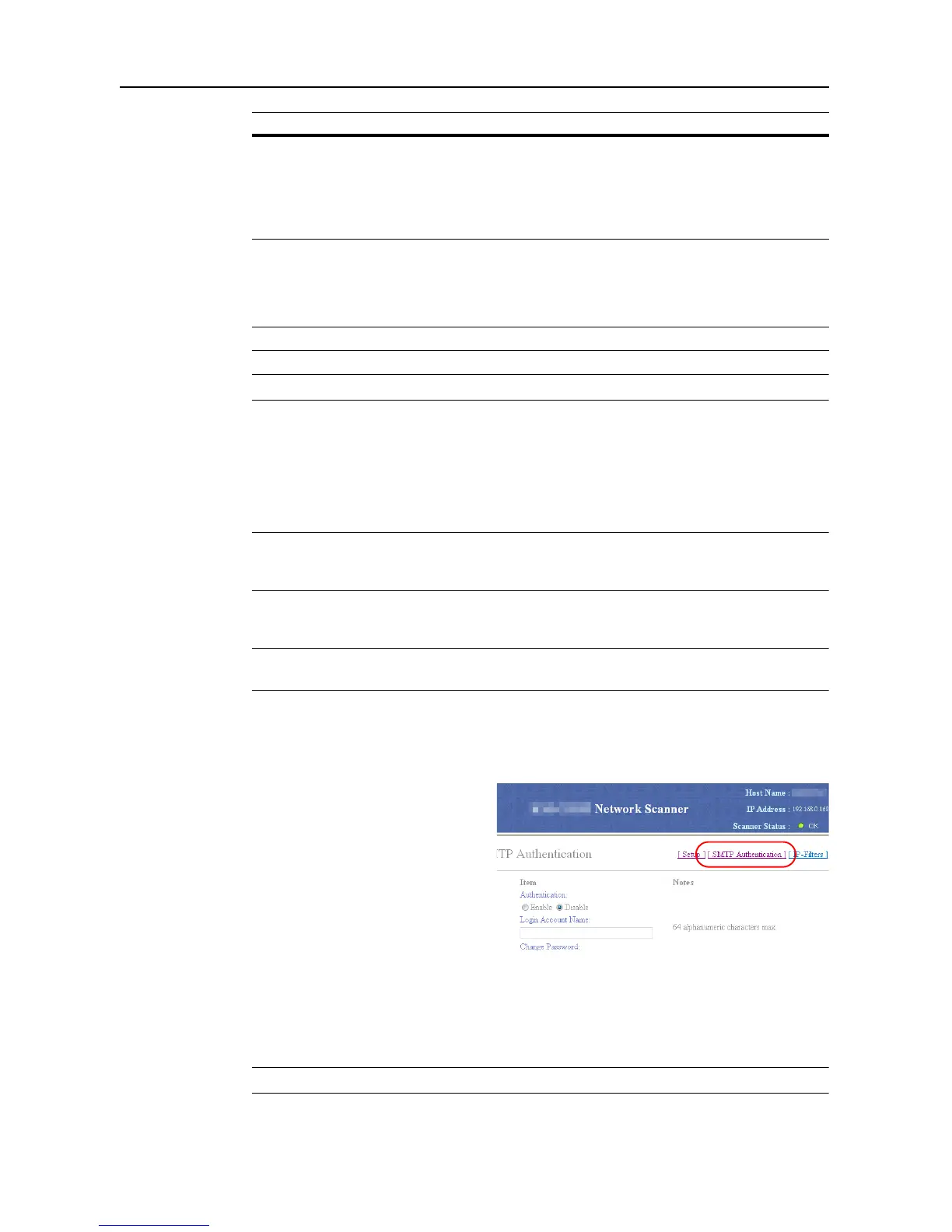
SMTP Authentication
The authentication entries on the SMTP page are used to supply credentials when the SMTP server
requires authentication for sending e-mail. If the SMTP server is off-site, such as at an ISP, it will
almost certainly require authentication for sending e-mail.
NOTE: Even when the SMTP server is on-site, authentication may be essential for preventing the
SMTP server from becoming an open mail relay. The following discussion relates to Microsoft
Exchange, but is generally applicable to other SMTP servers as well.
The SMTP Server Authentication settings process is as follows.
NOTE: Once SMTP server authentication (for administrators) has been configured, each user (up to
40) can be added to SMTP Server Authentication. (See page 2-12)
1
Enter the scanner's IP address into the Web browser to show the scanner home page.
2
Click System Basic Setting at the left side of the screen.
3
Select SMTP Authentication.
4
Choose Enable.
5
Enter the Login Account Name to use in SMTP server authentication.
6
To enter a new password or change a password, set Change Password to Yes.
NOTE: To skip changing the password, set to No and proceed to Step 9.
7
Enter the new password in the New Password field.
Firmware update There is a great security risk if anyone could be allowed to update the
firmware without administrator permission. Network instability may occur if
someone other than the network were to intentionally or accidentally replace
the firmware with an inappropriate firmware version. To address this concern,
a security feature is provided to prevent unauthorized firmware upgrades. To
allow firmware upgrades, set to Enable; to deny, set to Disable.
Registration Button After entering New Password and Confirm New Password, click the
Registration button to save the new password to the scanner. After clicking
the Registration button, an error is displayed if the entry under Confirm New
Password does not match the entry under New Password, or if the entry is
blank.
Reset Button Click the Reset button to reset any changes to the setting options.
Display Description







 To Next Page