Scanner Settings
1-15
Continuous Sending
Use the same settings from a previously completed transmission for the next transmission. The
scan function screen is returned with the sender (user), destination and other settings remaining
from the previous operation.
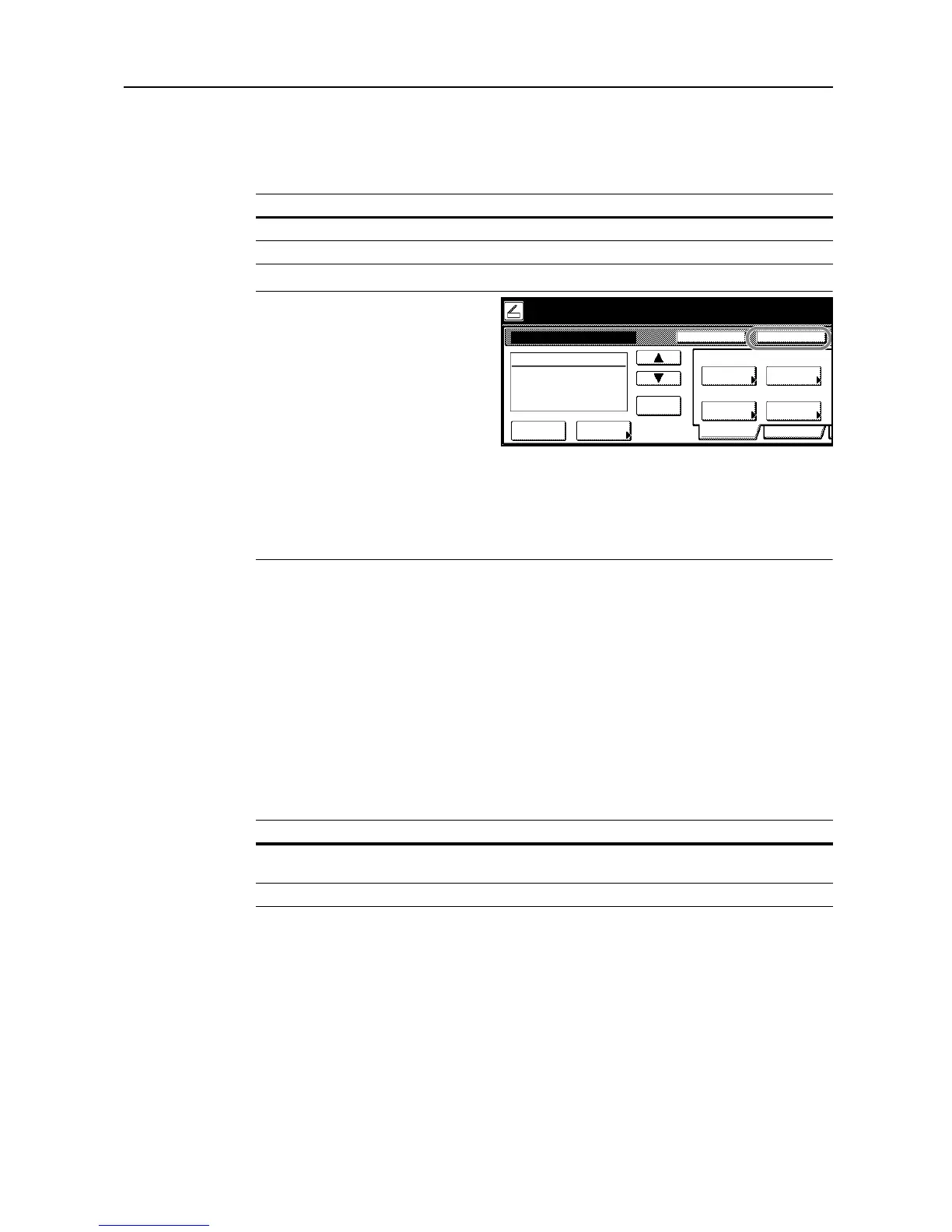
NOTE: To switch to continuous sending
from the scanner function screen, press
[Cont. TX to]. When continuous sending
is enabled, [Cont. TX to] changes to
[Single Scan]. To disable Continuous
Sending, press [Single Scan].
If Permit File Overwrite is checked in
Scanner File Utility (see page 3-8), files
with already existing names will be
overwritten. Exercise caution when
inputting file names during Continuous Sending mode.
When finished using Continuous Sending, always [Cancel] on the scanner function screen. If not
pressed, the scanner function screen may remain active, rendering the copy, print or fax functions
unusable. Also, exercise caution as unauthorized users may obtain access to the device while this
screen is displayed.
1
Referring to Accessing the Setting default function Screen on page 1-11, access the Setting default
function screen.
2
Press [] or [] to select Continuous Sending and press [Change #].
3
Select [On] or [Off].
4
Press [Close]. The display returns to the Setting default function screen.
File Name Entry
File Name Entry on page 1-5 configure the machine to display the filename input box without
displaying the auto/manual selection screen. Doing so allows this operation to be skipped each time
when entering filenames.
1
Referring to Accessing the Setting default function Screen on page 1-11, access the Setting default
function screen.
2
Press [] or [] to select File Name entry and press [Change #].
3
Select [Manual] or [Auto/Manual].
4
Press [Close]. The display returns to the Setting default function screen.
Item Description
On Enables Continuous Sending.
Off Disables Continuous Sending.







 To Next Page