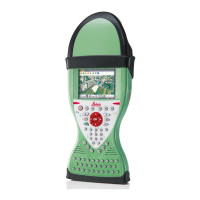
CS10/CS15 & GS Sensors, User Interface
28
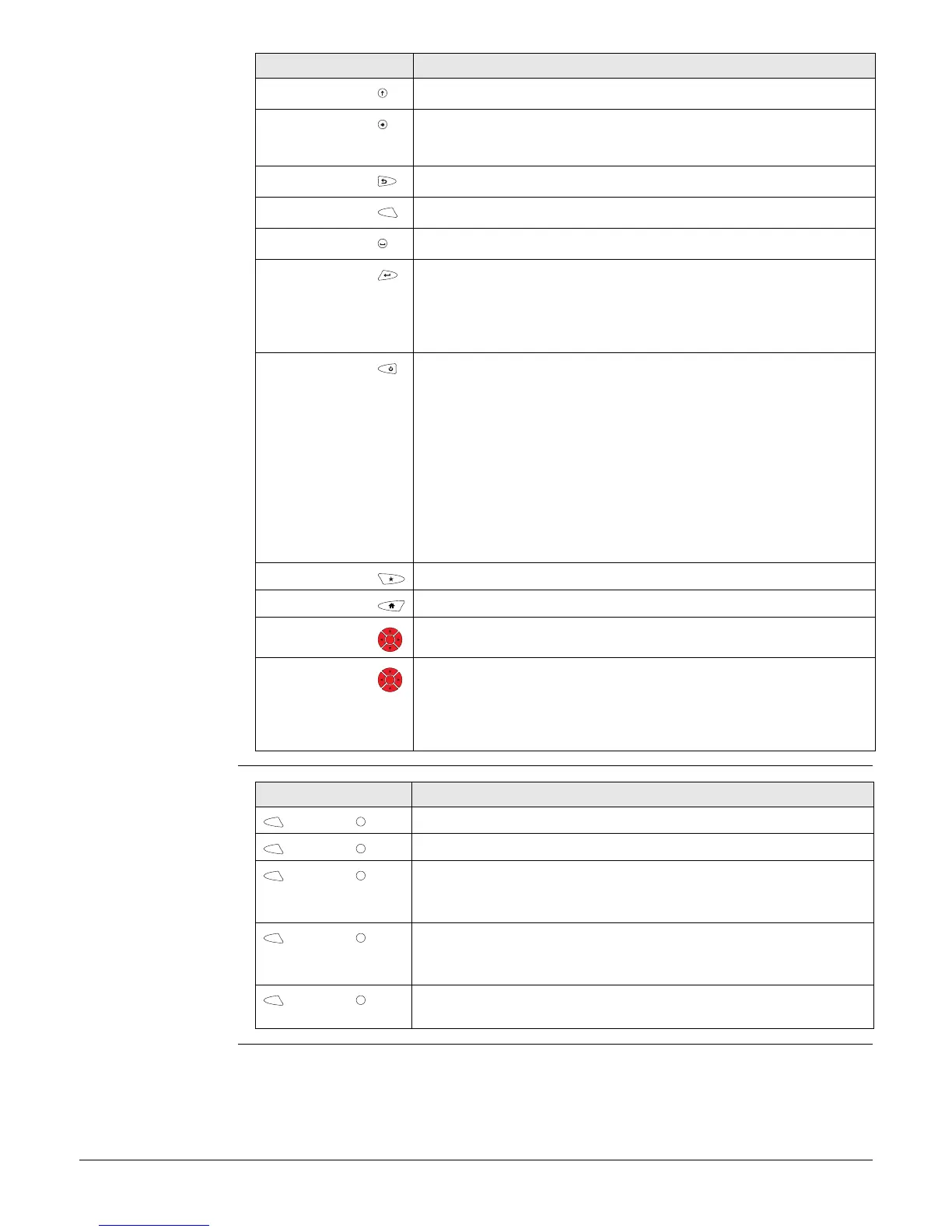
Key combinations
Caps Lock Switches between upper case and lower case letters.
Backspace Clears all entry at the beginning of user input.
Clears the last character during user input.
Esc Leaves the current screen without storing any changes.
Fn Switches between the first and second level of function keys.
Space Enters a blank.
Enter Selects the highlighted line and leads to the next logical
menu/ dialog.
Starts the edit mode for editable fields.
Opens a selectable list.
ON/OFF If CS10/CS15 already off: Turns on CS10/CS15 when held for
2s.
If CS10/CS15 in stand-by mode: Turns on CS10/CS15 when held
<2s.
If CS10/CS15 already on:
• Puts CS10/CS15 into stand-by mode when held < 2 s. Refer
to "Stand-by".
• Turns to Power Options menu when held for 2 s. Refer to
"Power Options menu".
• Turns off CS10/CS15 when held for 5 s.
Favourites Goes to a website by simply clicking its name.
Home Switches to the Windows CE Start Menu.
Arrow keys Move the focus on the screen.
OK Selects the highlighted line and leads to the next logical
menu/ dialog.
Starts the edit mode for editable fields.
Opens a selectable list.
Key Function
Fn
OK
OK
Key Function
+Hold Fn while pressing 4. Increase the screen brightness.
+Hold Fn while pressing 7. Decrease the screen brightness.
+Hold Fn while pressing 6. Increase the volume for acoustic
warning signals, beeps and keypresses on the CS field
controller.
+Hold Fn while pressing 9. Decrease the volume for acoustic
warning signals, beeps and keypresses on the CS field
controller.
+Hold Fn while pressing .. Take a screenshot of the current
SmartWorx Viva screen.
Fn
4
Fn
7
Fn
6
Fn
9
Fn
.



 To Next Page