12
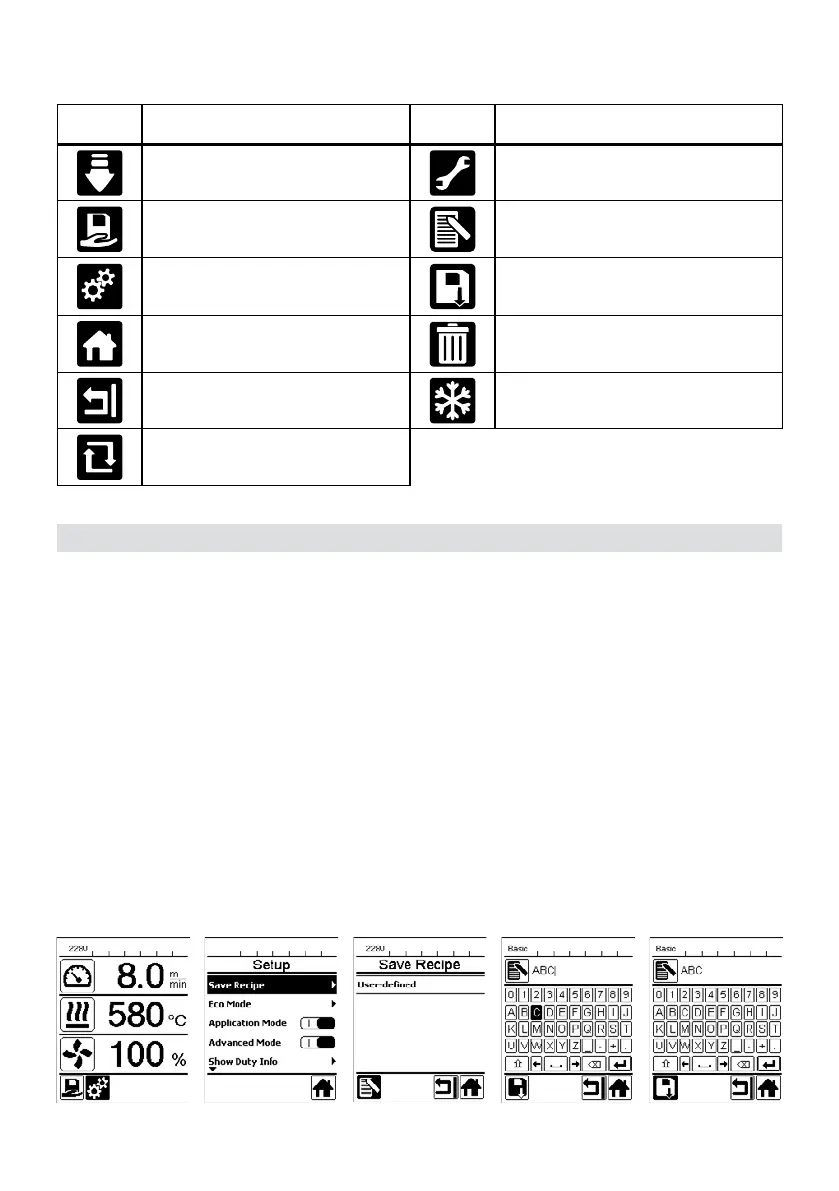
Display symbols of the menu selection (Display 42)
Use the Arrow keys (26, 27) to select one of the available menus on the control panel (4).
Your UNIPLAN 500 has more than 15 freely definable recipes and the "BASIC" recipe available.
"Save Recipes" can be used to save the setpoint settings for the drive, air temperature and air flow range welding
parameters under a freely selectable designation (see Input recipe names).
Creating a new recipe
Set up the desired setpoints [Working display, "e-Drive" (31)]
Select and confirm the "Settings" menu [Menu selection, "e-Drive" (31)]
Select the "Save Recipes" menu [Menu selection, "e-Drive" (31)]
Select and confirm the "User-defined" menu [Menu selection, "e-Drive" (31)]
Select and confirm the "Edit selected item" menu [Menu selection, "e-Drive" (31)]
Enter the desired recipe name, select Enter on the keyboard (see Inputting recipe names), and confirm [Menu
selection, "e-Drive" (31)]
Select and confirm the "Save" menu [Menu selection, "e-Drive" (31)]
Your newly created recipe is now saved and can be accessed at any time under the name that has been entered.
Setup menu on the UNIPLAN 500 control panel
Symbol Meaning Symbol Meaning
Turn the drive on/o
Call up the Service menu (password-pro-
tected)
Select a saved welding
profile
Edit the current settings / current profile
Adjust the settings Save the current settings / current profile
Go to the initial screen (Home) Delete the current settings / current profile
Go to the previous view/one level back Initiate the cooling process
Reset to the factory settings (Reset)
Setting up, saving, and selecting recipes (Save Recipes)





 To Next Page