2. Start Lenovo Vantage program, and then click Hardware Settings ➙ Power. The ac power adapter
information is displayed.
Ensure that you use the USB-C type ac power adapter that is shipped with the computer to provide enough
power to the computer. Otherwise, a message will be displayed, prompting you that the computer will not be
charged or will be charged slowly.
Checking the built-in battery and operational charging
This computer supports only batteries specially designed for this specific system and manufactured by
Lenovo or an authorized builder. The system does not support unauthorized batteries or batteries designed
for other systems. If an unauthorized battery or a battery designed for another systems is installed, the
system will not charge.
Attention: Lenovo has no responsibility for the performance or safety of unauthorized batteries, and
provides no warranties for failures or damage arising out of their use.
The battery status icon in the Windows notification area displays the percentage of the remaining battery
power.
Move your pointer to the battery-status icon in the Windows notification area to check the battery status. The
battery-status icon displays the percentage of battery power remaining and how long you can use your
computer before you must charge the battery.
To check whether the battery charges properly during operation, do the following:
1. Discharge the battery until the remained battery power is less than 50%.
2. Connect the computer to ac power to charge the battery. If the battery status icon in the Windows
notification area indicates that the battery is not charging, remove the battery and let it return to room
temperature.
3. Reinstall the battery. If the battery is still not charging, replace the built-in battery.
4. Check the battery status icon again. If the same error still exists, replace the system board.
Checking the coin-cell battery
To check the coin-cell battery, do the following:
1. Remove the coin-cell battery. See “1120 Coin-cell battery” on page 83.
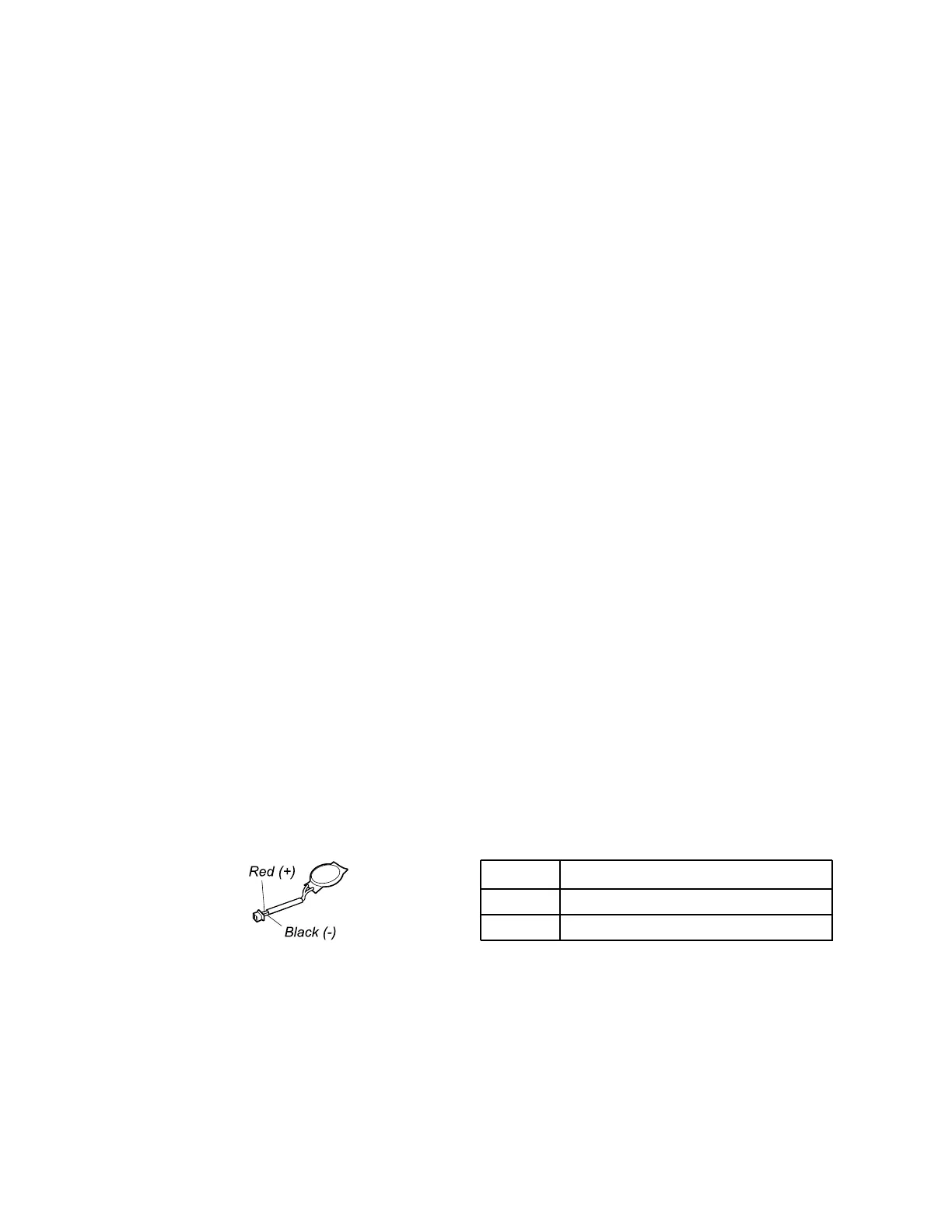
2. Measure the voltage of the coin-cell battery. See the following illustration.
Wire
Voltage (V dc)
Red +2.5 to +3.2
Black
Ground
• If the voltage is correct, replace the system board.
• If the voltage is not correct, replace the coin-cell battery.
• If the coin-cell battery discharges quickly after replacement, replace the system board.
Chapter 3. General checkout 29





 To Next Page