272
8-2. Setup
6 Select a phone type for the phone
number.
*
: For PBAP compatible Bluetooth
®
phones, this function is available when
“Automatic Transfer” is set to off.
(P.271)
When an Android Auto connection is
established, this function will be
unavailable.
*
*
: This function is not available in some
countries or areas.
When the contact is not registered
1 Select “Transfer Contacts from
Device”.
2 Select “From Phone (Bluetooth)”.
3 Transfer the contact data to the sys-
tem using a Bluetooth
®
phone.
This operation may be unnecessary
depending on the type of Blue-
tooth
®
phone.
To cancel this function, select “Can-
cel”.
4 Check that a confirmation screen is
displayed when the operation is
complete.
When the contact is registered
1 Select “Transfer Contacts from
Device”.
2 Select “From Phone (Bluetooth)”.
3 Select “Replace Contacts” or “Add
Contact”.
“Replace Contacts”: Select to transfer the
contact from the connected cellular phone
and replace the current one.
“Add Contact”: Select to transfer the
desired contact data from the connected
cellular phone to add to the current one.
4 Transfer the contact data to the sys-
tem using a Bluetooth
®
phone.
This operation may be unnecessary
depending on the type of Blue-
tooth
®
phone.
To cancel this function, select “Can-
cel”.
5 Check that a confirmation screen is
displayed when the operation is
complete.
Backed-up contact data (“vCard” for-
matted) can be transferred from USB
device or Bluetooth
®
phone to this
system.
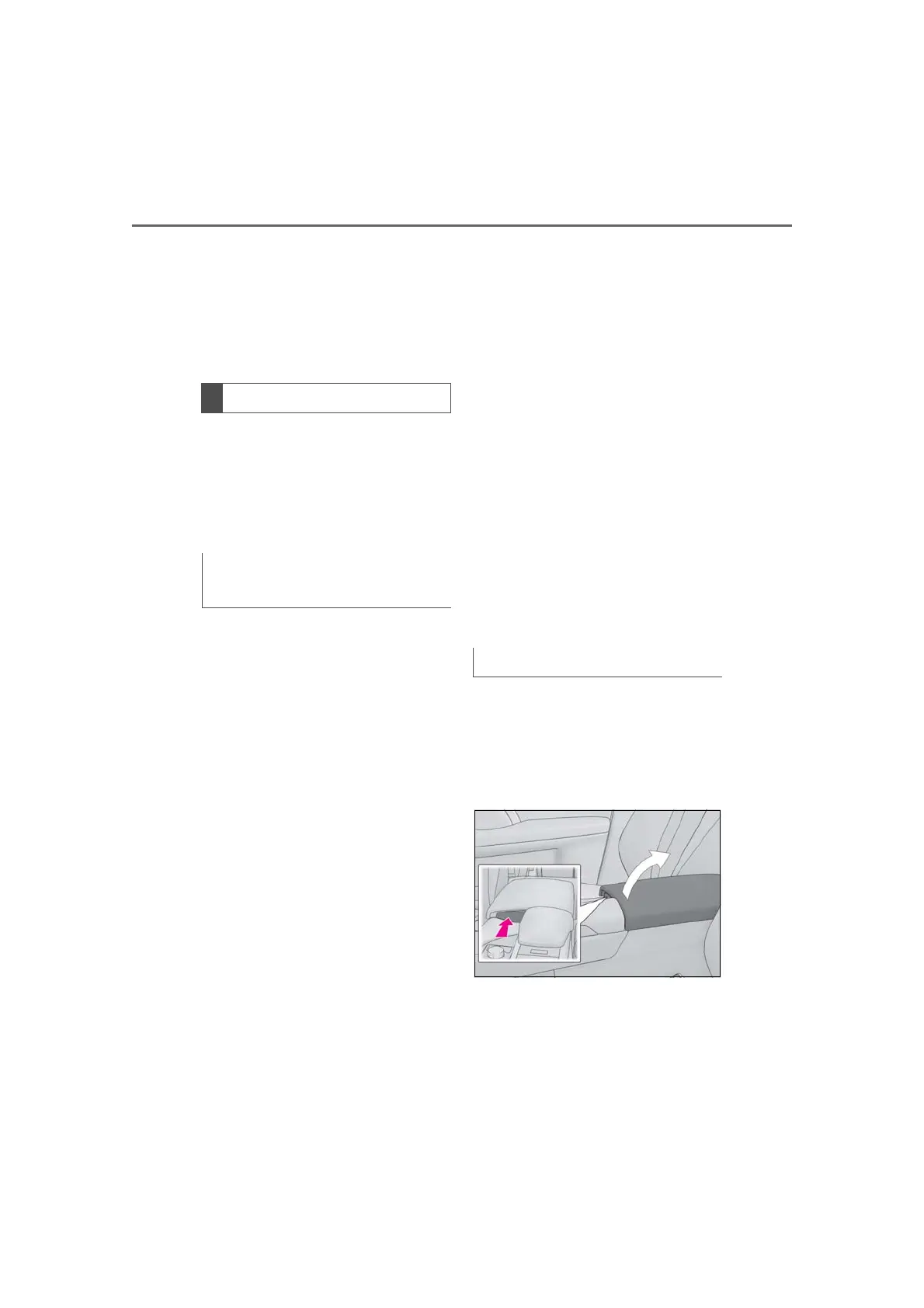
1 Push the knob.
Lift by hand to fully open the console
box.
Transfer contacts from device
From phone (OPP compatible Blue-
tooth
®
phones only)
From USB device


 To Next Page
 Loading...