271
8-2. Setup
8
Phone
Select to set the voice tags.
(P.275)
Select to reset all setup items.
*
: For PBAP compatible Bluetooth
®
phones, this function is available when
“Automatic Transfer” is set to off.
(P.271)
● Depending on the type of Bluetooth
®
phone, certain functions may not be avail-
able.
● Contact data is managed independently
for every registered phone. When one
phone is connected, another phone’s
registered data cannot be read.
The automatic contact/history function
is available for PBAP compatible Blue-
tooth
®
phones only.
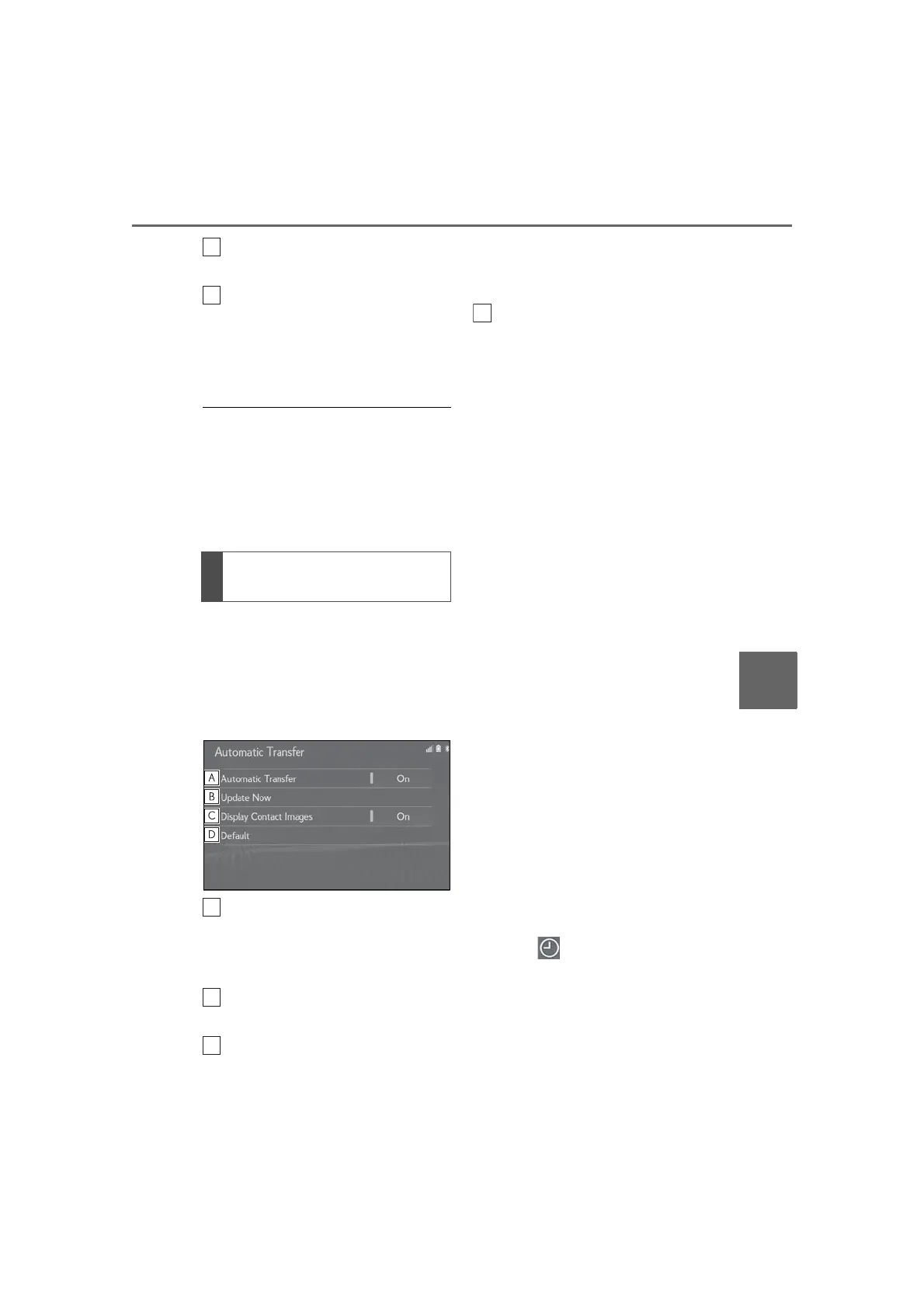
1 Select “Automatic Transfer”.
2 Select the desired item to be set.
Select to set automatic contact/his-
tory transfer on/off. When set to on,
the phone’s contact data and his-
tory are automatically transferred.
Select to update contacts from the
connected phone. (P.271)
Select to set the transferred con-
tact image display on/off.
Only when the vehicle is not mov-
ing, the contact image can be dis-
played.
Select to reset all setup items.
■ Updating contacts from phone
1 Select “Update Now”.
Contacts are transferred automati-
cally.
2 Check that a confirmation screen is
displayed when the operation is
complete.
This operation may be unnecessary
depending on the type of Blue-
tooth
®
phone.
If another Bluetooth
®
device is con-
nected when transferring contact
data, depending on the phone, the
connected Bluetooth
®
device may
need to be disconnected.
Depending on the type of Blue-
tooth
®
phone being connected, it
may be necessary to perform addi-
tional steps on the phone.
■ Updating the contacts in a differ-
ent way (from the call history
screen)
*
1 Press the “MENU” button on the
Remote Touch.
2 Select “Phone”.
3 Select “History” on the sub
menu and select a contact not yet
registered in the contact list.
4 Select “Update Contact”.
5 Select the desired contact.
Setting automatic contact/his-
tory transfer



 To Next Page