71
2-4. Other settings
2
Basic function
Remote Touch.
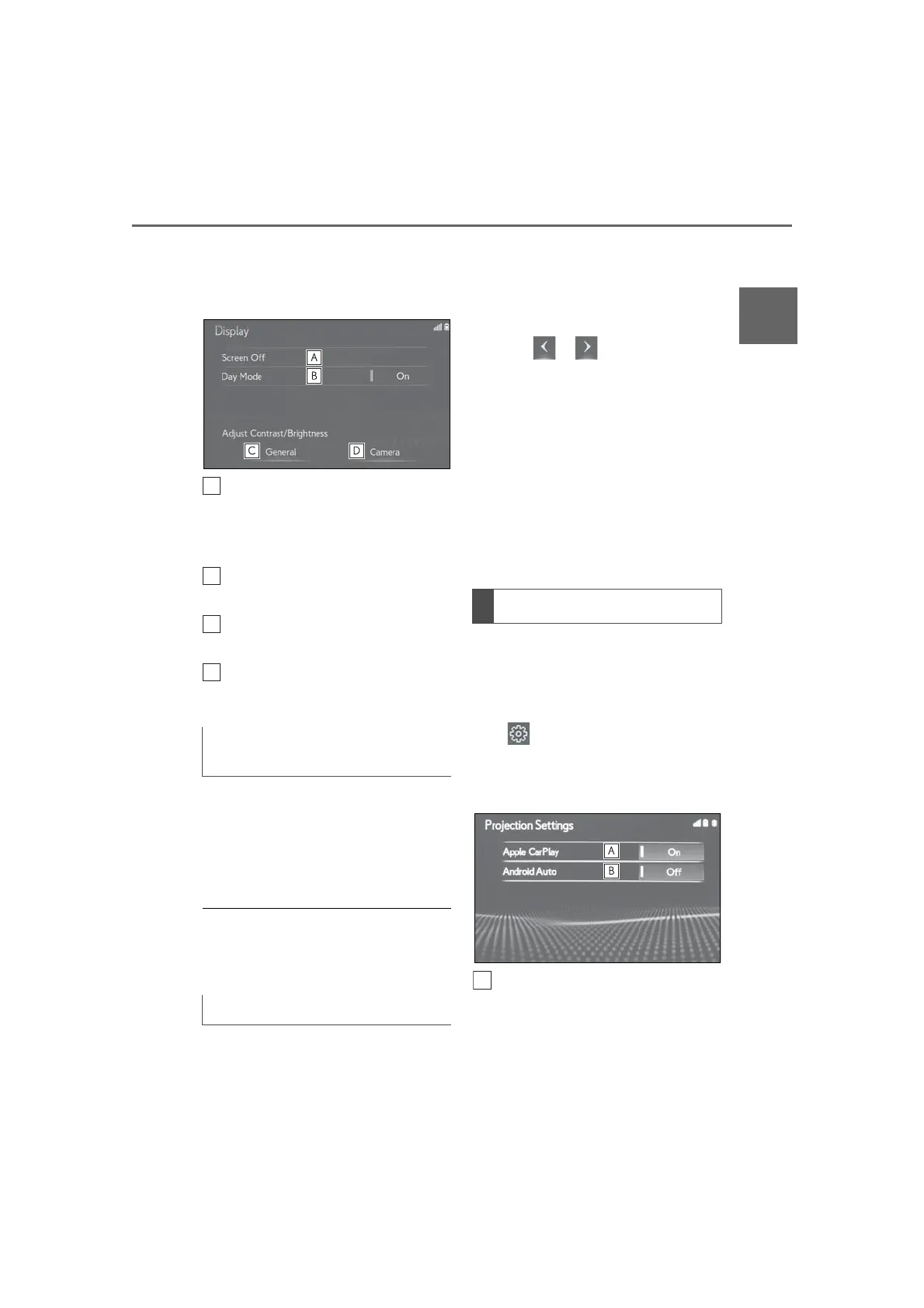
2 Select “Display”.
3 Select the desired items to be set.
Select to turn the screen off. To turn
it on, press any button on the audio
control switch or on the Remote
Touch.
Select to turn day mode on/off.
(P.71)
Select to adjust the screen display.
(P.71)
Select to adjust the camera display.
(P.71)
Depending on the position of the head-
light switch, the screen changes to day
or night mode. This feature is available
when the headlight is switched on.
1 Select “Day Mode”.
● If the screen is set to day mode with the
headlight switch turned on, this condition
is memorized even with the engine
<hybrid system> turned off.
The contrast and brightness of the
screen can be adjusted according to
the brightness of your surroundings.
1 Select “General” or “Camera”.
2 Select the desired item.
“Display (General)” screen only:
Select or to select the
desired display.
•“Contrast”
“+”: Select to strengthen the contrast of the
screen.
“-”: Select to weaken the contrast of the
screen.
• “Brightness”
“+”: Select to brighten the screen.
“-”: Select to darken the screen.
*
: This function is not available in some
countries or areas.
1 Display the general settings screen:
“MENU” button “Setup”
“General”
2 Select “Projection Settings”.
3 Select the desired items to be set.
Select to turn Apple CarPlay con-
nection establishment on/off when
a compatible iPhone is connected
to the system via USB. (P.61)
Depending on the system, this set-
Changing between day and night
mode
Adjusting the contrast/brightness
Projection settings
*



 To Next Page