APOP secure login - Choose to
activate APOP secure login for a
POP3 account. IMAP4 accounts
are always set to off.
Now your account is set up, it will
appear in the list of accounts in your
Email folder.
Retrieving your email
You can automatically or manually
check your account for new emails.
See Change your email settings on
page 42 to check automatically.
To check manually:
1 Touch then Messaging.
2 Select Mailbox.
3 Touch the account you want to
use then .
4 Choose Retrieve and your
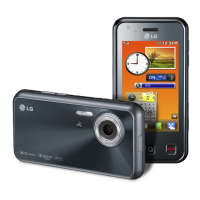
KC910 will connect to your email
account and retrieve your new
messages.
Sending an email using your
new account
1 Touch in the Communicate
menu to open a new blank
message.
2 You can enter the recipient’s
address and write your message.
You can also attach images,
videos, sounds or other file types.
3 Touch Send and your email will
be sent.
TIP! You can upload Word,
Excel, PowerPoint and PDF
documents to your KC910 so you
can review them on the move.


 To Next Page