PC Sync
Always ask mode
If you set the “Always ask mode”
as default, the phone will always
prompt you to select a type of USB
connection mode each time you
connect the phone to a PC via the
data cable. If you disable the “Always
ask mode”, the connection mode will
be the one you have manually set in
Menu - Settings - Connectivity - USB
Mode and one of the options Internet,
Mass Storage or PC Suite.You can
synchronise your PC with your phone
to make sure all your important
details and dates match, but also to
backup your files to put your mind
at ease.
Installing LG PC Suite on your
computer
1 From the home screen press and
choose Connectivity.
2 Select USB connection mode and
click OK.
Music - Music Sync mode.
Others - Data Service mode.
3 Insert the supplied CD into your
PC. Click on the LG PC Suite
Installer which will appear on your
screen.
4 Select the language you would like
the installer to run in and click OK.
5 Follow the instructions on the
screen to complete the LG PC Suite
Installer wizard.
6 Once installation is complete, the
LG PC Suite icon will appear on
your desktop.
Connecting your phone and PC
1 Connect the USB cable to your
phone and your PC.
2 Double click on the LG PC Suite
icon on your desktop.
3 Click on Connection Wizard, then
USB.
4 Click on Next, then Next again,
then Finish. Your phone and PC
are now connected.
PC Internet-Use your phone
as a modem
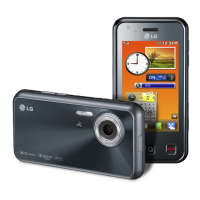
Now KC910 have made it easy to
browse the web and pick up emails
on your laptop or PC! Just plug in
the USB cable, then use your phone


 To Next Page